Looped Surveys Guide
Last updated: October 9, 2026
Introduction
The Looped Surveys feature allows you to distribute a Qualtrics survey into a single assignment and have that survey repeatedly open anew ("loop") whenever a student completes a response. You can specify a single Embedded data field whose value will be different in each loop (for example, one from a list of instructor names).
This contrasts to non-Looped survey configurations (e.g. Standard and In-class), which will only show the survey once and will not open it anew when the student completes their response.
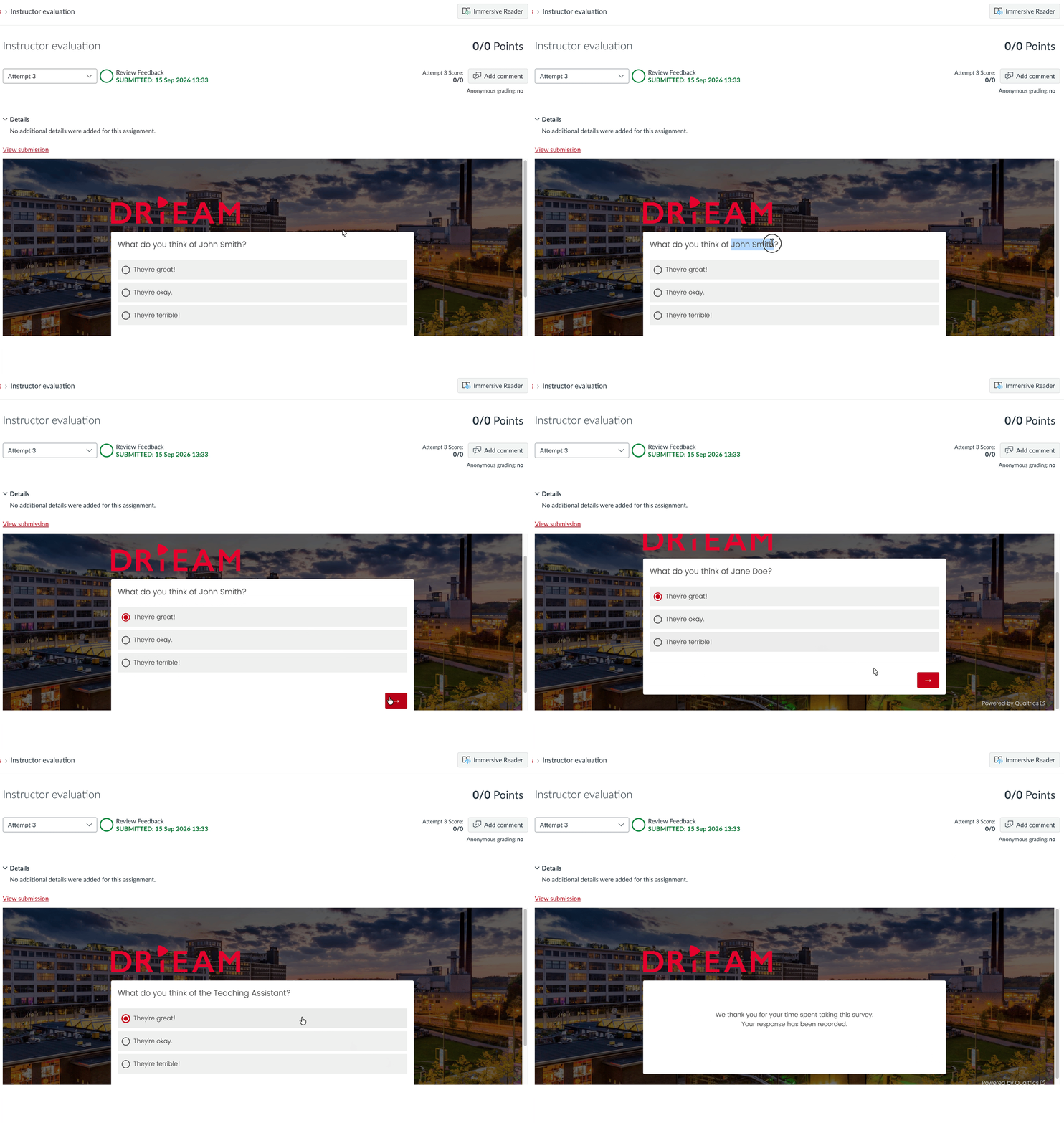
Use Cases
This feature is useful if:
You want students to be able to quickly and easily fill out feedback for multiple instructors.
You want to collect evaluation data for multiple instructors in a single survey.
You want to distribute an Instructor evaluation survey for multiple instructors into a single assignment.
Especially useful alongside a single Course evaluation survey per course.
Prerequisites
Before you can use the Looped Surveys feature, the following needs to be true:
You have created a Survey configuration for your chosen survey with the Survey mode: Looped and Distribution method: Individual. See 📄 Surveys Guidefor more information.
Using Looped Surveys
This section will explain how to set up and distribute a Looped Survey.
1. Create the survey configuration
You must first create a Looped survey configuration for your chosen Qualtrics survey.
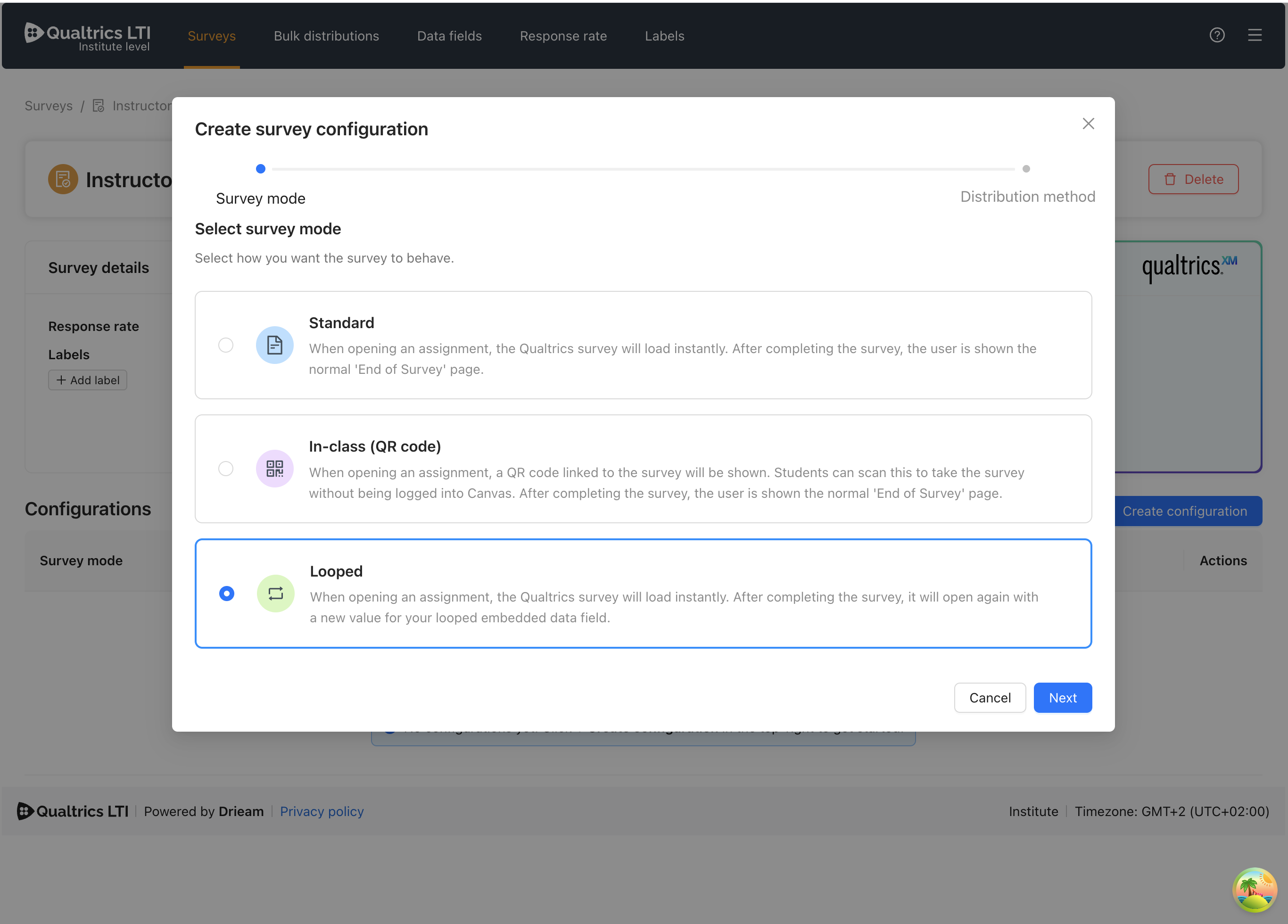
Note: For more information on how to set up survey configurations, please consult our 📄 Surveys Guide.
2. Activate a 'Loop source' embedded data field
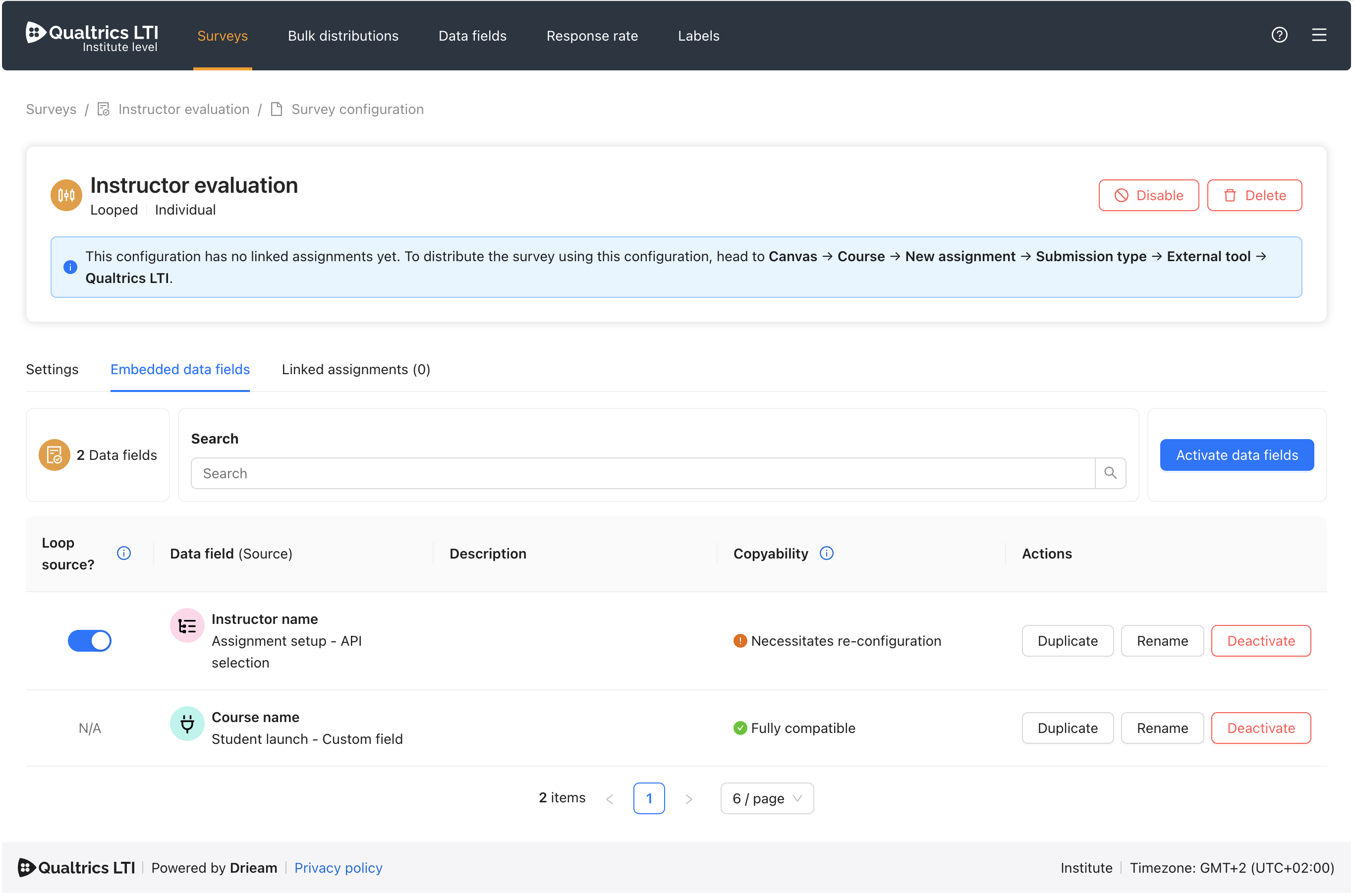
What is a Loop Source?
In order for your survey to loop, it needs to know what it should be looping over. Therefore, you must mark an embedded data field as the Loop source.
This Loop source will determine:
How many times the survey is looped over.
A dynamic embedded data field value which will be recorded as an embedded data field value on each loop.
Example
You have chosen an Assignment setup → API selection embedded data field called "Instructor name" to be your Loop source. The data source for this is All instructors in course and your chosen attribute is name.
When distributing the survey, you are given the opportunity to choose multiple values from a list of instructors in the course. You select two: John Smith and Jane Doe. You also add a third, custom option: the Teaching Assistant.
Your Loop source now contains 3 items. When the student takes the survey, it will loop 3 times. Each time the survey opens, the "Instructor name" embedded data field that is sent through to Qualtrics will have a different value: John Smith, Jane Doe, and then the Teaching Assistant.
Note: Only Assignment setup → API selection or Text selection data fields are able to be chosen as a Loop source, as they are the only data fields that allow you to choose multiple values.
For more information, consult our 📄 Embedded Data Fields Guide.
Tip: You can also select just one Loop source value when distributing and it will function the same as a Standard survey configuration. This could be useful if you only want to set up 1 survey configuration to cover both cases (1 value, multiple values).
3. Distribute
For more details on how to distribute surveys through Qualtrics LTI, consult our 📄 Admins: How to use Qualtrics LTI or 📄 Instructors: How to use Qualtrics LTI articles.
At present, only Distribution method: Individual is supported for Looped survey configurations.
When distributing the survey through the Individual distribution wizard, you will be provided with a section that allows you to select the values for your Loop source:
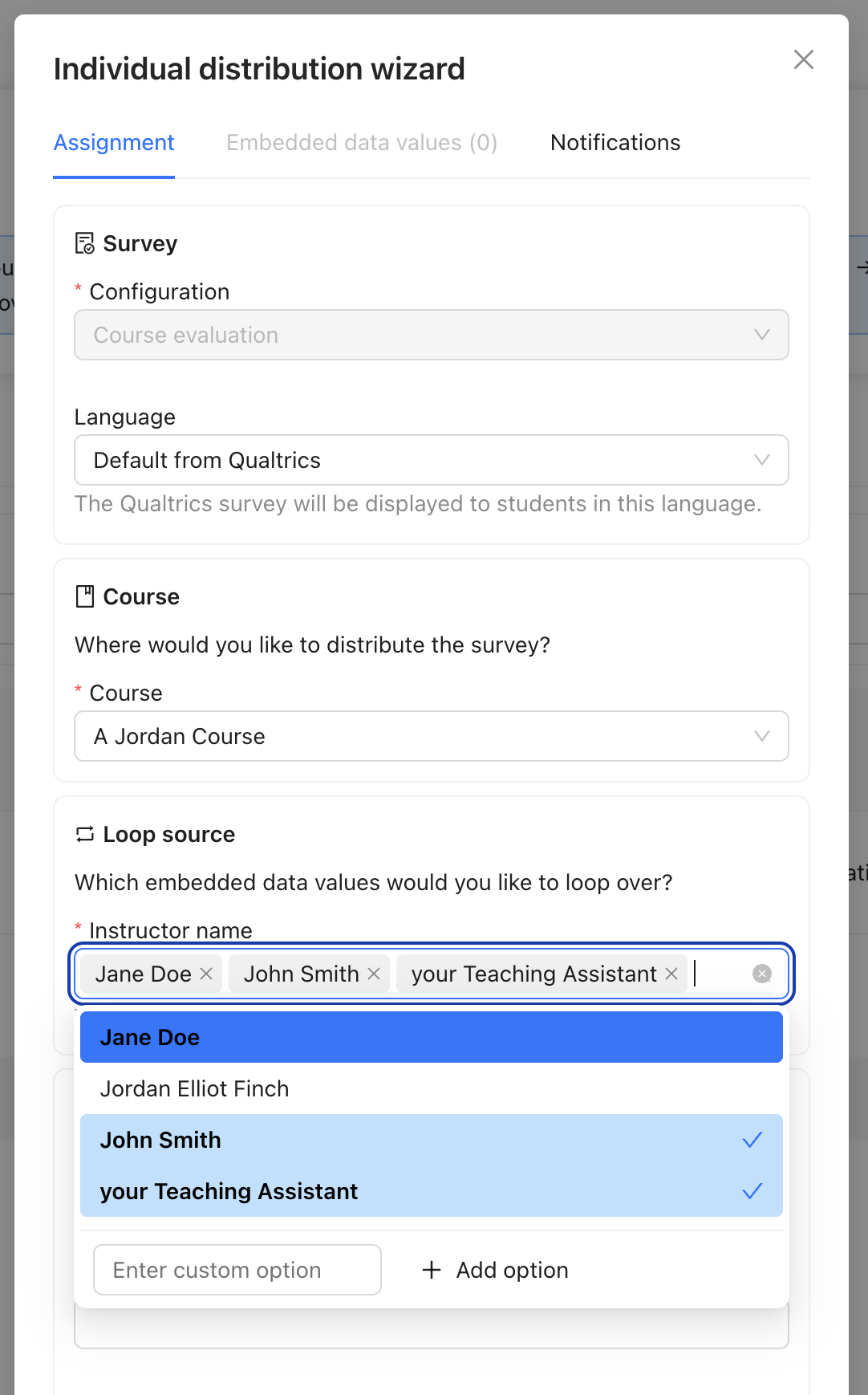
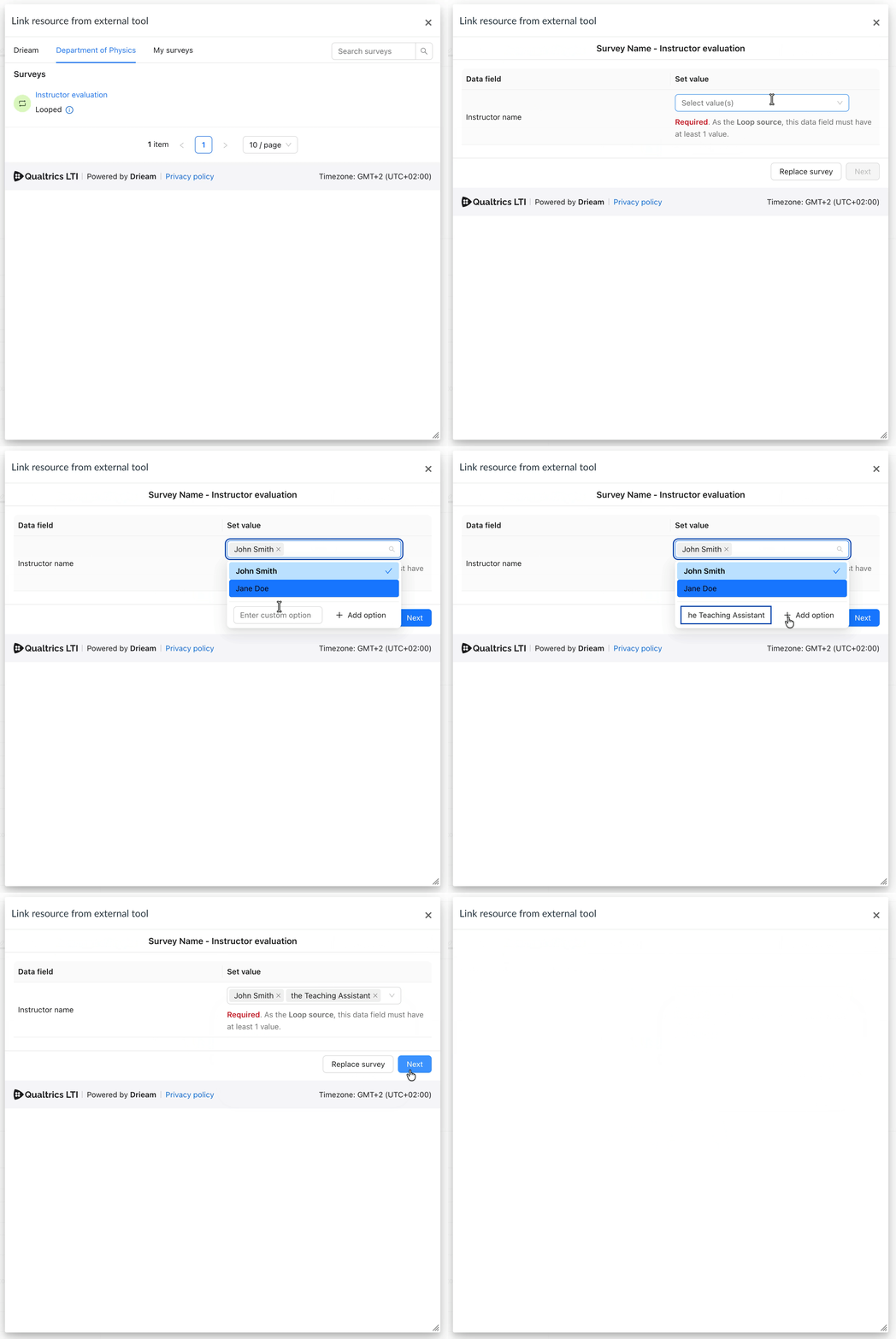
When distributing the survey through the External tool window of an assignment, you will be given the opportunity to choose multiple values for your chosen Loop source instead of just a single value that you would with non-Loop source data fields:
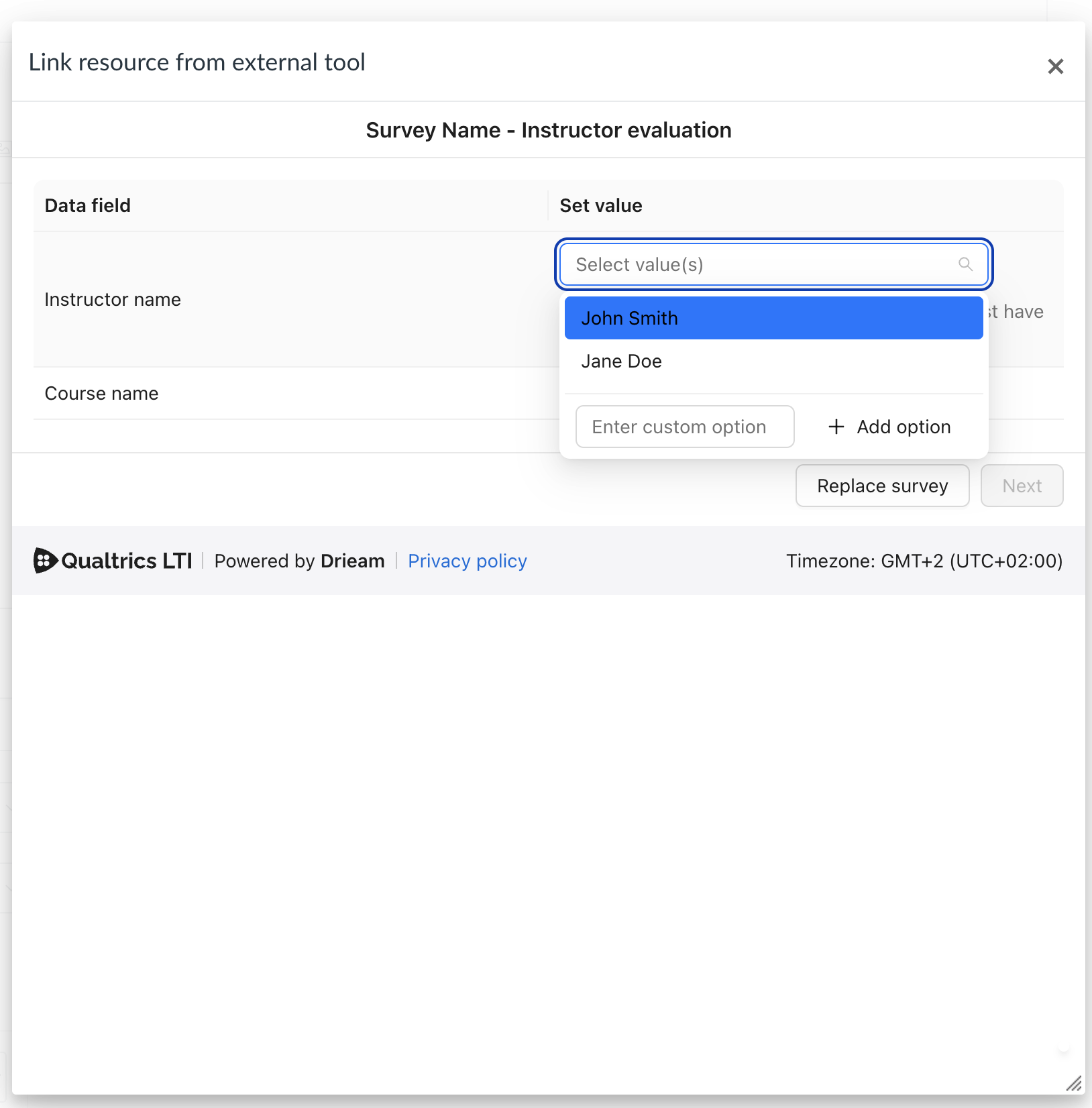
For each of the options that you select in your Loop source's dropdown menu, the survey will (re-)open with that value as the student is taking it until they run out of values. When they respond to the survey with the final value, the survey will show the regular 'End of survey' page and, optionally, pass a grade back to Canvas via Qualtrics LTI.
Note: Each time the student completes a loop, a new survey response is created. The data value for the Loop source will be different in each response. All other embedded data fields' values will be the same.
Bonus: Loop-specific embedded data fields
For Looped survey configurations, we pass through the following extra Embedded data fields to each response:
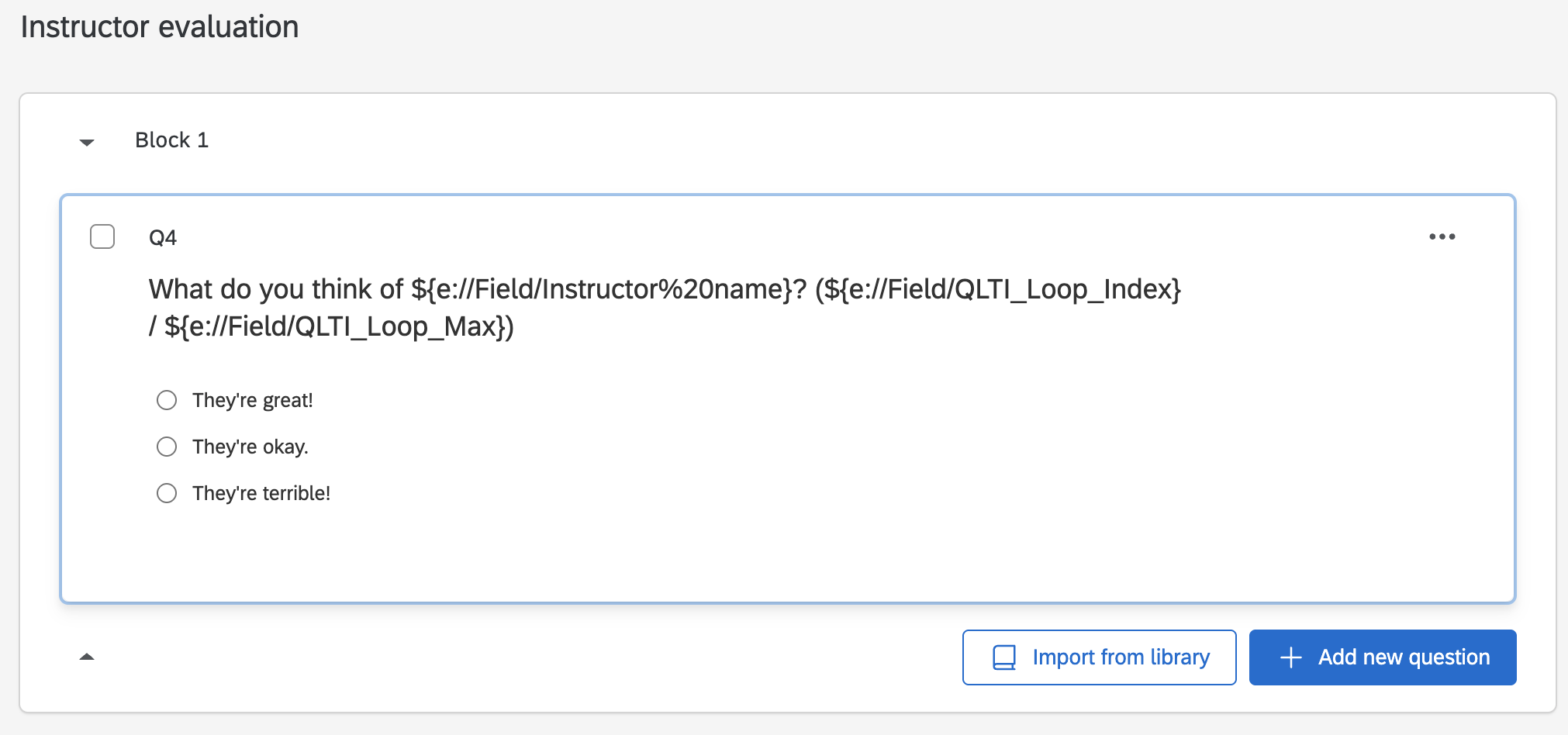
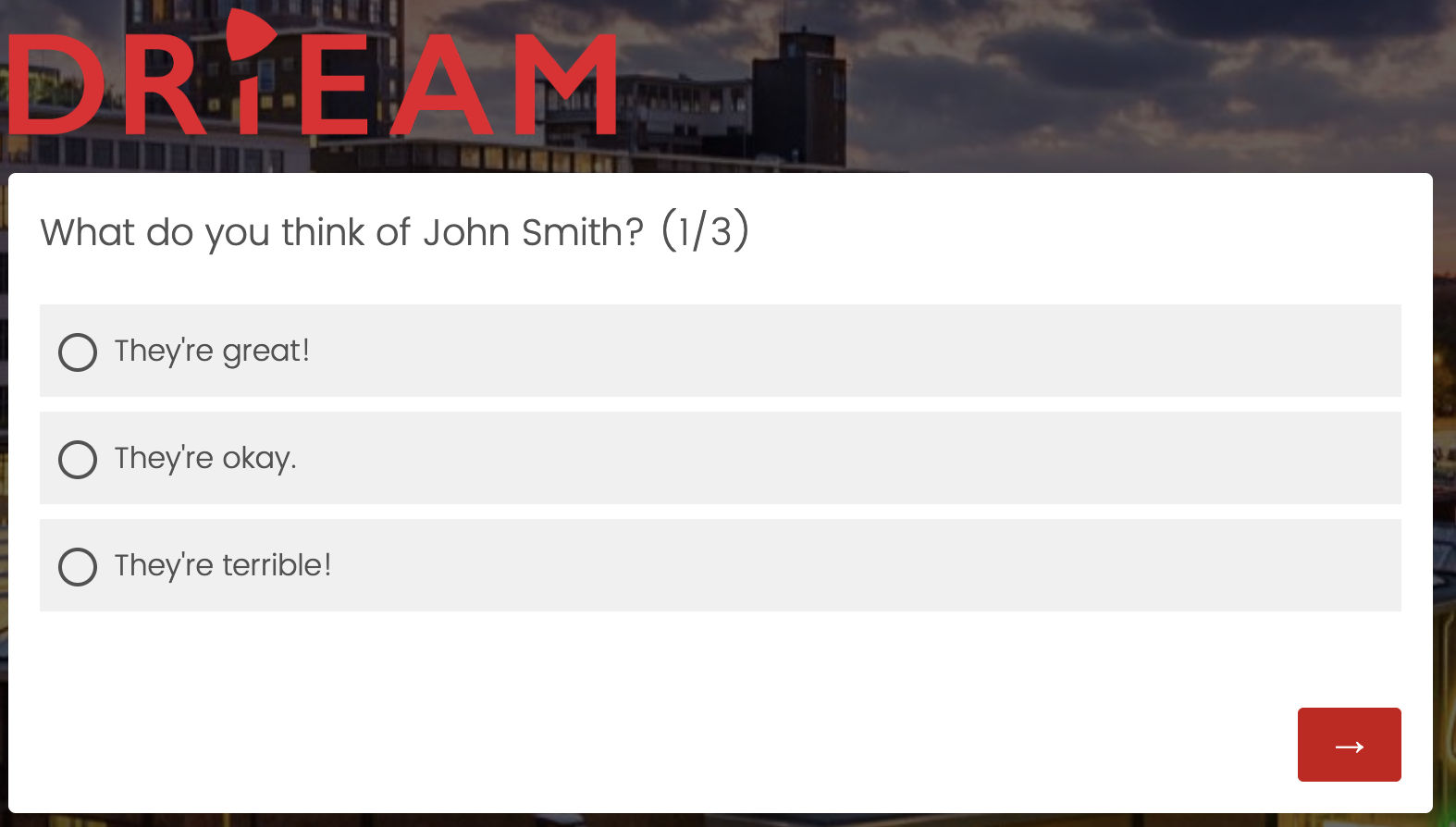
QLTI_IsLooping: Whether or not we are using a Looped survey configuration.QLTI_Loop_Max: How many times we will loop in total. Equal to the number of selected Loop source values.QLTI_Loop_Index: Our current position in the loop (e.g. 1 on the initial survey load, 2 after the first loop). Incremented on every loop.QLTI_Loop_Final: Whether we're on the final survey in the loop.
You could use this embedded data to achieve a number of things. For example, you could show students how many surveys they have remaining by using QLTI_Loop_Index and QLTI_Loop_Max as Piped Text in your survey to show students their current progress:
Workflow Example: Instructor evaluation surveys
Scenario
I have a Qualtrics survey which will make use of an embedded data field called 'Instructor name'.
I want to evaluate multiple instructors in my course.
Some of the instructors I want to evaluate are not in Canvas, and there are some instructors in Canvas that I do not want to evaluate.
I want students to complete each evaluation one after the other with no interruptions.
I do not want students to have more than one 'Instructor evaluation' assignment.
Workflow
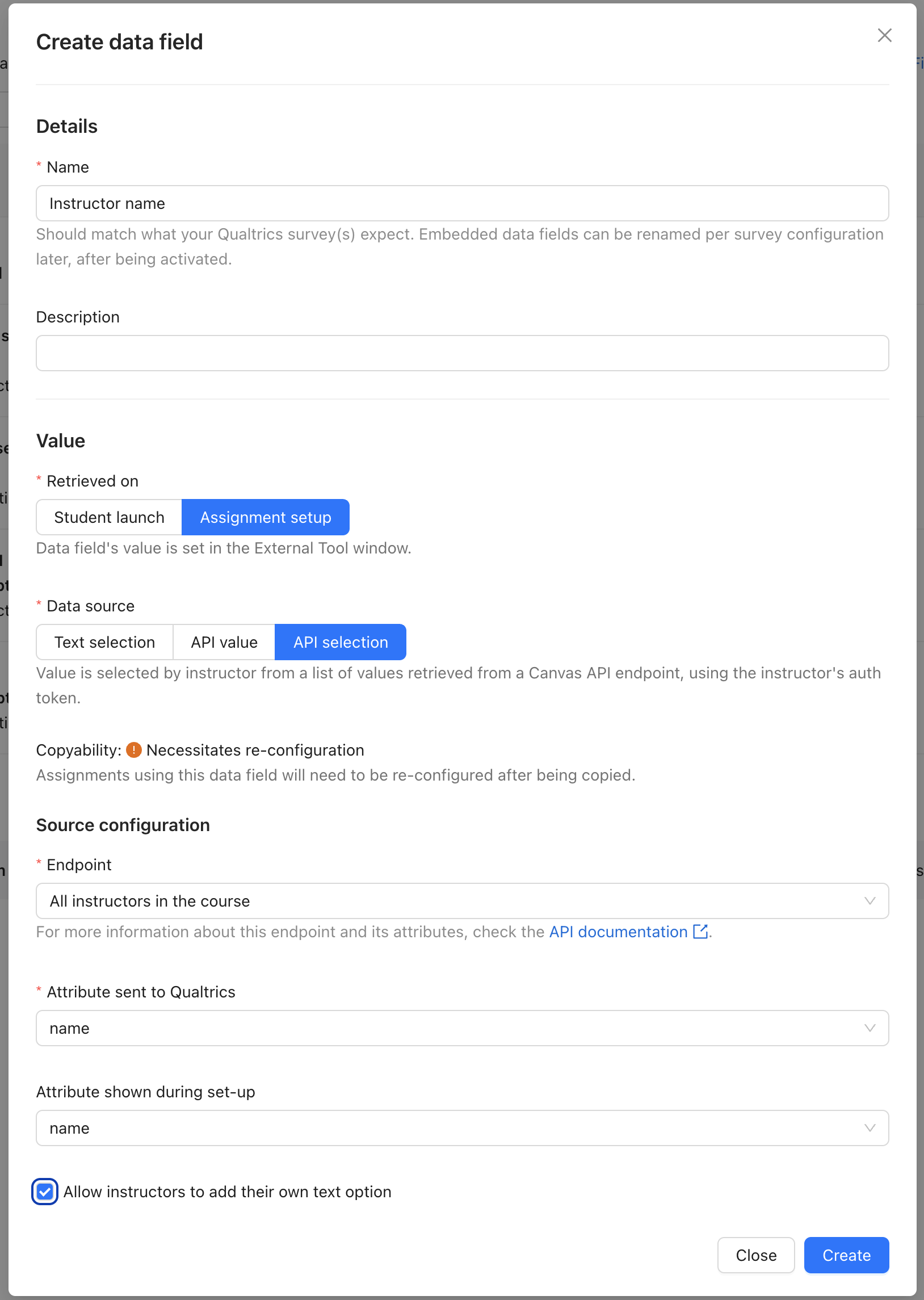
I navigate to <Institute level> → Data fields → + Create data field.
Note: Only possible on the Institute level. If you would like to use a data field that is not yet enabled, please contact your Canvas root account admin.
I fill in my desired name for the data field, 'Instructor name'.
I want the data field's value to be set by the survey distributor, so I click Assignment setup.
I want the survey distributor to be able to select from the names of all instructors in the course, so I click API selection → All instructors in course → name.
I want the survey distributor to be able to add their own, custom value, so I check Allow instructors to add their own text option.
See Fig 6 above.
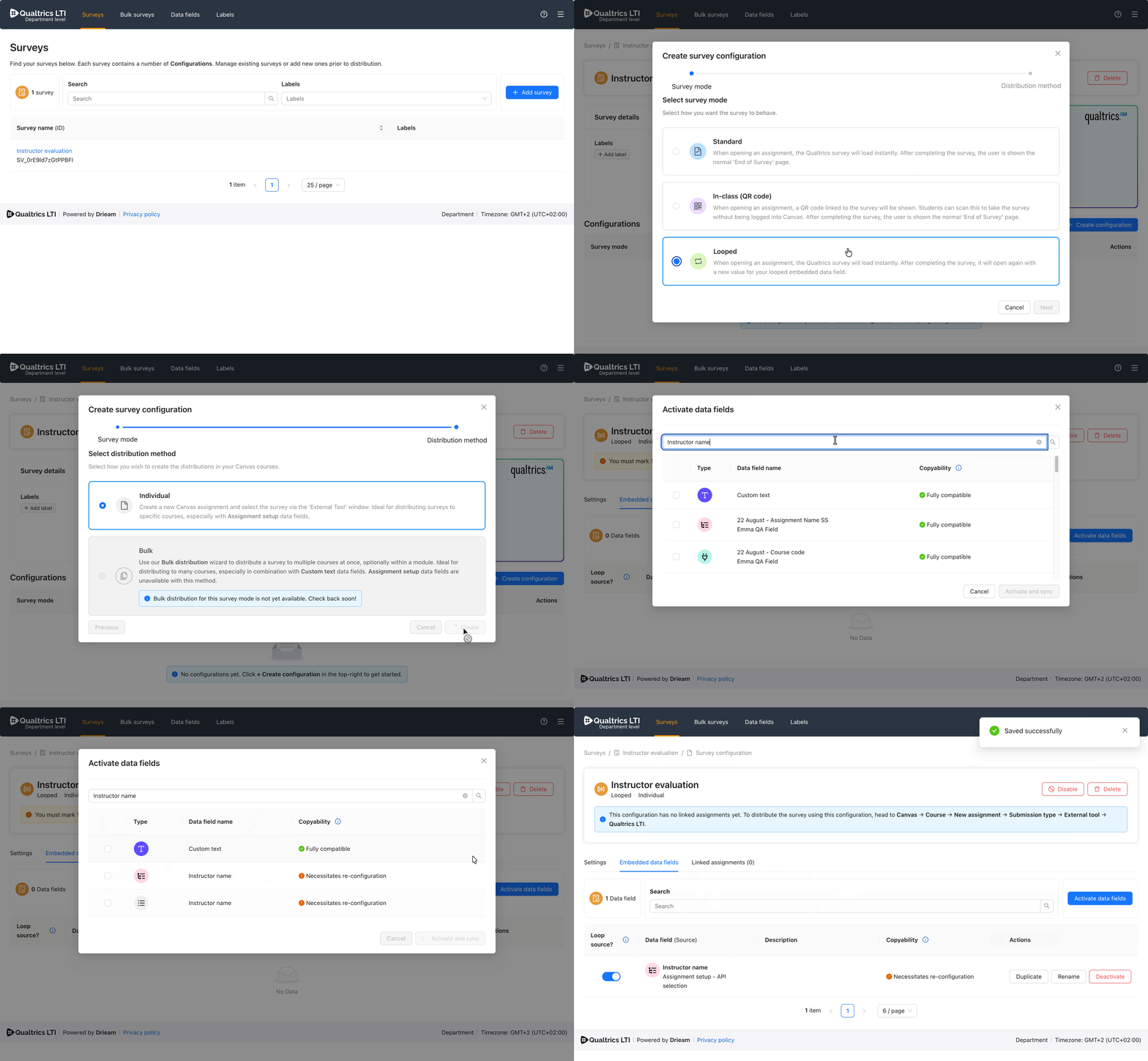
I want to have students loop over my 'Instructor evaluation' survey, so I navigate to <Institute level> → Surveys → Instructor evaluation → Looped survey configuration (Edit) → Embedded data fields.
I click Activate data fields and select the 'Instructor name' data field that I created.
I want the instructor name to have a different value each time, so I toggle the Loop source? switch.
See Fig 7 above.
I navigate to <Canvas course> → Create assignment → External tool → Qualtrics LTI and select my Looped survey configuration.
I want to evaluate John Smith, but not Jane Doe, so I select only John Smith.
I also want to evaluate a generic teaching assistant, so I type "the Teaching Assistant" into the Enter a custom option field and click + Add option.
I finish setting up the assignment.
See Fig 8 above.
My survey is now ready to be taken by students.
FAQ
Can I have other embedded data fields on my Looped survey configurations?
Yes! For all intents and purposes, Looped survey configurations work just like Standard survey configurations. You can therefore have all types of data fields activated on your survey.
However, you must have 1 Loop source — otherwise there's nothing to loop over, and you may as well use a Standard configuration!
Do I have to loop over instructor names, or are other data points available?
Other data points are available! Any option that appears in the Create data field modal under Assignment setup → API selection can be used as a Loop source, including but not limited to: a list of instructors, a list of users, a list of assignments, and a list of groups.
Assignment setup → Text selection data fields are also compatible if you would like to create a custom list of data values to loop over.