Notifications (Announcements & Reminders) Guide
Last updated: October 9, 2026
Introduction
Announcements and Reminders (collectively referred to as "Notifications") are an important feature of Qualtrics LTI that allow you to ensure that your survey distributions are ultimately reached by students.
Through the Notifications feature, you can send a Canvas announcement to an entire course and up to 5 reminders to students who have not completed the survey yet.
Tip: Using Notifications is a great way to increase your response rates!
Prerequisites
In order to use the Notifications feature, the following must be true:
Your Canvas root account admin has enabled this feature.
The setting is found in Institute level → Settings → Survey notifications.
You must be using a Survey configuration that is does not have Survey mode: In-class (QR code).
Note: Notifications are not supported for in-class survey configurations (see 📄 Surveys Guide), as the resulting assignment for that type of survey is not assigned to students.
What are Notifications?
Announcements
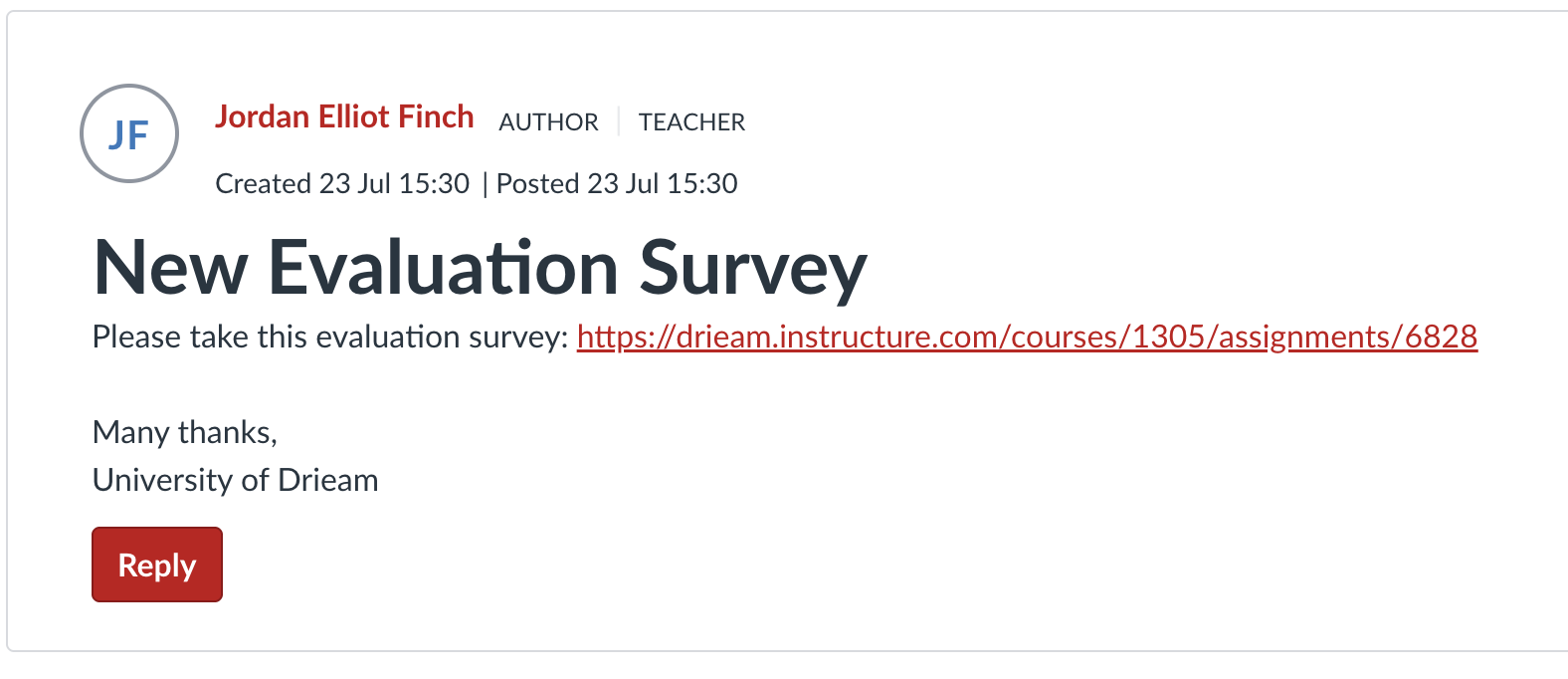
Qualtrics LTI leverages Canvas announcements (see Canvas: What are Announcements?) in order to announce your surveys to an entire course of students at once.
An Announcement consists of a Subject, Body, and a Post date.
The announcement will be posted to the course that the corresponding assignment was created in on the given Post date.
Tip: Students are typically notified in the Canvas UI and are sent an e-mail when a new announcement appears in one of their courses. This has the benefit of urging them to respond to the survey!
Reminders
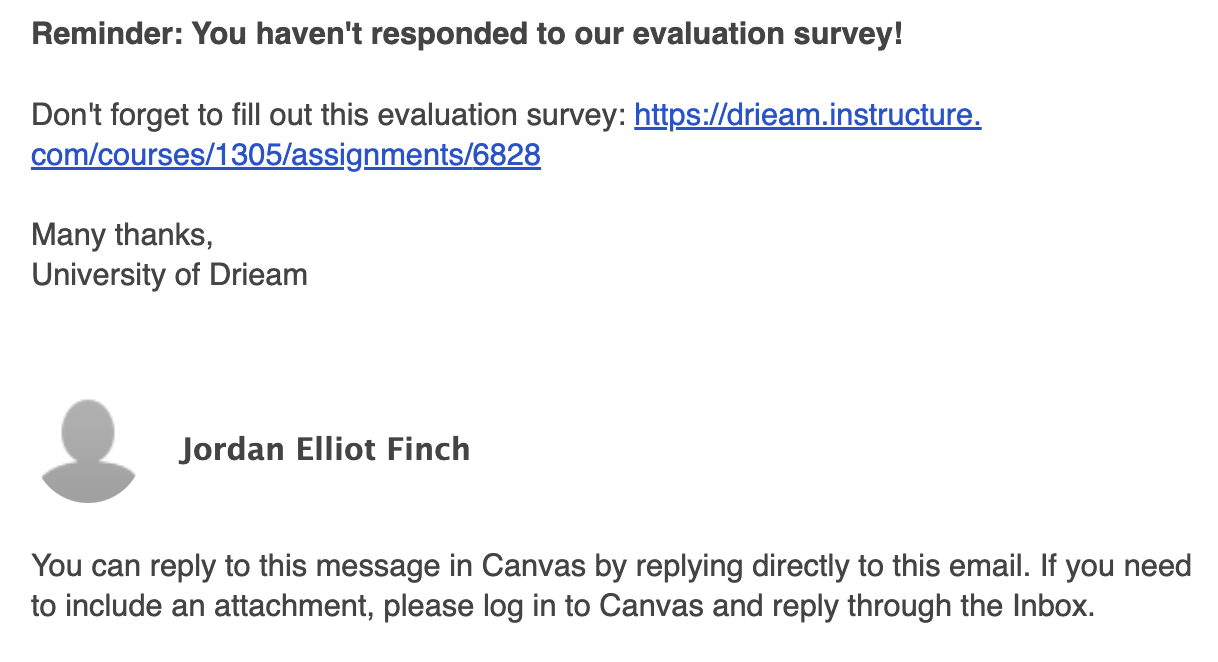
Qualtrics LTI has its own Reminders feature which allows you to send direct messages to students' Canvas inbox who have not yet responded to a survey.
You may have up to 5 Reminders per assignment, and each consists of a Subject, Body, and a Post date.
On each Post date, Qualtrics LTI will build a list of students who have not yet responded to the Qualtrics survey (via the assignment) and then send them each a message (see Canvas: What is the Inbox?).
Tip: Students are typically notified in the Canvas UI and are sent an e-mail when they receive a new message. This has the benefit of urging them to respond to the survey!
How to use Notifications
Individual distribution
When distributing individually through the External tool window, you are given the option to set up Notifications for the assignment:
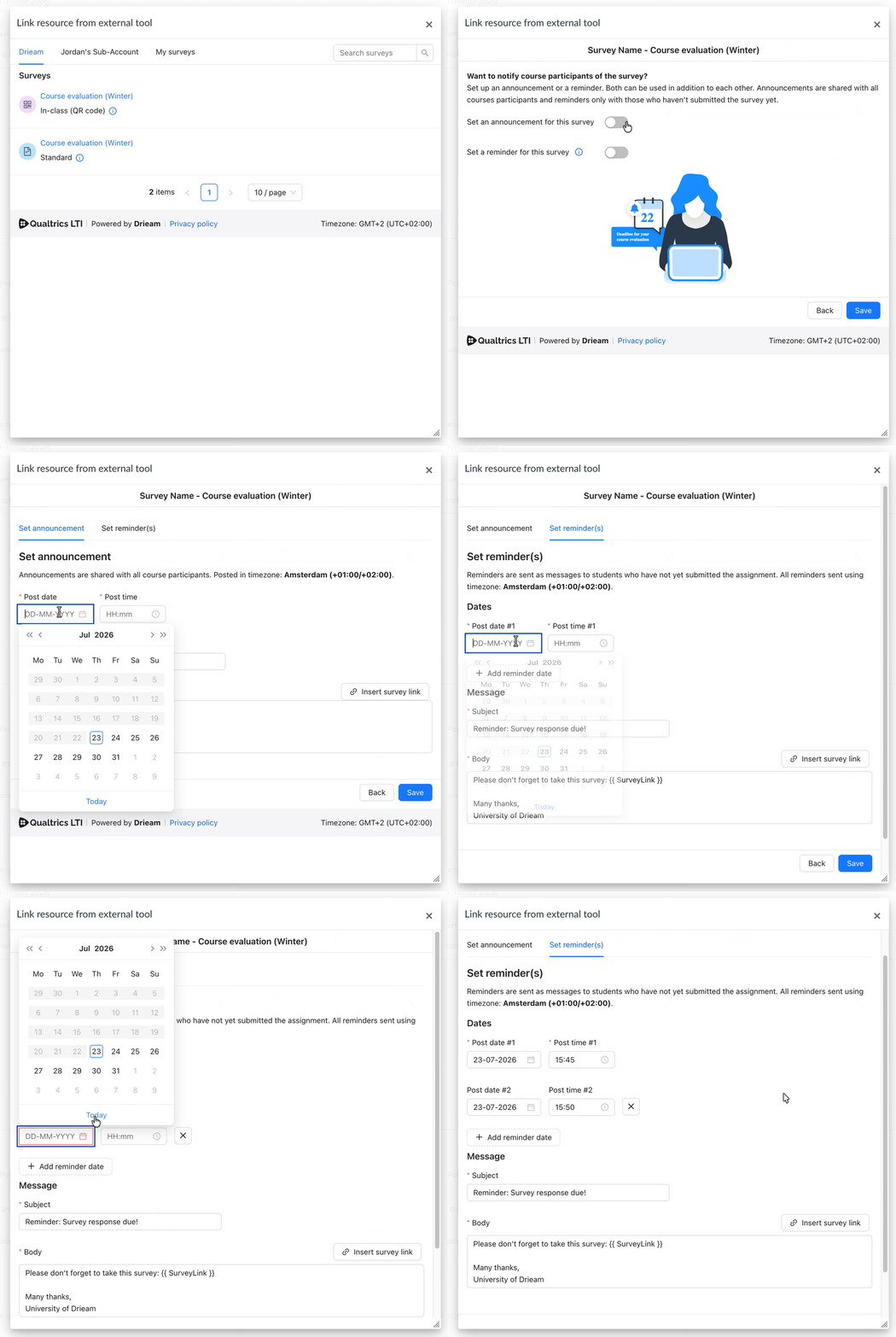
When distributing individually through the Individual distribution wizard, you are given the option to set up Notifications in the Notifications tab:
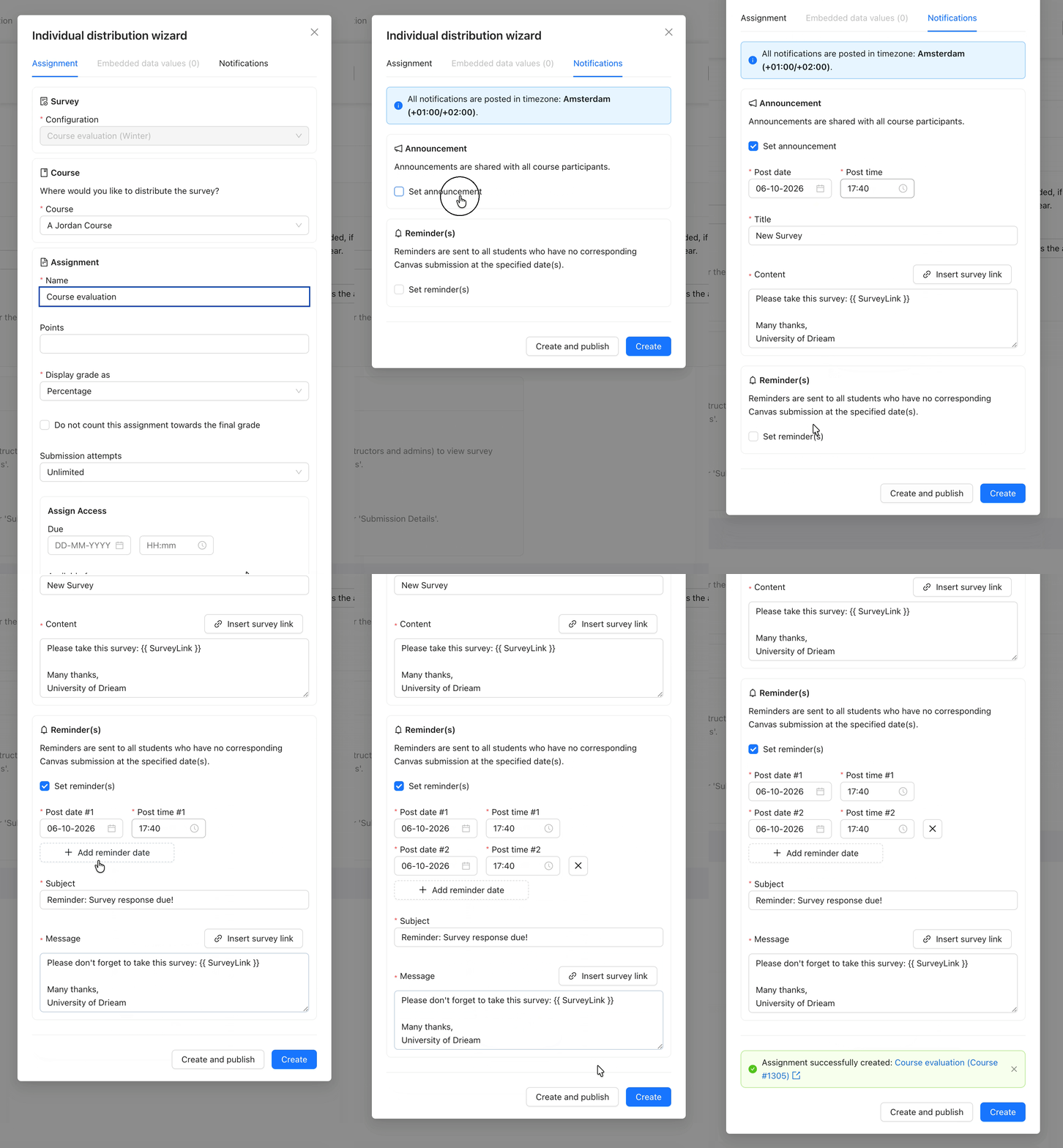
Once the assignment is created and published, then the Notifications will be posted at their specified dates and times.
For more information, please see our 📄 Individual Distributions Guide.
Bulk distributions
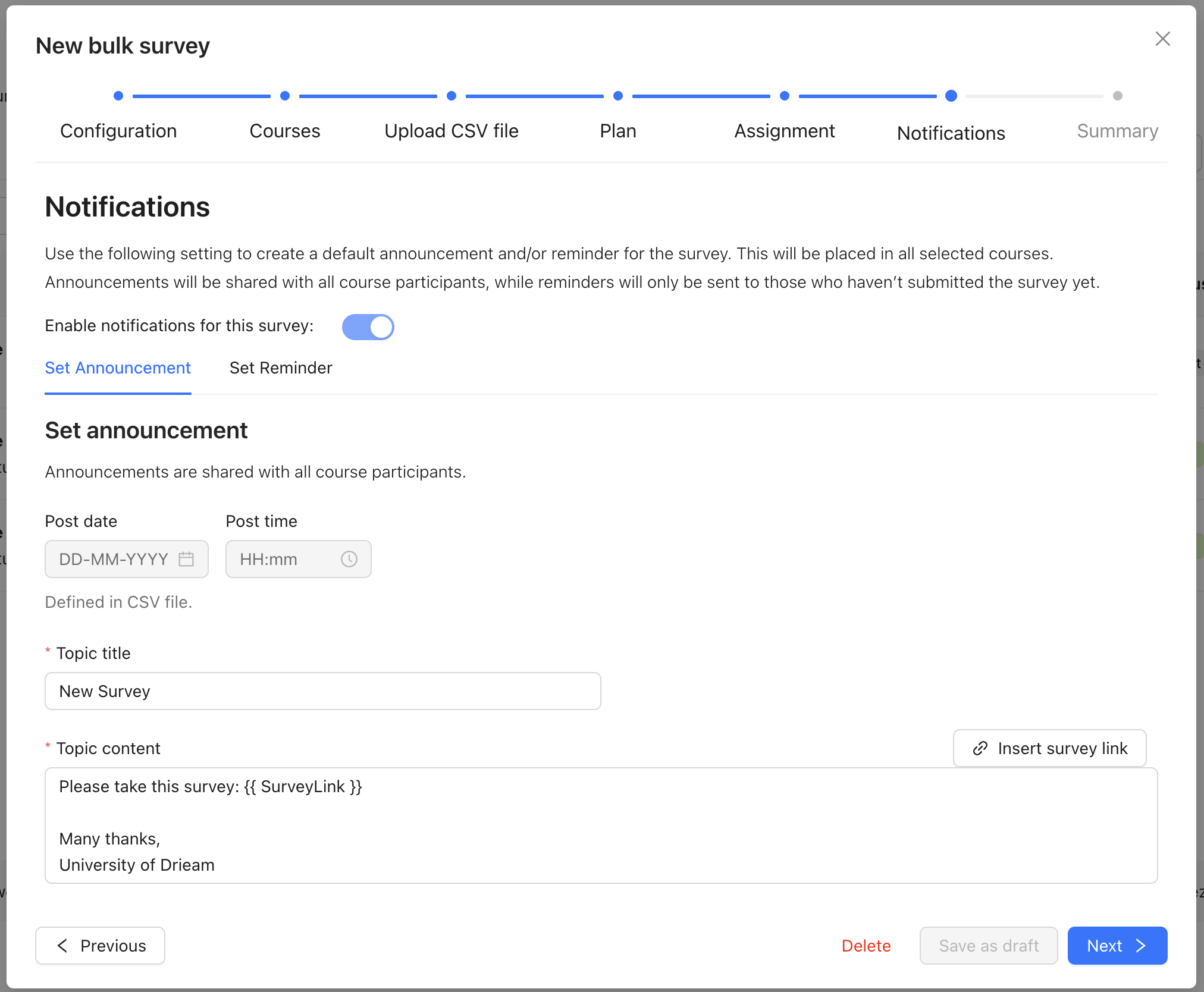
When distributing through the Bulk Survey Wizard, you are given the option to set up Notifications for the resulting assignments.
Once the resulting assignments have been created and published, then the Notifications will be posted at their specified dates and times.
You can use the Notification dates mode: Individual settings to choose different Announcement & Reminder dates per assignment.
For more information, please see our 📄 Bulk Surveys Guide.
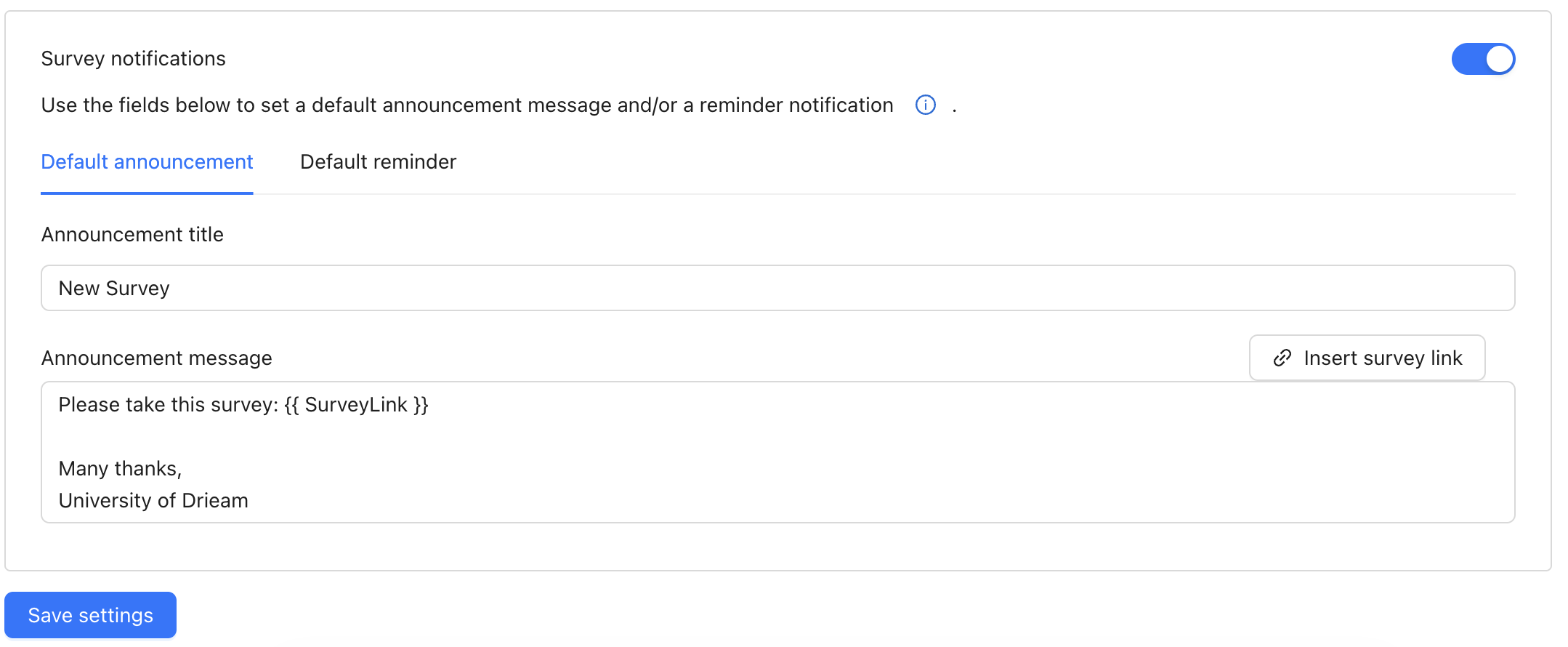
Default subject and body
Root account admins can set up a default Subject and Body for each type of Notification, which will be pre-filled each time a user sets up Notifications (as in Figs. 3–5).
To do this, navigate to Institute level → Settings → Survey notifications: