Individual Distributions Guide
Last updated: October 7, 2026
This article will teach you about the two Individual distribution methods.
Want to distribute to a large number of courses? Check out our 📄 Bulk Surveys Guide.
Introduction
In Qualtrics LTI, we have two different ways of distributing surveys into Canvas courses individually (i.e. one at a time).
The first is our the more traditional method, using Canvas's Course → Create assignment → External tool window flow.
Because this user flow can be quite time-consuming, Qualtrics LTI also has its own Individual distribution wizard which can massively speed up the process.
The Goal
The ultimate goal for distributing your survey, regardless of how you choose to do so, is:
Choose your assignment settings.
(Optional) Choose your Embedded Data values.
(Optional) Choose your Notifications settings.
To that end, all of our distribution methods — even the Bulk distribution wizard — follow very similar processes. So feel free to pick the one that suits you best!
Qualtrics LTI: Distribution wizard
Use Cases
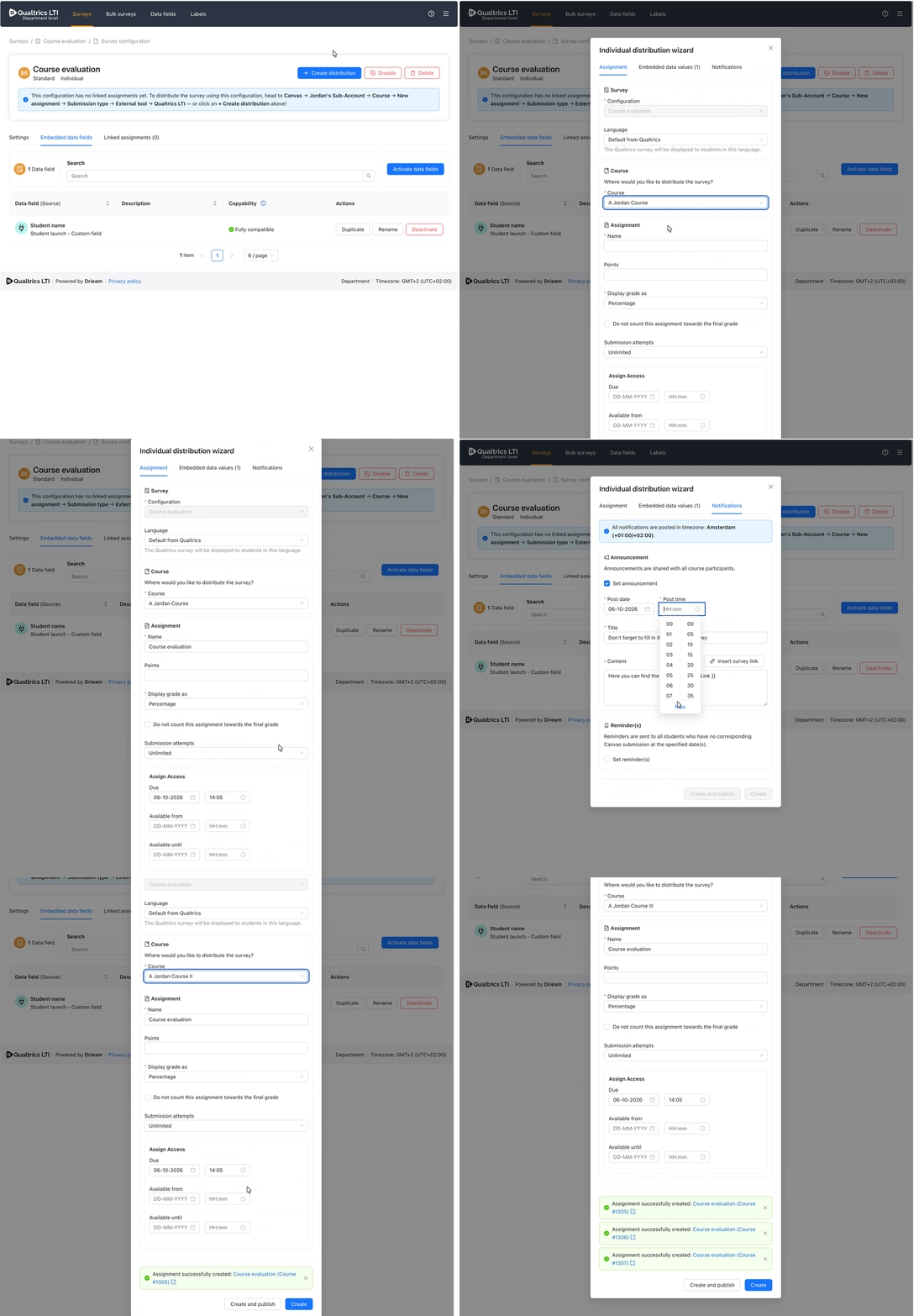
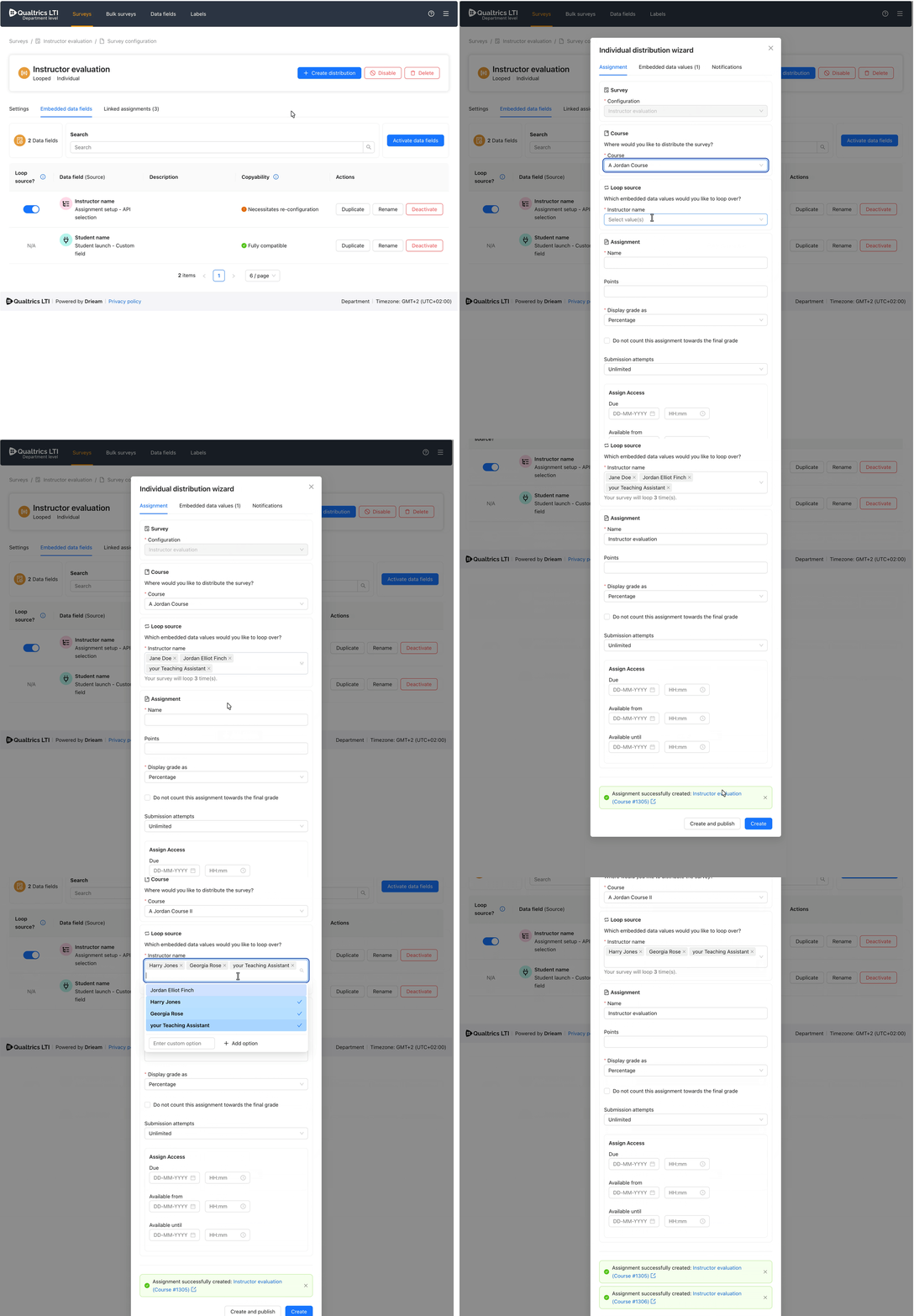
The Individual distribution wizard allows you to rapidly distribute surveys into your Canvas courses. Instead of navigating through myriad Canvas course pages and their somewhat slow Create assignment workflow, you can instead use this wizard to create assignments within seconds of each other!
This feature is all about speed! It is therefore useful if:
You distribute surveys into many Canvas courses manually (e.g. for Course evaluations, see Fig 1).
You distribute surveys into many Canvas courses, with slightly different assignment settings each time (e.g. for Instructor evaluations, see Fig 2).
You currently use Bulk Surveys feature but find that you only use it for a small number of courses.
About the wizard
The Individual distribution wizard is available on the following levels:
Institute (Root account)
Department (Sub-account)
Personal Surveys
Assignments created through this wizard are functionally equivalent to assignments created through Canvas's External tool window.
The wizard is currently only available for Survey Configurations with Survey mode: Standard or Looped.
Using the wizard
Navigate to the Survey configuration of your choice.
Click on + Create distribution.
Select a Course of your choice.
Only courses that are under the Canvas account you're on (when on Institute/Department levels) and what you have access to are available.
Fill out your the details of your assignment.
This section is a mirror of Canvas' Create assignment page.
(Optional) Choose or review your Embedded data values.
(Optional) Set up Notifications (Announcements & Reminders).
Click Create or Create and publish.
Repeat for as many assignments as you like!
The form does not clear its values when you create an assignment, allowing you to quickly tweak any settings and create even more assignments. Perhaps you would like multiple assignments per course with slightly different names or Embedded data values, or the exact same assignment but across multiple courses.
FAQs
Who can use the individual distribution wizard?
Any user who has access to either the Institute, Department, or Personal Surveys levels. For more information, see 📄 Qualtrics LTI Levels: Institute, Department, Personal Surveys.
Users must also have the necessary permissions to create assignments in Canvas courses.
Which permissions do I need in order to use the distribution wizard?
For Canvas, you need to have the ability to both retrieve a list of courses and to create assignments within your selected course.
For Qualtrics LTI, you only need to be a Manager, Sub-account admin, or Institute teacher (by virtue of needing access to one of the levels).
For more information, please consult 📄 Canvas Roles: List of Minimum Permissions and 📄 Qualtrics LTI Roles: Mapping, Custom Roles.
Which embedded data fields work with the distribution wizard?
All embedded data fields are compatible with the distribution wizard, just as with the External tool window.
Any Assignment setup → Text/API selection embedded data fields can have their values selected in the Embedded data values tab.
Which courses can I distribute surveys into?
Any Canvas courses that you have access to. If you are on the Department level, then you will only be able to see courses that are under the corresponding Canvas sub-account.
Canvas: External tool window
Use Cases
This approach is useful if your survey distributors (e.g. instructors) do not have access to the Qualtrics LTI admin interface in any of our levels, as they would not have access to the Individual distribution wizard.
See 📄 Qualtrics LTI Levels: Institute, Department, Personal Surveys for more information.
About the external tool window
This is the traditional method of distributing surveys into courses using Qualtrics LTI.
With this approach, you predominantly use Canvas's user interface to navigate to a course, create an assignment, select a Qualtrics LTI-powered survey, fill out the rest of the assignment details, and publish.
Doing this repeatedly for several courses can be time-consuming, so we recommend checking out the Individual distribution wizard described above.
Using the external tool window
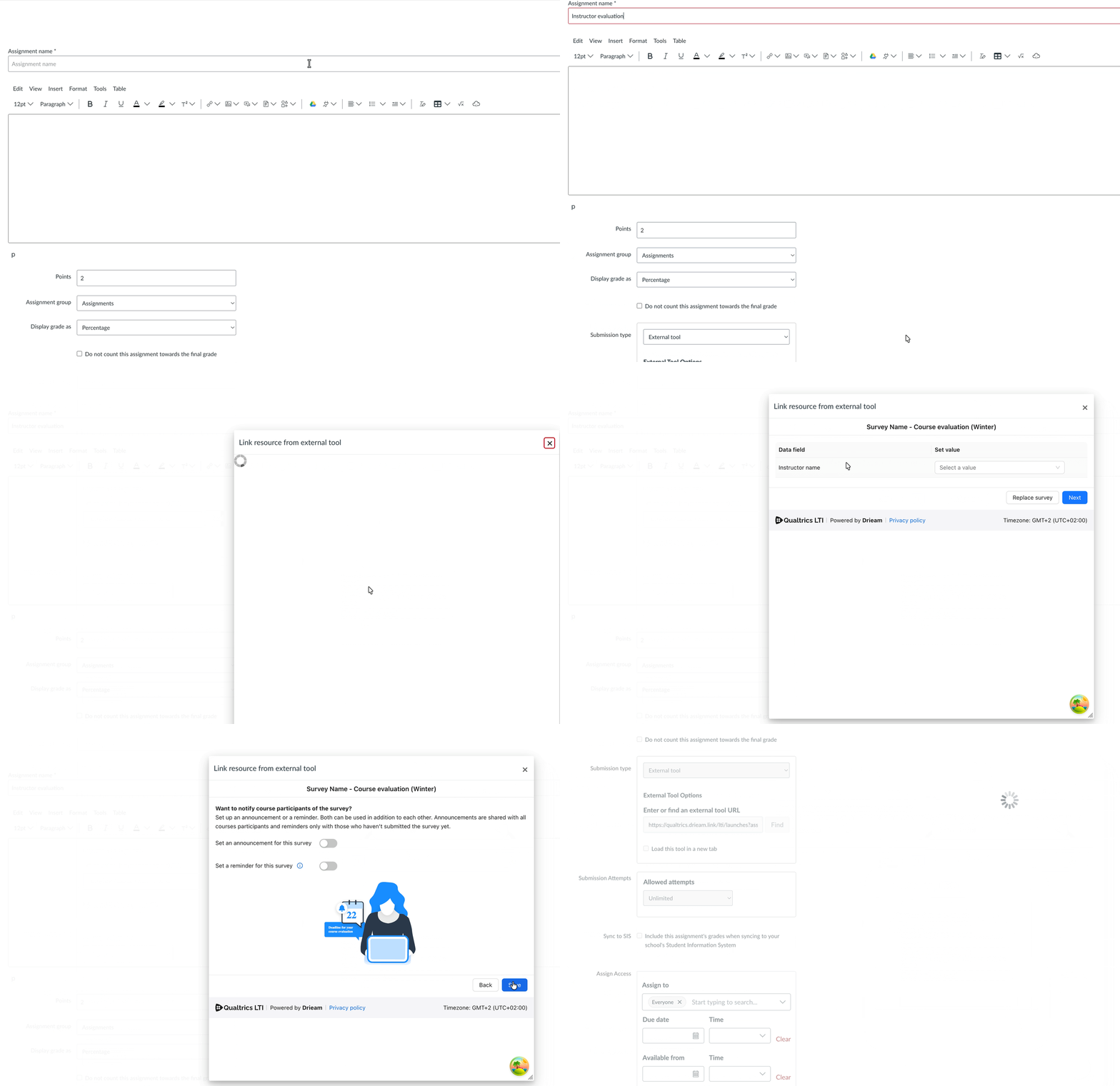
Each time you want to distribute the survey into a Canvas course, follow these steps:
Go to a Course in Canvas.
Go to Assignments and click + Assignment.
Under Submission Type, select External Tool.
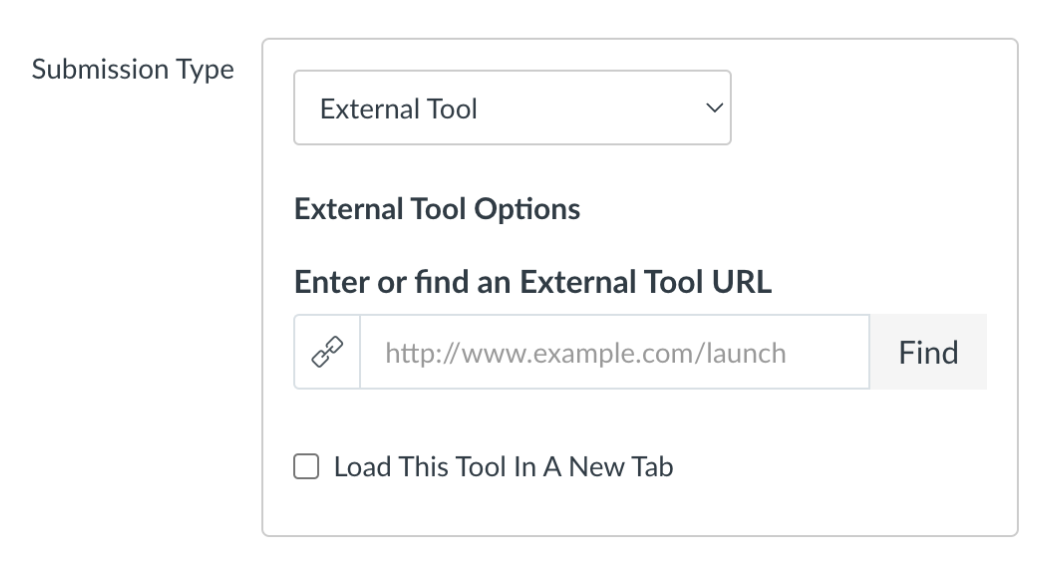
Click Find → Qualtrics LTI to see a list of all Survey configurations that you can choose from to attach to the assignment.
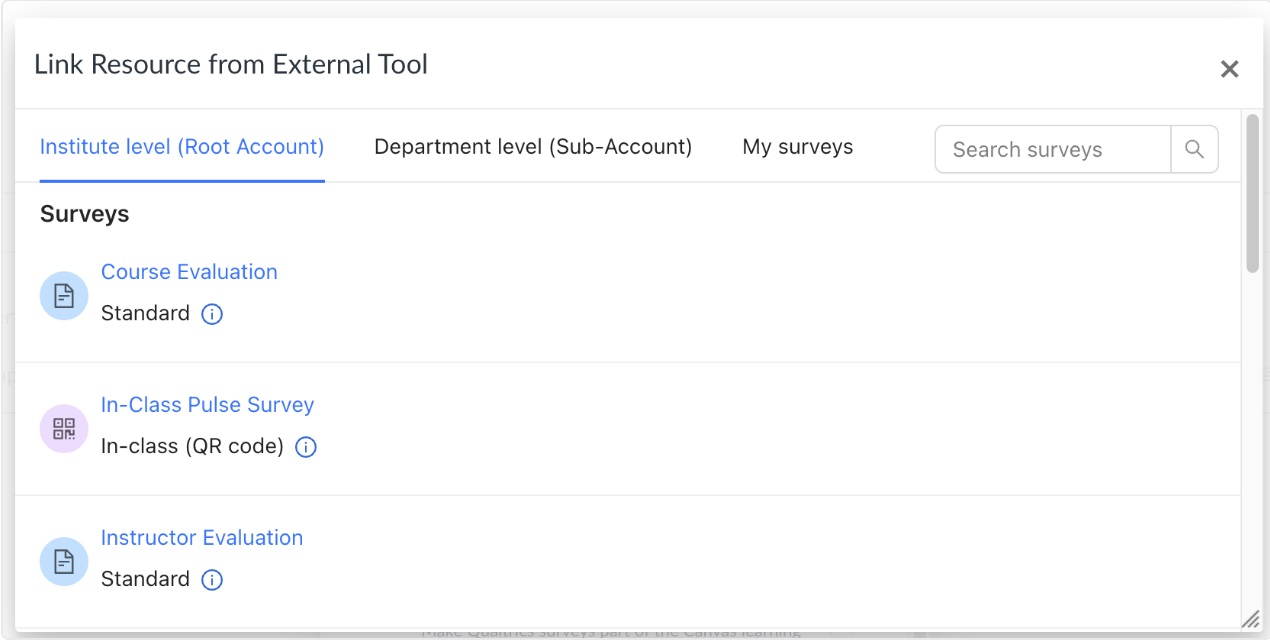
Select the Survey configuration you want to link to the assignment from the pop-up window. You may need to navigate between the different tabs depending on which level of the LTI the Survey was added to.
(Optional) Set values for embedded data fields.
If you have activated certain embedded data field types that require configuration during assignment setup, you can set their values here.
(Optional) Set an announcement and/or reminders for the survey.
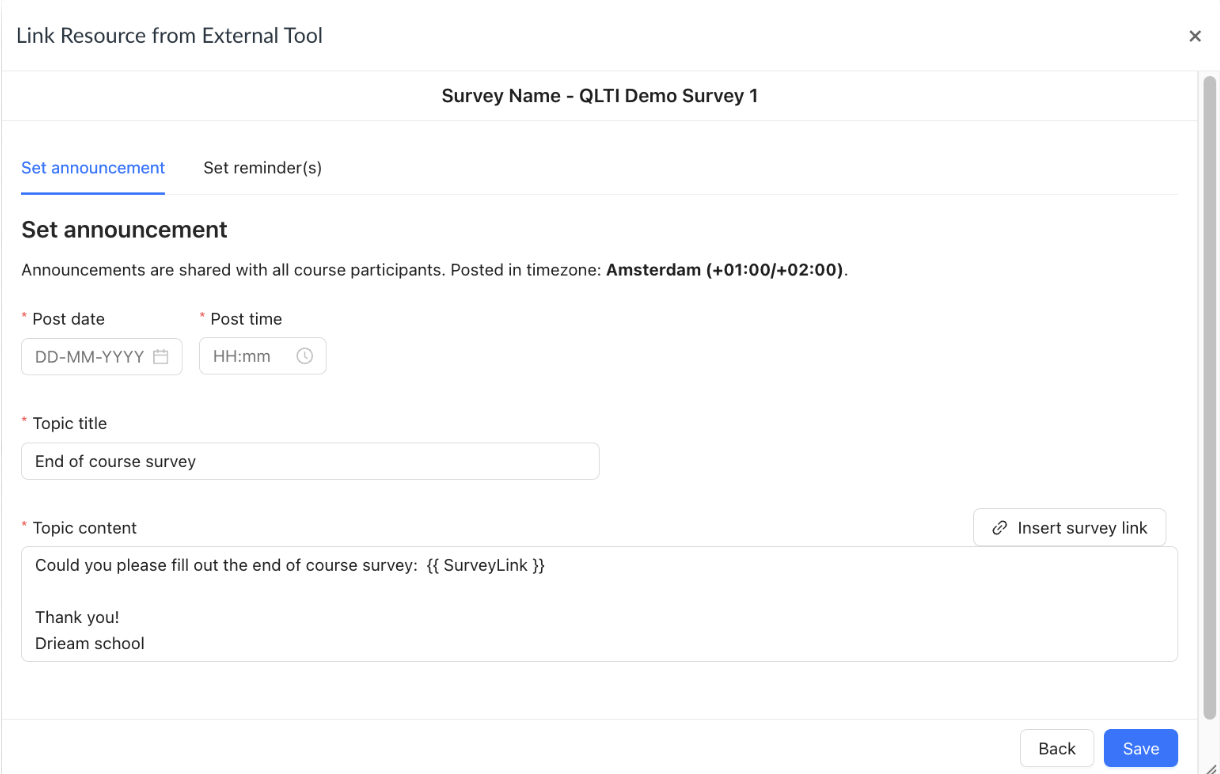
For more information on setting up notifications, please consult the 📄 Notifications (Announcements & Reminders) Guide.
Click Save, then Select again on the External Tool window
Save & Publish your assignment in Canvas
Once the Canvas assignment is created with the Qualtrics LTI survey attached to it, you will see the Instructor Dashboard when opening the assignment.
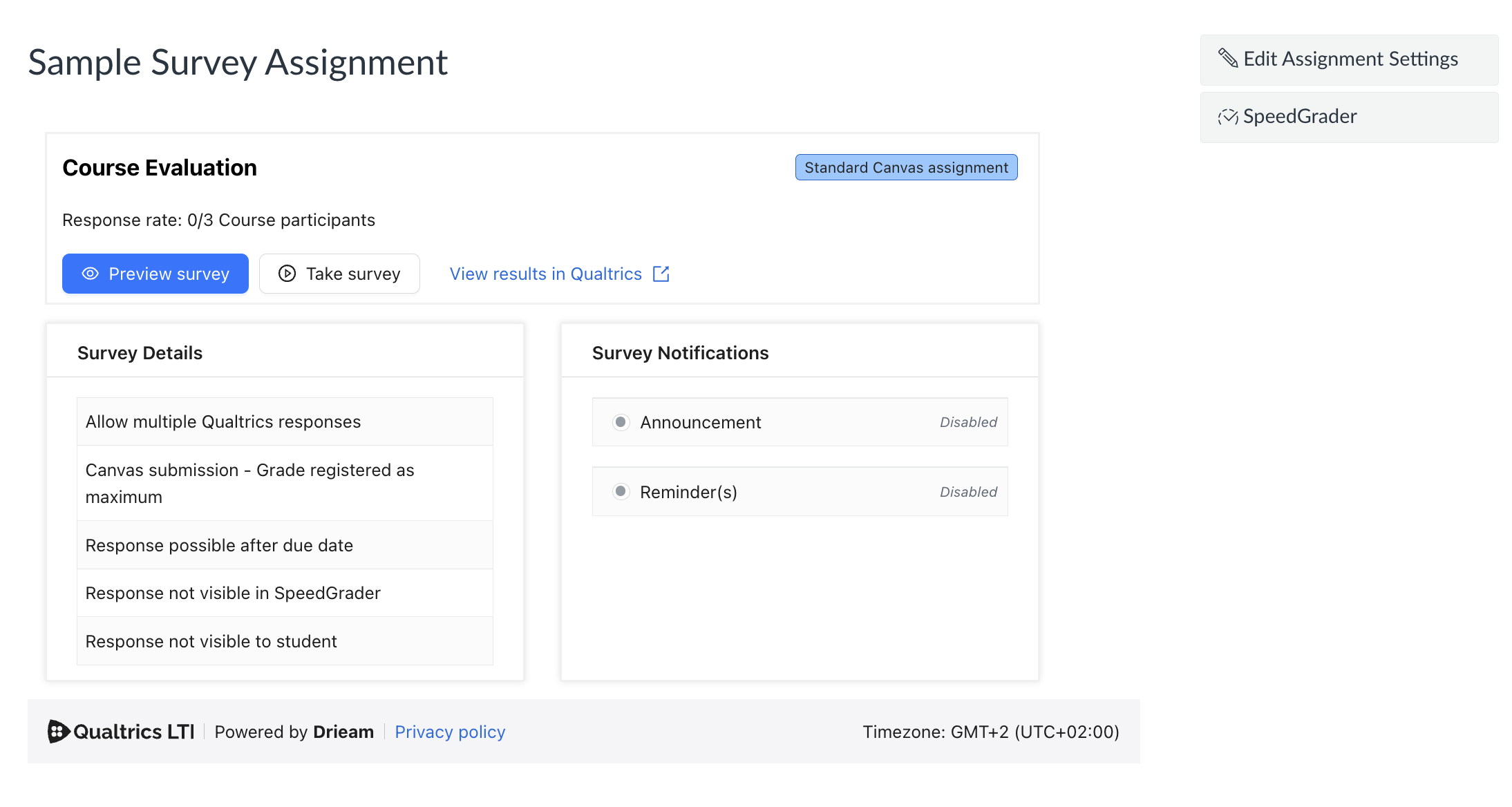
Example: Connecting a Qualtrics LTI survey to a Canvas assignment
The animation below (Fig 7) shows a walkthrough of the steps to take each time you want to distribute a survey into an assignment in a Canvas course.