Qualtrics LTI Levels: Institute, Department, Personal Surveys
Last updated: August 3, 2026
Introduction
This article explains the 3 levels of the LTI, where to access each level, and the impact this has on which surveys can be added to assignments in different courses across the institution.
There are 3 levels of Qualtrics LTI: Institute, Department, and Personal surveys, all of which are accessed through Canvas. Which level you are on depends on where you access the LTI, as follows:
Institute level: This is accessed via Admin → Root account → Qualtrics LTI.
Department level(s): This is accessed via Admin → Sub-account → Qualtrics LTI.
Personal surveys: This is accessed via Account → Qualtrics LTI.
Assignment Setup ('External tool window')
In order to understand the levels, it is useful to understand how you will be distributing surveys into assignments.
When distributing a survey configuration with the Distribution method: Individual, you will attach the survey to the Canvas assignment by setting the Canvas assignment "Submission Type" To "External Tool".
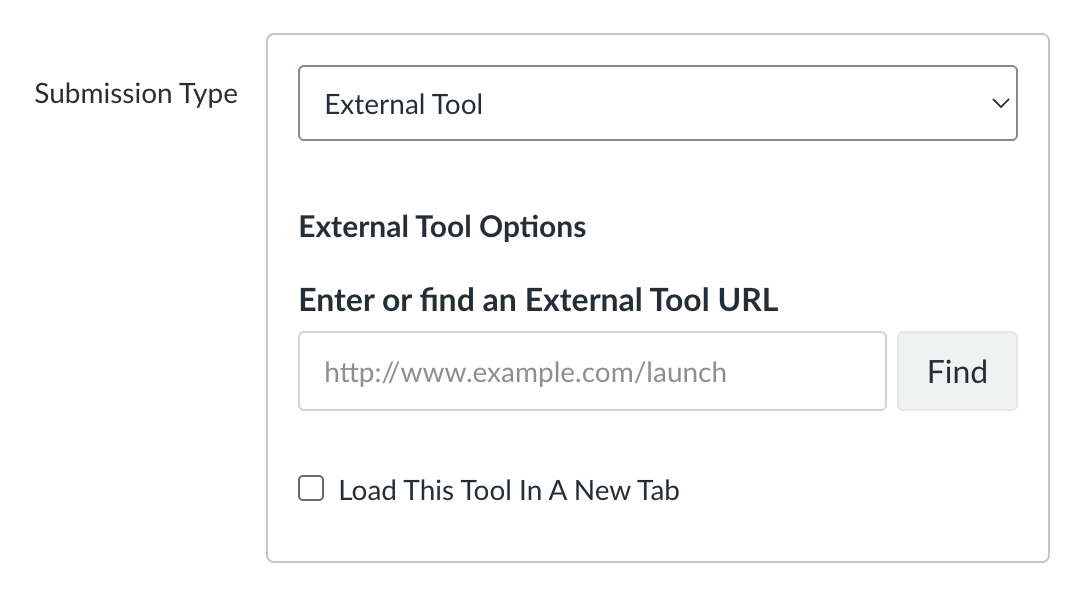
When you click Find → Qualtrics LTI, you will see a list of all Survey configurations that have been added to the LTI at the Institute, Department, and Personal surveys levels for you to select and attach to the assignment you are creating.
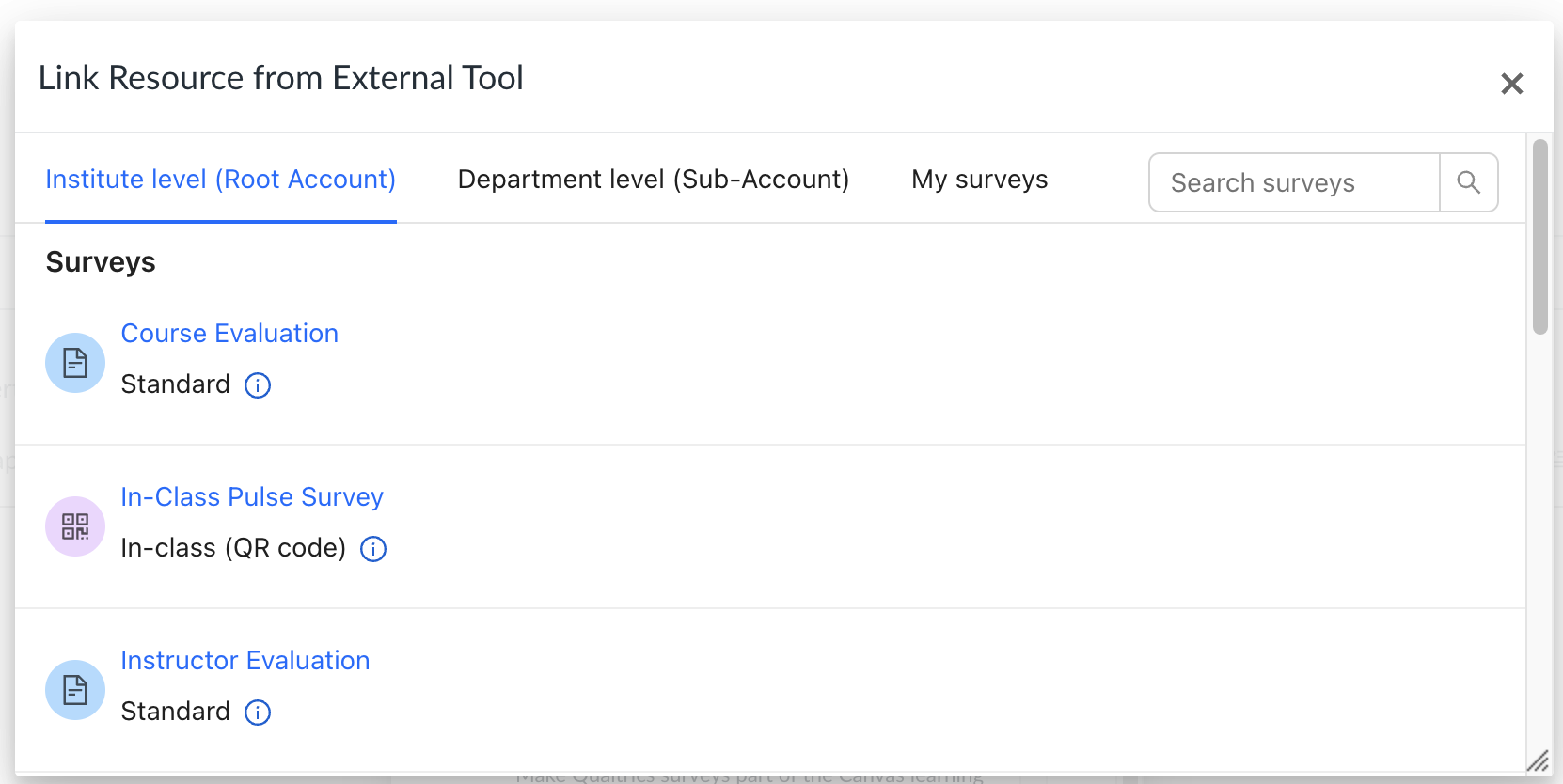
Note: The names of the tabs that appear will reflect the names of your Canvas Root Account and applicable Sub-Account that the course is under.
Example: If you are creating an assignment in a course within the Math Department of XYZ University, you would see the following tabs in the External Tool Window: "XYZ University", "Math Department", "My Surveys".
The only Survey configurations that will appear in the External Tool Window are those that have already been added to the LTI and have the Distribution method: Individual.
Note: Survey configurations with the Distribution method: Bulk are distributed using the Bulk Surveys feature (see 📄 Bulk Surveys Guide).
Troubleshooting: Where is my survey?
Don't see a survey that you want to distribute via a Canvas assignment in the External Tool Window? Double check that it has a Survey configuration with Distribution method: Individual and that it is on the correct level of the LTI.
Example
You have added a survey to the Department level of Qualtrics LTI, within the 'Geology' sub-account, and created a Survey configuration for it.
You are creating an assignment in a course under the 'Anthropology' sub-account.
The aforementioned Survey configuration does not appear in the External tool window, because it was added to the 'Geology' sub-account.
You (or your sub-account admin) add the survey to the 'Anthropology' Department level, and create a Survey configuration for it.
This Survey configuration now appears in the External tool window.
Levels
Institute Level
Note
This level is only accessible by Canvas root account admins (by default).
If you are not a root account admin but require access, please consult 📄 Qualtrics LTI Roles: Mapping, Custom Roles.
Surveys that have been added to the Institute level can be distributed into courses by anyone in the institution via Survey configurations with Distribution method: Individual.
Prerequisites
In order to use Institute level surveys, the following must be true:
You must have an Institute license.
If this is not the case, please reach out to support@drieam.com.
You must have linked a Qualtrics domain to this level (see 📄 Domain Configuration Guide).
Example
Jerry Smith is a Canvas Root Account admin and works with a team to distribute course evaluation surveys for the full institution.
Jerry Smith only has a small number of Qualtrics surveys in his account, including some that other users made and collaborated with him.
Jerry Smith completes the Domain Configuration and links his API token at the Institute level of the LTI.
When any user who has access goes to the Institute level and clicks the + Add Survey button (see 📄 Surveys Guide), they will see a list of all surveys that Jerry Smith has access to.
Department Level
Note
This level is only accessible by Canvas root and sub-account admins (by default).
If you are not an admin but require access, please consult 📄 Qualtrics LTI Roles: Mapping, Custom Roles
Surveys that have been added to the Department level can be distributed into courses by anyone creating an assignment in a course within that sub-account.
Prerequisites
In order to use Department level surveys, the following must be true:
You must have an Institute license.
If this is not the case, please reach out to support@drieam.com.
Your root account admin has enabled the <Institute level> → Settings → Allow sub-account admins to connect their sub-account to a Qualtrics domain setting.
You must have linked a Qualtrics domain to this level (see 📄 Domain Configuration Guide).
Example
Both the Math and Literature departments want to use Qualtrics LTI to distribute surveys.
Jennifer Smith is the sub-account admin of the Math department.
Tim Anderson is the sub-account admin of the Literature department.
Jennifer completes the Domain Configuration, choosing to link her own Qualtrics API token to the Department level for Math.
Tim completes the Domain configuration, choosing to link his own Qualtrics API token to the Department level for Literature.
When any user goes to the Department level for Math and clicks the + Add Survey button (see 📄 Surveys Guide), they will see a list of all Qualtrics surveys that Jennifer Smith has access to.
When any user goes to the Department level for Literature and clicks the + Add Survey button (see 📄 Surveys Guide), they will see a list of all Qualtrics surveys that Tim Anderson has access to.
Personal Surveys
Surveys that have been added to the Personal surveys level can only be distributed by that user, into any course across the whole institution that they are able to create assignments in.
Prerequisites
In order to use Personal surveys, the following must be true:
Your root account admin has enabled the <Institute level> → Settings → Enable use of personal surveys setting.
Your root account admin must have configured a Qualtrics domain for use with Personal Surveys (see 📄 Domain Configuration Guide).
Usage
When accessing the Personal surveys level for the first time, you will be asked to select a Qualtrics domain that your root account admin has set up (these are equivalent to "brands" or "organizations").
Select a domain, and you will be prompted to log into your Qualtrics account via an OAuth2 flow pop-up window. If you have multiple Qualtrics accounts, ensure that you log in to the correct Qualtrics domain for your institution that you select on the first screen.
Once logged in, you can click the + Add Survey button and see a list of all Qualtrics surveys that you have access to that you can add to the LTI at this level.
Example
Jimmy Singer and Anne Smith both work at ABC University.
Jimmy is an instructor in the Physics department.
Anne is an instructor in the Music department.
Jimmy logs into Qualtrics LTI at the Personal surveys level and adds a survey called 'Week 1 - Background Physics Knowledge', and creates a Survey configuration for it.
Anne logs into Qualtrics LTI at the Personal surveys level and adds a survey called 'End of course feedback', and creates a Survey configuration for it.
When Jimmy distributes the survey into an assignment (see Fig 2), he sees the following tabs: ABC University, My surveys. Under My surveys, he sees the 'Week 1 - Background Physics Knowledge' Survey configuration.
When Anne distributes the survey into an assignment (see Fig 2), she sees the following tabs: ABC University, My surveys. Under My surveys, she sees the 'End of course feedback' Survey configuration.