Instructors: How to use Qualtrics LTI

Last updated: August 4, 2026

This article will teach you how to add and distribute surveys as a Canvas administrator, using the Personal surveys level.

Phases

Using Qualtrics LTI can be broken down into two main phases:

  • Phase 1: One-time setup

  • Phase 2: Distribution

During Phase 1, you will complete all the necessary one-time setup steps: adding the survey to Qualtrics LTI, creating a Survey configuration, and determining your preferred survey settings and embedded data fields. As the name of the phase implies, these steps only need to be completed once per Survey configuration.

During Phase 2, you will distribute the survey into Canvas assignment(s). You can repeat this phase as many times as you want to distribute the same survey, collecting more responses.


Phase 1: One-time setup

Tip: If the survey you want to distribute has already been added to Qualtrics LTI, you can skip Phase 1 and head directly to Phase 2!

1. Create and publish a survey in Qualtrics

First, head to Qualtrics and create a survey. Once you have built all the survey questions, publish the survey by clicking on the Publish button. If you ever go back to edit the survey, be sure to re-publish it so that the latest version is always shown to students in Qualtrics LTI.

For any questions on how to create Qualtrics surveys, we recommend referring to Qualtrics' support documentation.

Add the survey to Qualtrics LTI

Go to the Personal Surveys level

Head to Canvas and go to your Personal surveys level in Qualtrics LTI. To get there, click Account → Qualtrics LTI.
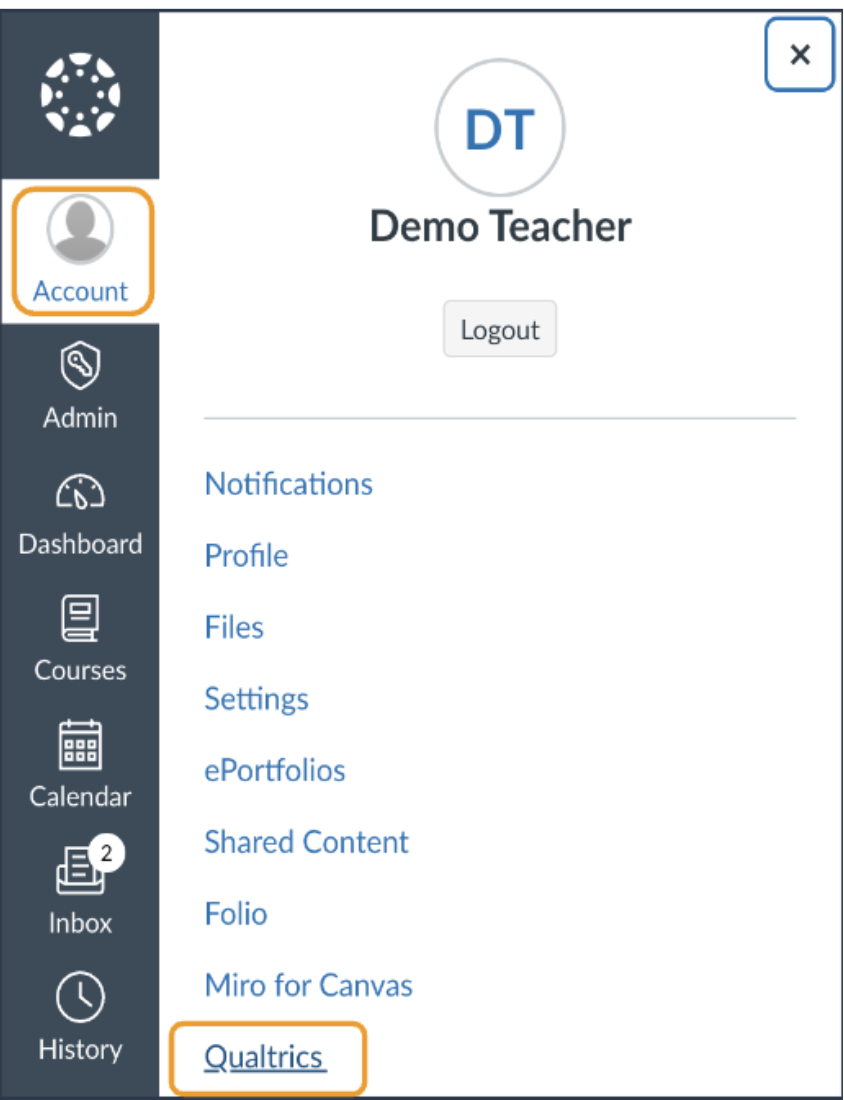
Fig 1. A screenshot showing how to access Qualtrics LTI Personal surveys level.

Note: The first time you access Qualtrics LTI Personal surveys, you will need to authorize the app and log in to your Qualtrics account. Once you have done that, you can start adding surveys to the LTI.

For more information, see 📄 Qualtrics LTI Levels: Institute, Department, Personal Surveys.
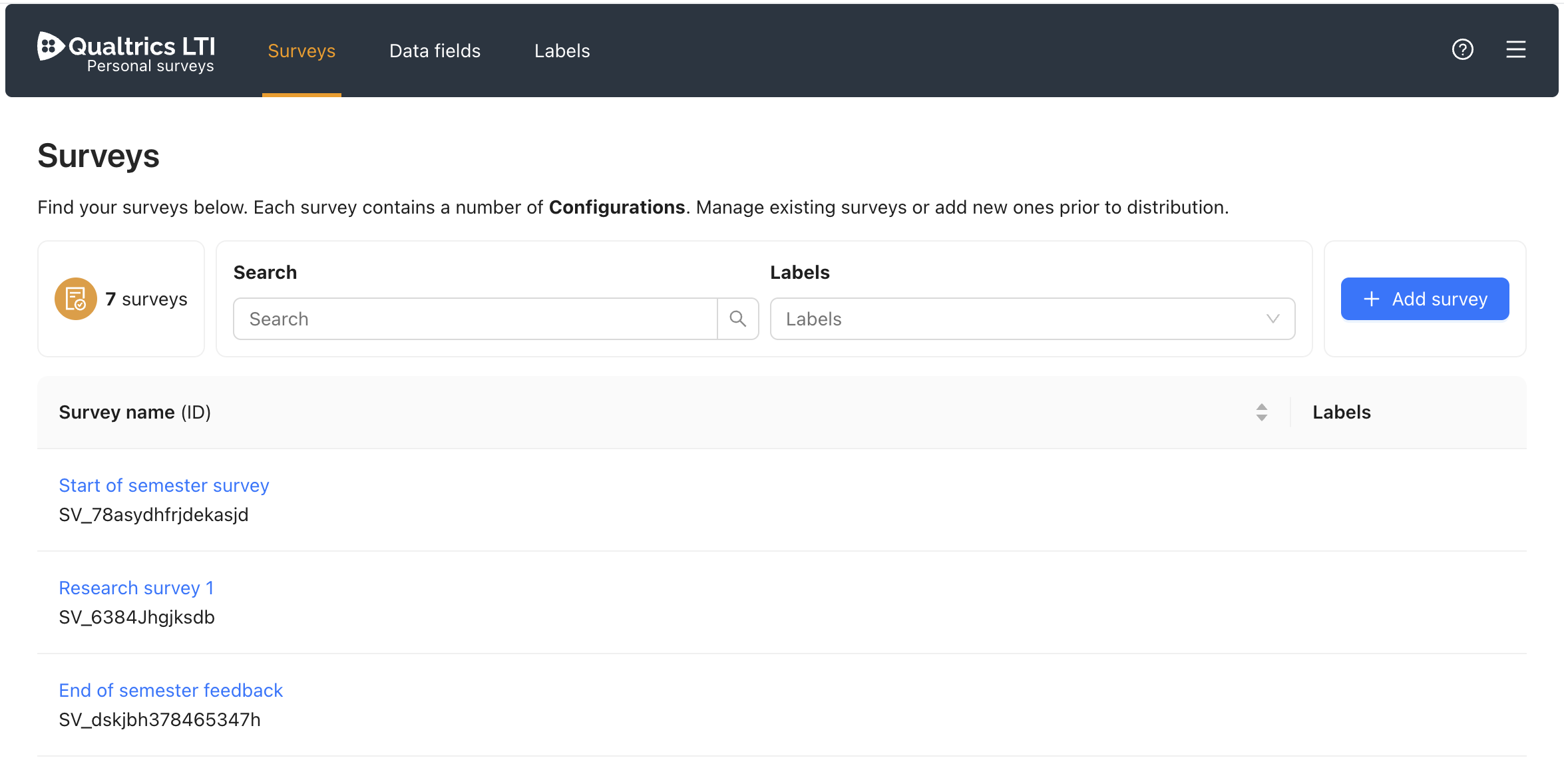
a screenshot of Qualtrics LTI at the Personal surveys level
Fig 2. Shown is a screenshot of Qualtrics LTI at the Personal surveys level. Several surveys are already added to the LTI. Shown also is the + Add survey button in the top right corner of the page.

Add the survey

You now need to add your Qualtrics survey to Qualtrics LTI, add one or more Survey configurations, and configure them. This includes choosing the anonymity and grading behaviour, as well as adding Embedded data fields.

You can find further instructions on how to add and configure the survey in our 📄 Surveys Guide.

Now that you have completed the one-time setup steps and have a Survey configuration ready to go, you can distribute the survey in Canvas by following the steps in Phase 2.


Phase 2: Distribution

Note: Only Distribution method: Individual is available at the Personal surveys level.

The steps to distribute your survey depend on the Distribution method you selected when creating the Survey configuration.

Distribution method: Individual

With the Individual distribution method, each time you want to distribute the survey into a Canvas course, follow these steps:

  1. Go to a Course in Canvas.

  2. Go to Assignments and click + Assignment.

  3. Under Submission Type, select External Tool.

A screenshot of the Submission Type section of a Canvas assignment's settings. The Submission Type is set to External Tool.
Fig 3. A screenshot of the Submission Type section of a Canvas assignment's settings. The Submission Type is set to External Tool.
  1. Click Find → Qualtrics LTI to see a list of all Survey configurations that you can choose from to attach to the assignment.

Fig 4. A screenshot showing Qualtrics LTI inside the External Tool Window of Canvas’s ‘Create assignment’ flow. Shown are a list of Surveys by their Configuration: ‘Course Evaluation (Standard)’, ‘In-Class Pulse Survey (In-class)’, ‘Instructor Evaluation (Standard)’.
  1. Select the Survey configuration you want to attach to the assignment from the pop-up window. You may need to navigate between the different tabs depending on which level of the LTI the Survey was added to.

  2. (Optional) Set values for embedded data fields.

    1. If you have activated certain embedded data field types that require configuration during assignment setup, you can set their values here.

  3. (Optional) Set an announcement and/or reminders for the survey.

The Notifications step when adding a Qualtrics LTI survey to a Canvas assignment in the External Tool Window
Fig 5. A screenshot showing the Notifications step when adding a Qualtrics LTI survey to a Canvas assignment in the External Tool Window. Shown is the 'Set announcement' tab, where you can select a date and time, along with an announcement title and content message. In the second tab you can set up to 5 reminders.

For more information on setting up notifications, please consult the 📄 Notifications Guide

  1. Click Save, then Select again on the External Tool window 

  2. Save & Publish your assignment in Canvas

Once the Canvas assignment is created with the Qualtrics LTI survey attached to it, you will see the Instructor Dashboard when opening the assignment.

Instructor dashboard shown when an admin or instructor opens a Canvas assignment with a Qualtrics LTI survey attached
Fig 6. A screenshot showing the Instructor Dashboard, which is shown when an admin or instructor opens a Canvas assignment with a Qualtrics LTI survey attached to it. Shown are buttons to either preview or take the survey, along with a direct link to view the survey results in Qualtrics. Shown also are the Survey Details (Qualtrics LTI survey settings) and Notifications, along with the Response rate.

Example: Connecting a Qualtrics LTI survey to a Canvas assignment

The animation below (Fig 7) shows a walkthrough of the steps to take each time you want to distribute a survey into an assignment in a Canvas course. Assuming you have already completed the one-time setup steps in Phase 1, the walkthrough below is all you need to do to distribute your survey each time.

Fig 7. An animation showing the ‘New assignment’ view in Canvas. Shown is a user opening the Submission type: ‘External tool’ window, before selecting Qualtrics LTI, selecting the survey they wish to add to this assignment, setting a value for the activated embedded data field, and then saving the assignment.

If you have questions about how to use Qualtrics LTI, please reach out to your Canvas root account admin.