Embedded Data Fields Guide
Last updated: July 31, 2026
Introduction
What are (embedded) data fields?
Qualtrics
Qualtrics allows you to capture additional information along with survey responses. These Embedded Data Fields can be useful for data & analysis purposes, and can also be used as Piped Text such that an embedded data field's value can be used as a part of a question or answer.
See Qualtrics' Embedded Data documentation for more information.
Qualtrics LTI
Qualtrics LTI allows you, as a user, to configure and add a variety of Embedded Data Fields to enrich your surveys. Multiple data sources are available, but the most important one is Canvas. Using Qualtrics LTI, you can embed course, user, instructor, and other data in your survey responses.
How do I use (embedded) data fields?
In order to leverage the power of Qualtrics' Embedded Data Fields, you need to do the following:
Create the Data field(s) in Qualtrics LTI
You can skip this step if you already have the data fields you need.
Activate the Embedded data field(s) on your survey configuration in Qualtrics LTI
(Optional) Set up Piped Text in the Qualtrics survey.
Using embedded data fields
This section will explain how to set up, activate, and use your embedded data fields in Qualtrics LTI, Canvas, and Qualtrics.
1. Create the data field(s)
Note: Only possible on the Institute level. If you would like to use a data field that is not yet enabled, please contact your Canvas root account admin.
As a root account admin, you can create a Data field and configure it with the Data source of your choosing.
Navigate to the <Institute level> → Data fields → + Create data field (see Fig 1).
With this interface, you define the Name of the data field and the means by which the Value that will be sent to Qualtrics is determined. After the data field is created, any user can activate it on survey configurations on the Institute, Department, or Personal Surveys level of Qualtrics LTI.
You can repeat this process and create as many data fields as you would like for your users.
Note: For a detailed explanation of the Create data field interface, consult § Create data field interface below.
2. Activate the data field(s)
Now that you have determined the Name of the data field and how Qualtrics LTI will retrieve its Value, you or any Qualtrics LTI user at your institution can activate that data field on a survey. This creates an Embedded Data Field in the survey flow of that Qualtrics survey, and will collect and send that embedded data field value each time a student submits the survey.
Note: For more information on how we interact with the Survey Flow, please consult 📄 Qualtrics Survey Flow.
Navigate to the <Institute/Department/Personal Surveys level> → <Survey> → <Survey configuration> → Activate data fields:
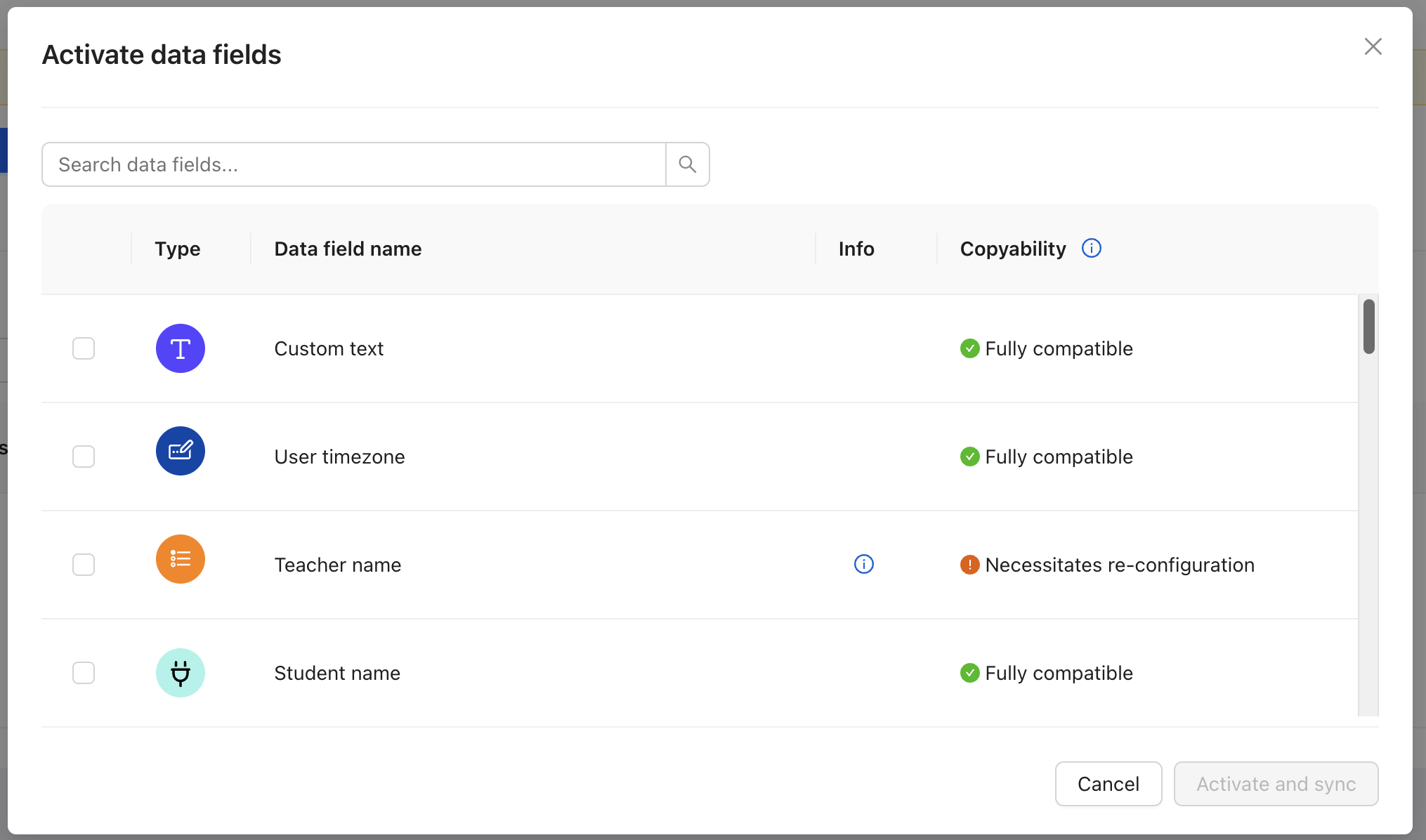
Once you've selected one or more data fields and clicked Activate and sync, the embedded data field will be ready to use! Any distribution using this survey configuration will automatically collect values for your activated embedded data fields.
Duplicating & Renaming
There are cases where you may want to use the same Data field for your Embedded data fields multiple times. In which case, you can duplicate them, and choose a different Name for them. The Value will be still be retrieved according to the Data field's configuration.
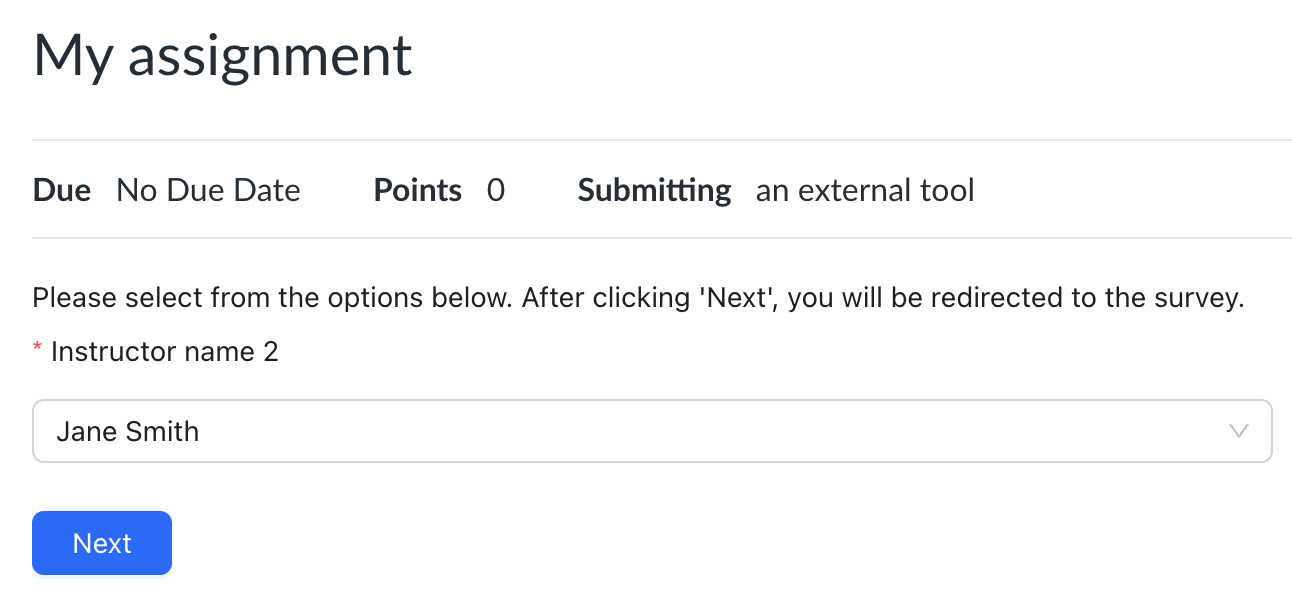
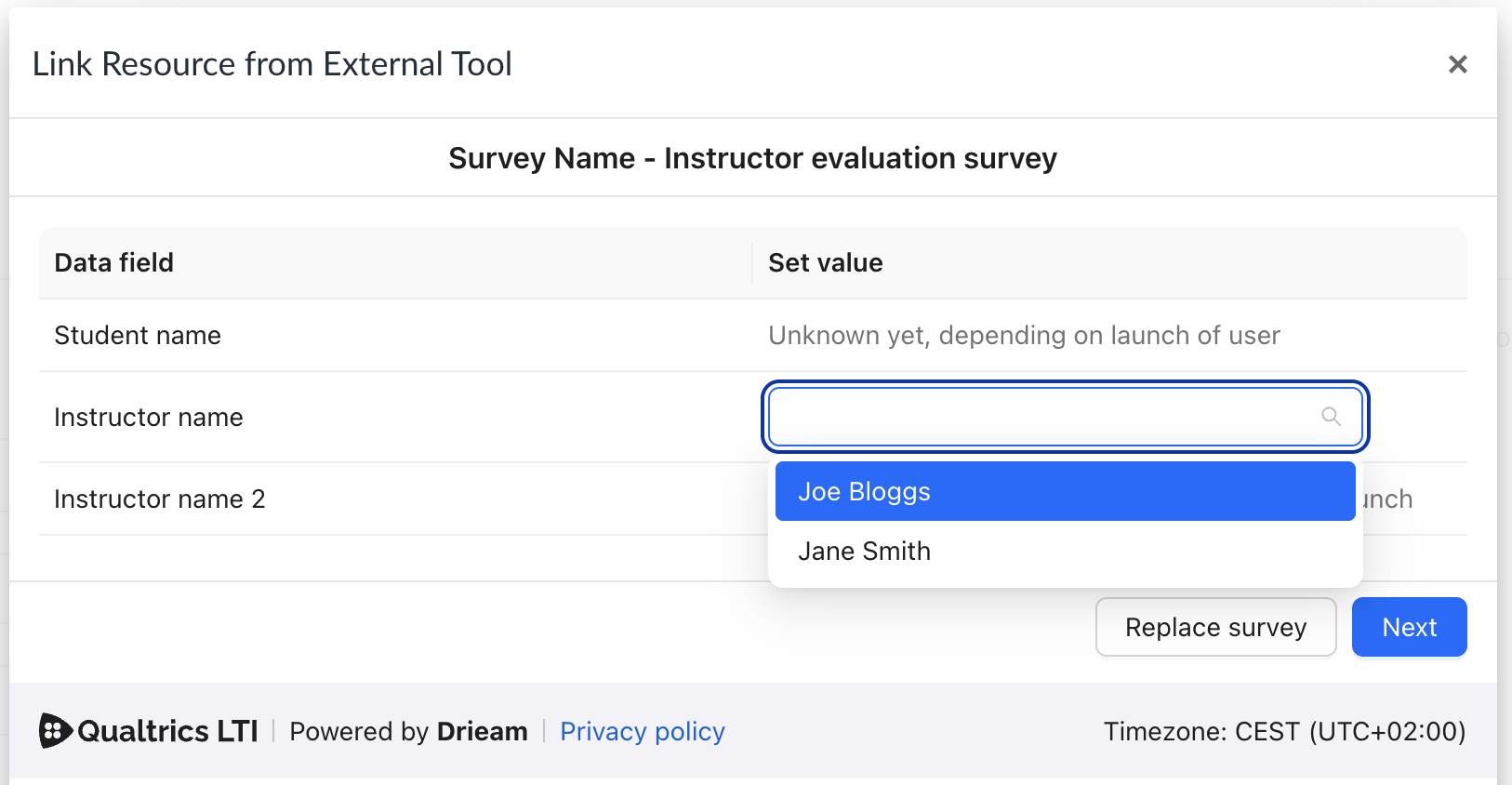
Tip: This is useful if you want to have two Embedded Data Fields with the same configuration but different names. For example, two copies of an Assignment setup → API selection data field called ‘Instructor name’ and ‘Instructor name 2', which will have different values selected by the instructor during assignment setup (see Fig 3).
Canvas
As seen in Fig 1, data fields have two Retrieved on locations: student launch, and assignment setup. All of the Data source types will automatically retrieve the Value for the embedded data field at the specified location — so all you need to do is set up the assignment in Canvas and wait for the student to take the survey.
When the Data source type is either Text selection or API selection, then the value must be set in the chosen location.
Qualtrics
You can use Embedded Data Fields in Qualtrics in a number of ways. Here are the two aforementioned uses: Piped Text and Data & Analysis.
For more examples, see Qualtrics' own Embedded Data article.
Piped Text
You can insert the value of an Embedded Data Field within a survey's questions or answers:
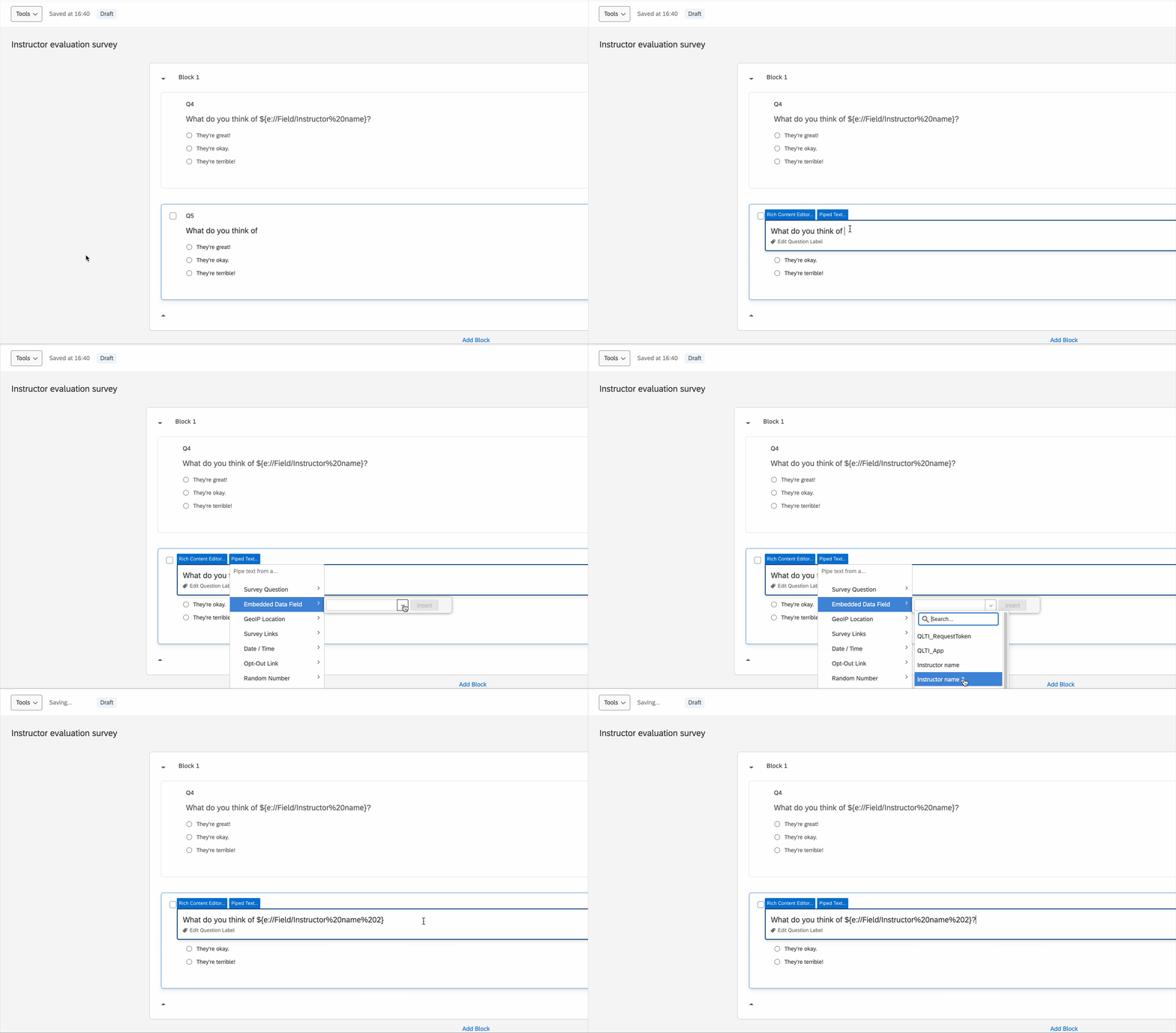
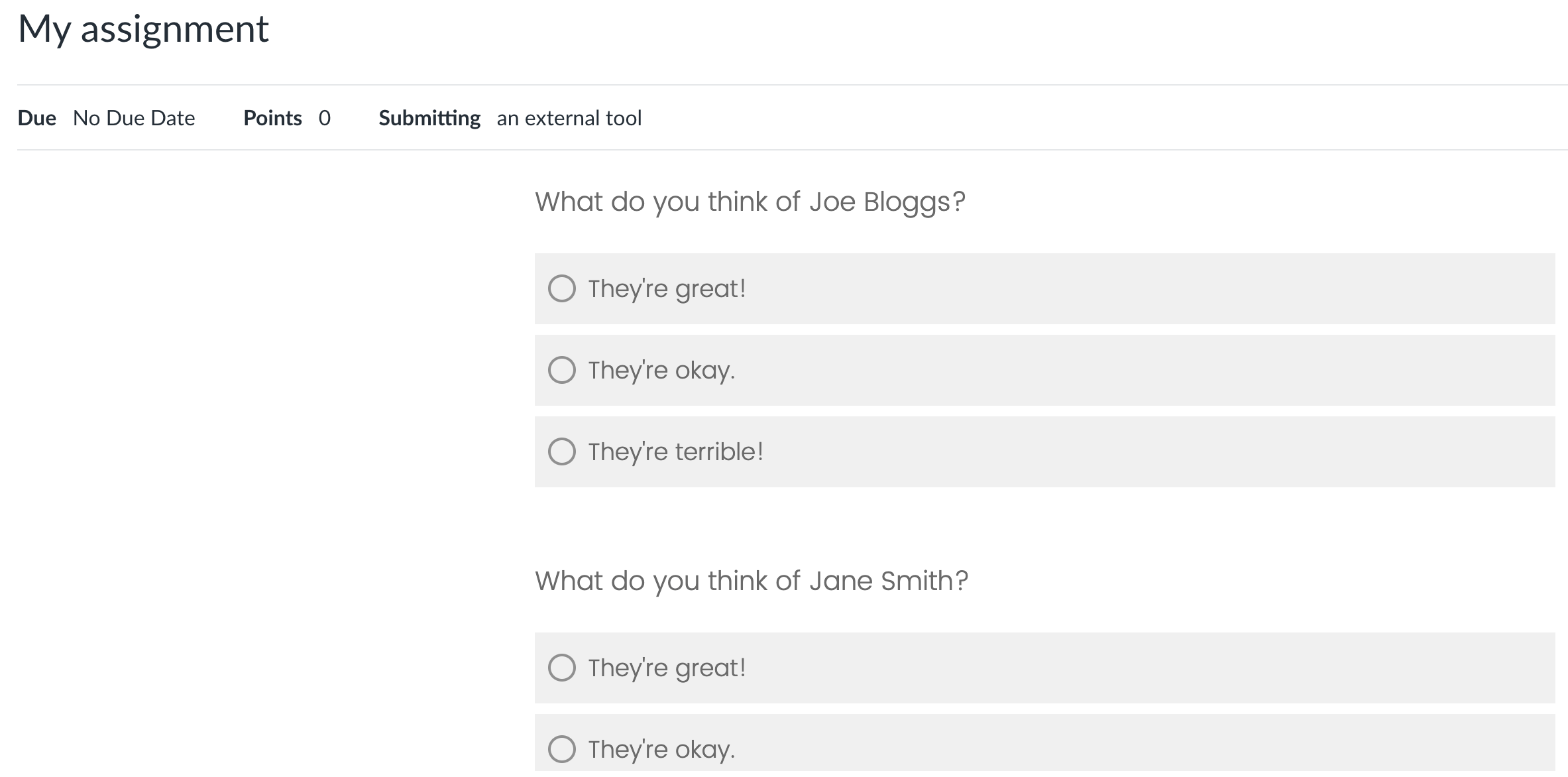
When the student opens a survey in Canvas, this Piped Text fragment is then replaced with the value of the Embedded Data Field that Qualtrics LTI provides:
Data & Analysis
You can view the value of an Embedded Data Field in Qualtrics' Data & Analysis tab:

Once Embedded Data Fields have been collected in Qualtrics, they can also be used in Qualtrics Dashboards as filters (e.g., to filter your data by course or instructor).
Create data field interface
This section will explain how to use the Qualtrics LTI interface to set up Data fields.
In Qualtrics, an Embedded Data Field is comprised of two things: a Name and a Value.
In Qualtrics LTI, we have Data fields and Embedded data fields. Both also contain a Name and a Value.
You can think of Data fields as being the configuration for how that particular data field will retrieve its value, along with its default name. An Embedded data field is simply what we call a Data field that has been activated on a survey.
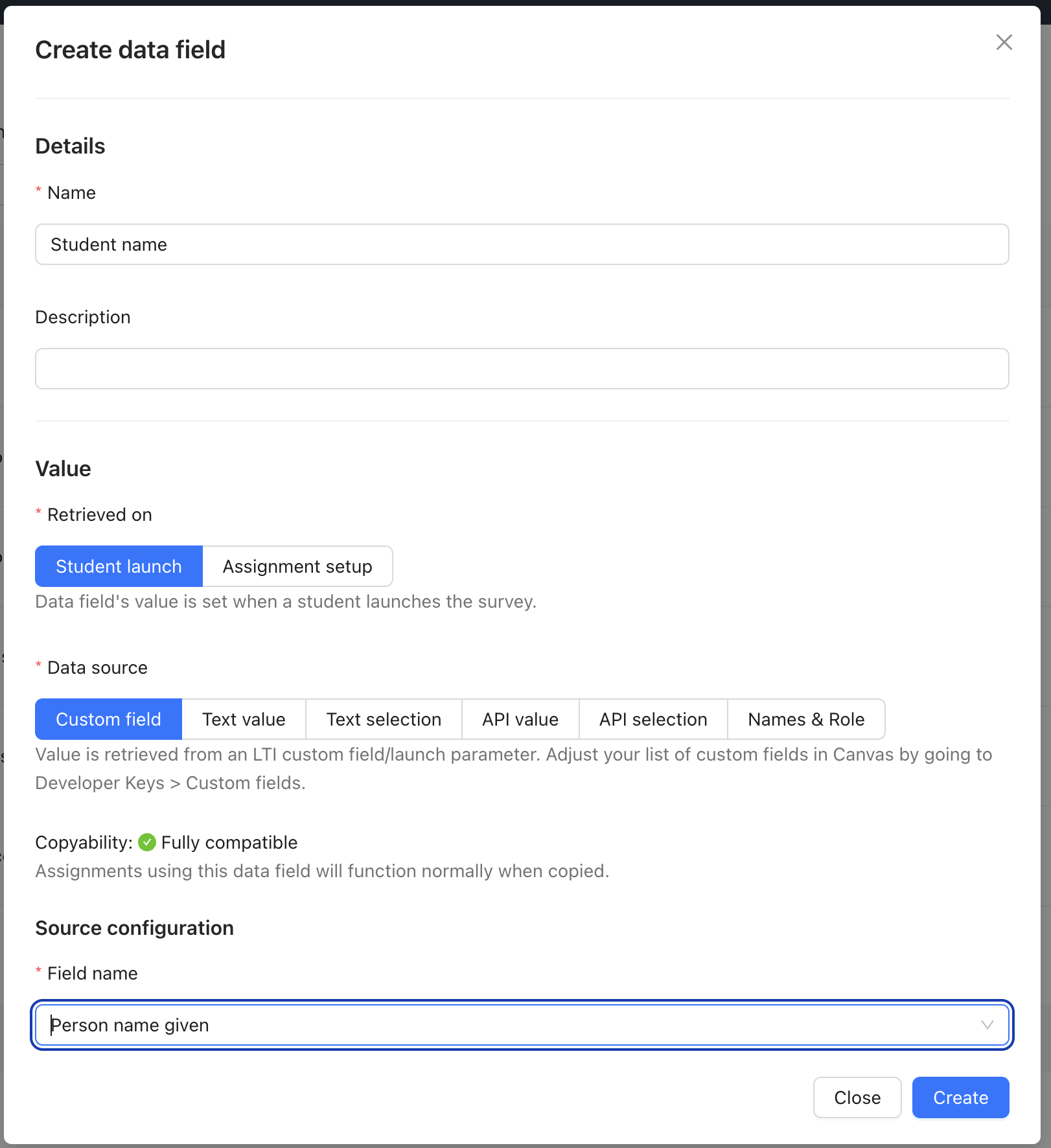
Retrieved On
Student launch
When a student launches the survey (opens the assignment), we will immediately retrieve data from the data source using that student's LTI launch, or their API token in the case of API-type data sources.
Student launch data fields can differ for all students that complete the survey in that assignment, depending on which the Data source that is used.
Assignment setup
When an admin or instructor is distributing a survey into a Canvas assignment, Canvas's 'External tool' window will show a list of data fields that have been activated on the corresponding Survey configuration.
Assignment setup data fields are set by the user setting up the assignment, and are thus the same for all students that complete the survey in that assignment.
Note: 'Assignment setup' data fields are not able to be added to bulk surveys at all, as the bulk assignment creation process circumvents the assignment setup step.
Note: 'Custom text' data fields — which can be activated on any survey — also have their values set in the Assignment Setup View for non-bulk survey configurations.
Data Sources
Each of the following data sources determine where the value for the eventual Embedded data field will come from. Each data source is accompanied by its own Survey configuration sub-section, which allows you to further define where the value will come from.
Custom field
Qualtrics LTI and Canvas both leverage 1EdTech's LTI standard to securely pass data from Canvas into Qualtrics LTI — which then passes that data through to Qualtrics.
'Custom field' data fields derive their value from your chosen custom field, which are configured in your Developer Key (LTI Key) in Canvas.
Adding a missing field
Missing a custom field? Add it to your LTI Key § Custom fields list, using the following format: canvas_user_id=$Canvas.user.id.
This will make a human-readable version of the left-hand side appear in the Custom field drop-down in Qualtrics LTI, e.g. "Canvas user id", and the value will be equal to the value described in by the right-hand side (known as a "Variable Substitution").
A list of all possible fields can be found in Canvas' Variable Substitutions article. See our 📄 Commonly used data fields and their corresponding custom fields guide for more information on adding new custom fields.
Text value
The value that you input in the Create data field modal will be the fixed value for any activated Embedded data fields that use this Data field.
Text selection
You may enter multiple values to create a custom drop-down list that instructors (Assignment setup) or students (Student launch) will choose from.
API value
You may specify a Canvas API endpoint that returns a single value for the embedded data field, which will be set using the API token of the instructor (Assignment setup) or students (Student launch).
API selection
You may specify a Canvas API endpoint that returns an array of values, which will render a drop-down list that instructors (Assignment setup) or students (Student launch) will choose from.
Names & Role
Note: This data field is intended for use with the Looped Surveys feature. It has little use outside of the context of this feature.
The LTI Advantage Services feature comes with the IMS Names and Role Provisioning Service built in, which both Canvas and Qualtrics LTI support.
You may specify a type of membership (e.g. 'All instructors') and a value (e.g. 'name'), which will return an array of values for the embedded data field, which are set without providing a drop-down.
Note: In order to make use of this, you must enable the 'Can retrieve user data associated with the context the tool is installed in' setting in your LTI Key § LTI Advantage Services.
Custom text
There is a special type of data field that is not first created in the <Institute level> → Data fields area. It is always available to be activated on all Survey configurations.
The Value is set to a text string that is defined in 1 of 2 locations:
The 'External tool' window (see Fig 3), set by the creator of the assignment.
The bulk survey wizard (for bulk surveys only), set in a CSV file by the creator of the bulk distribution. See 📄 Bulk Surveys Guide.
Workflow Example: 'Assignment name' data field
Scenario
I want an Embedded Data Field in my Qualtrics survey called 'Assignment name'.
I want it to contain the name of a Canvas assignment which the student selects.
Workflow
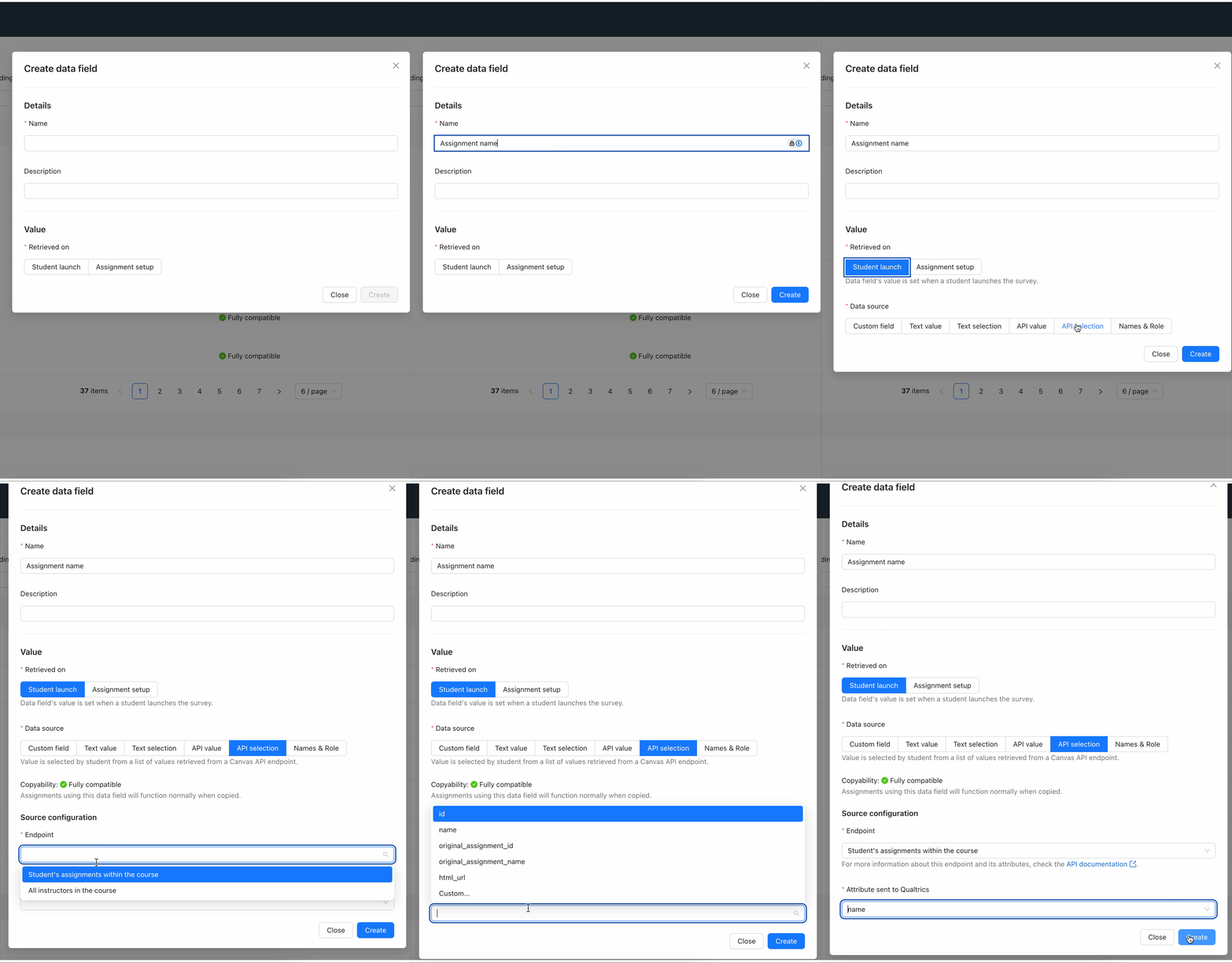
I navigate to <Institute level> → Data fields → + Create data field.
I fill in my desired name for the data field, "Assignment name".
I want the data field's value to be set when the student takes the survey, so I click Student launch.
I want the data field's value to come from the Canvas API, so I click API selection.
I want the student to choose from a list of assignments, so I select Endpoint → Student's assignments within the course.
I want the data field value to be the chosen assignment's name, so I select Attribute sent to Qualtrics → name.
See Fig 8 above.
I want this to happen for my 'Course evaluation' survey, so I navigate to <Institute level> → Surveys → <Survey> → <Survey configuration> → Embedded data fields.
I click Activate data fields and select the "Assignment name" data field that I created.
My survey is now ready to be distributed and the embedded data field is ready to collect data.