Qualtrics Survey Flow
Last updated: July 31, 2026
Introduction
This article will describe the interaction between Qualtrics LTI and a Qualtrics survey's Survey Flow.
Qualtrics: Survey Flow
In Qualtrics, every survey has a Survey Flow that it will process step-by-step whenever a user opens the survey. If you are a brand administrator, you may already be familiar with this.
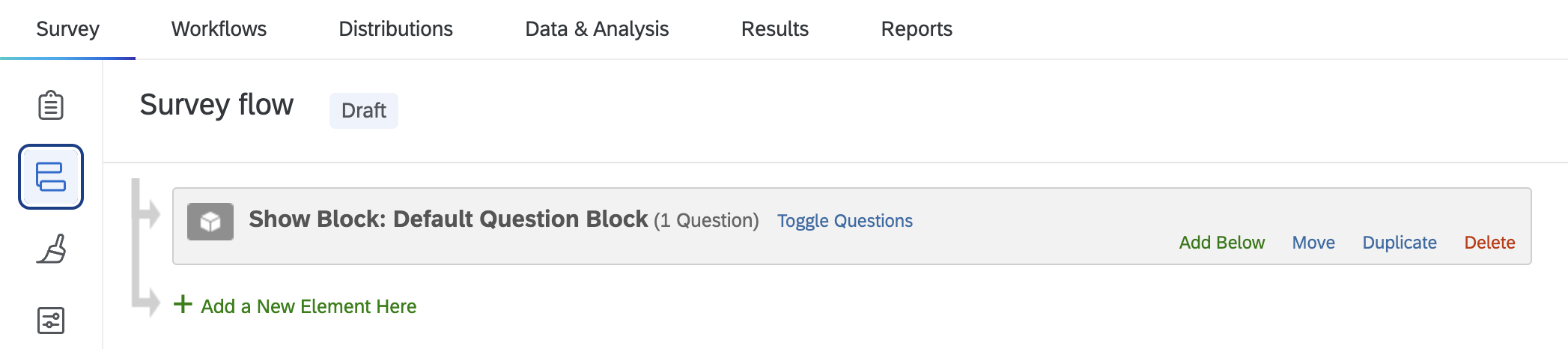
As in Fig 1, by default, a new Qualtrics survey’s Survey Flow contains one element, which tells the survey to display the questions.
Other elements can be manually added, such as an Authentication block, a Branch, an Embedded Data block, and so on.
Note: For more information on Qualtrics' Survey Flows, please consult Qualtrics' Survey Flow article.
Qualtrics LTI
A single Qualtrics survey may be added in multiple places to the LTI within Canvas: the Institute level, the Department level of one or more sub-accounts, and the Personal Survey areas of one or more users. Each can have different settings and embedded data field configurations. Each of these are called Surveys.
In order for Qualtrics LTI to send embedded data values to the survey when it is launched by a student, the survey’s Survey Flow must be updated to include a list of the data fields that have been activated on that survey in Qualtrics LTI. Fortunately, Qualtrics LTI handles this for you automatically!
We create a Group (called the integration group), which contains an Embedded Data element and a Web Service element in order to set the embedded data values of a survey response.
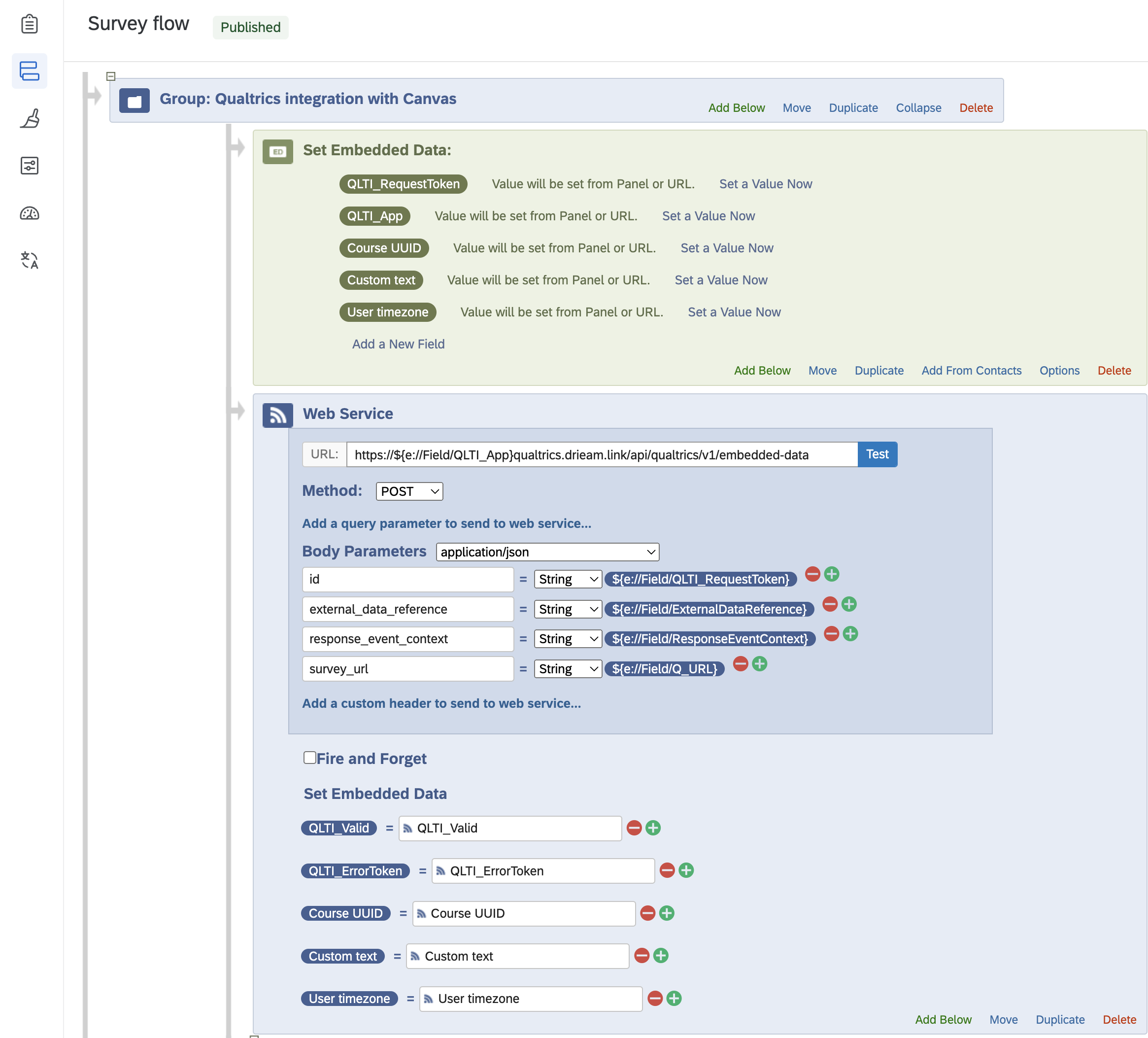
Fig 2 shows an example of a Qualtrics survey that has been added to Qualtrics LTI and has had three data fields added to it: “Course UUID”, “Custom text”, and “User timezone”.
When the survey is opened, Qualtrics will first ask Qualtrics LTI for the value of these data fields, which will then be passed back to the survey. The survey then carries on with the rest of the Survey flow (until it eventually opens the questions).
This Survey flow block is what powers the embedded data fields feature of Qualtrics LTI, and allows you to include embedded data in your data and analysis, and even as piped text into the survey itself.
The Sync
The integration group is created, updated, and/or removed during a Survey Flow Sync. This sync is triggered when:
a Survey configuration is added or deleted;
Embedded Data Fields are activated, deactivated, renamed, or duplicated on any Survey configuration of a survey;
the ‘Sync’ button in Qualtrics LTI → <Survey> is clicked;
at 03:00AM UTC every day.
The sync uses the following logic:
If the Qualtrics survey has no Survey configurations in Qualtrics LTI anymore, then the integration group is removed.
Otherwise:
Qualtrics LTI will look at all Embedded Data Fields that have been activated on the survey.
When the survey is first added, there are no activated data fields by default.
We then update the Survey Flow, adding a new Group element to the very beginning (the integration group). For every activated Embedded Data Field on that Qualtrics survey — across the whole app — the field is added to the integration group.
Any data fields that were deactivated will be removed from the Survey flow.
Use Case Example: 1 Survey on Multiple Levels
As mentioned above, this sync will trigger on the linked Qualtrics survey’s Survey flow when any user causes it to trigger. This means that, if the same Qualtrics survey is added in multiple places within Qualtrics LTI, the Survey Flow is re-synced every time it was added and every time an embedded data field was activated/deactivated.
Example
John Smith has added the survey ‘Physics Course Evaluation’ to his Personal Surveys list. It has not been added anywhere else in Qualtrics LTI yet.
John Smith creates a Survey configuration.
The Survey Flow Sync is triggered, causing the Qualtrics LTI integration group to appear in the Survey Flow.
John Smith activates two Embedded Data Fields on the survey: ‘Custom text’ and ‘User timezone’.
The Survey Flow Sync is triggered again, which causes ‘Custom text’ and ‘User timezone’ to appear in the integration group's Embedded Data element.
Jane Doe adds the same survey, ‘Physics Course Evaluation’, to her own Personal Surveys list.
The Survey flow sync is triggered. As there are no activated data fields on her copy of the survey in Qualtrics LTI, nothing changes in the integration group.
Jane Doe creates a Survey configuration and activates one data field on the survey: ‘Course name’.
The Survey Flow is synced again, which causes ‘Course name’ to appear in the Embedded Data element, alongside ‘Custom text’ and ‘User timezone’.
John Smith deactivates ‘Custom text’ on his Survey configuration.
The Survey Flow is synced again, leaving only ‘Course name’ and ‘User timezone’ in the Survey Flow.
This mechanism allows the survey to be shared by multiple users and multiple accounts while supporting all of the data fields.
Note: Qualtrics LTI will only pass through values for the embedded data fields that are activated on the Survey configuration that is linked to the assignment.
If Jane Doe also wanted to see the user's timezone in her students' responses, then she should activate the 'User timezone' embedded data field on her own Survey configuration.