Copying Assignments
Last updated: October 7, 2026
Overview
In Canvas, it is possible to copy assignments from one course to another. It's even to copy an entire course along with its assignments.
Qualtrics LTI allows you to link surveys to assignments. When you copy these assignments (or courses that contain such assignments), the new assignments may or may not function correctly in their new course. This is dependent on the Copyability level of the linked Survey configuration:
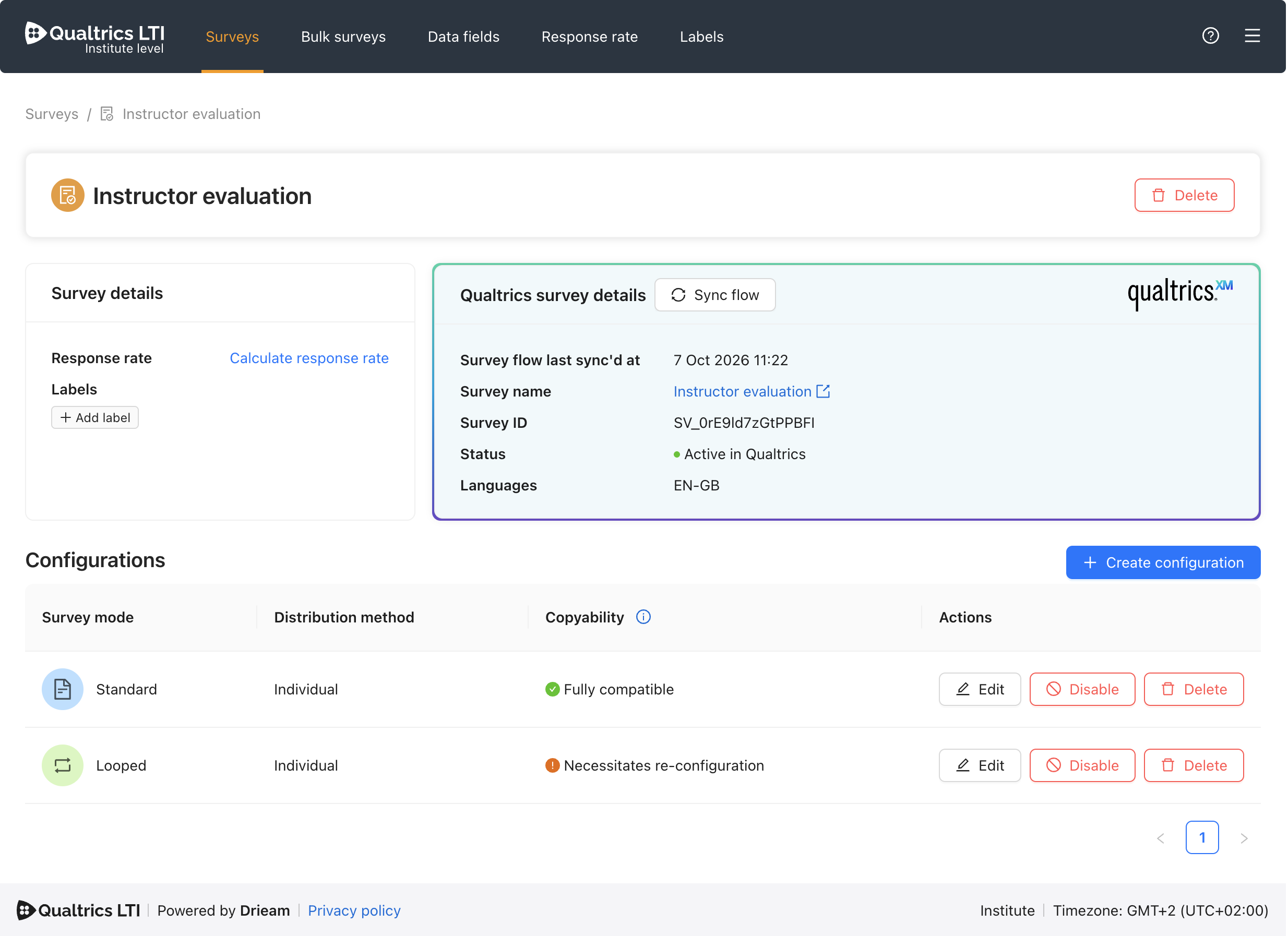
The Copyability level of a Survey configuration is, in turn, determined by the Copyability level of the Embedded data fields that have been activated on it:
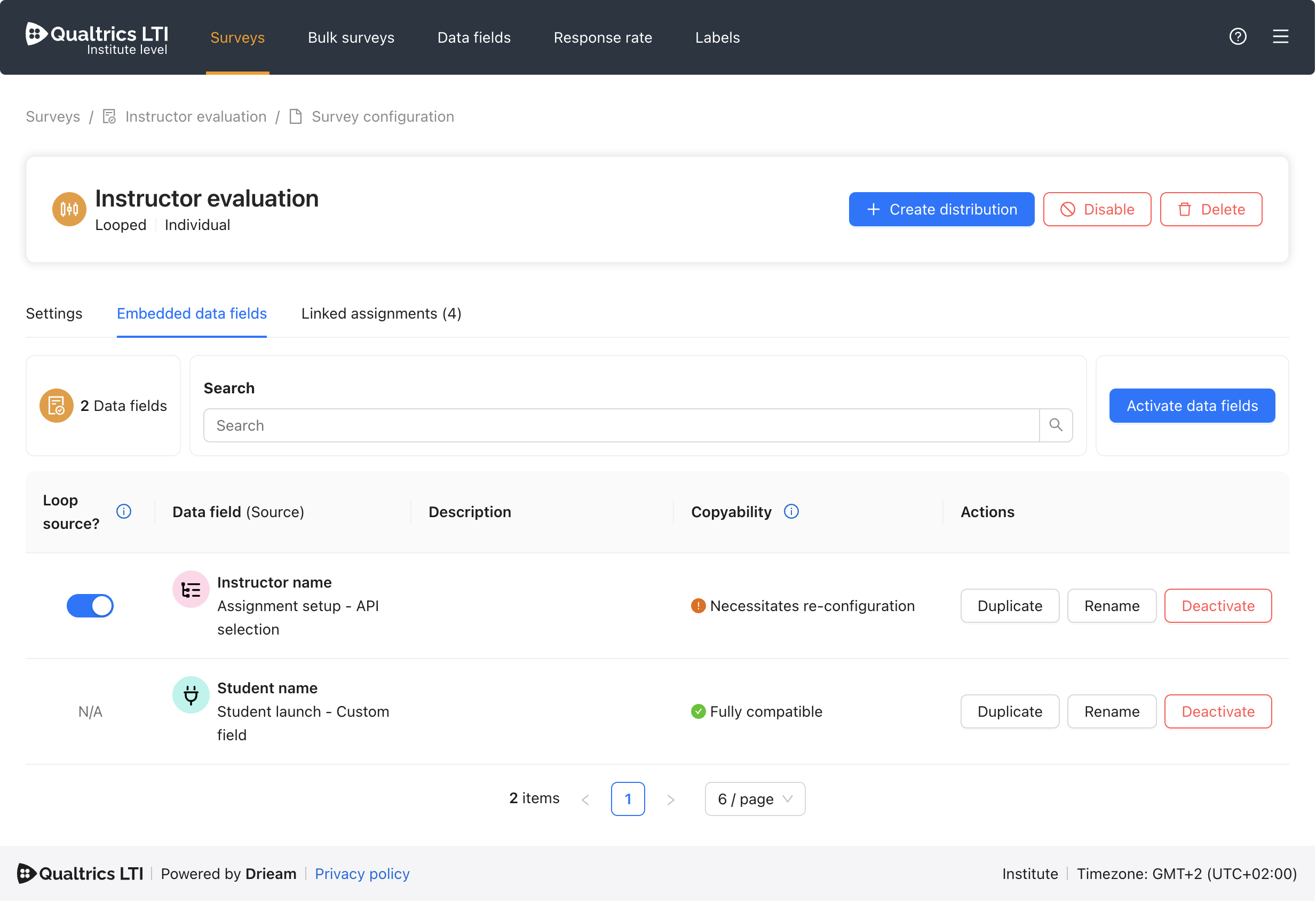
In Figs 1 & 2, we can see that the Looped Survey configuration has a Copyability level of 'Necessitates re-configuration' because at least 1 of its Embedded data fields has that copyability level. The Standard Survey configuration only has 'Fully compatible' Embedded data fields, and so it, in turn, is 'Fully compatible' with assignment copying.
Copyability Levels
Fully compatible
The embedded data field's value is determined when the assignment is opened.
If you copy an assignment containing this Survey configuration (or data field), the new, copied assignment is equivalent to a freshly-made assignment:
The survey can be opened by students.
The data fields’ values will be based on the new course that the copied assignment is in.
Necessitates re-configuration
The embedded data field's value is determined by the admin or instructor during either distribution (e.g. in the External tool window for individual distribution).
If you copy an assignment containing this Survey configuration (or data field), the new, copied assignment need to be re-configured in the External Tool window before it will function. If it has not yet been re-configured, then:
The survey cannot be opened by students.
The data fields’ values have not been retrieved.
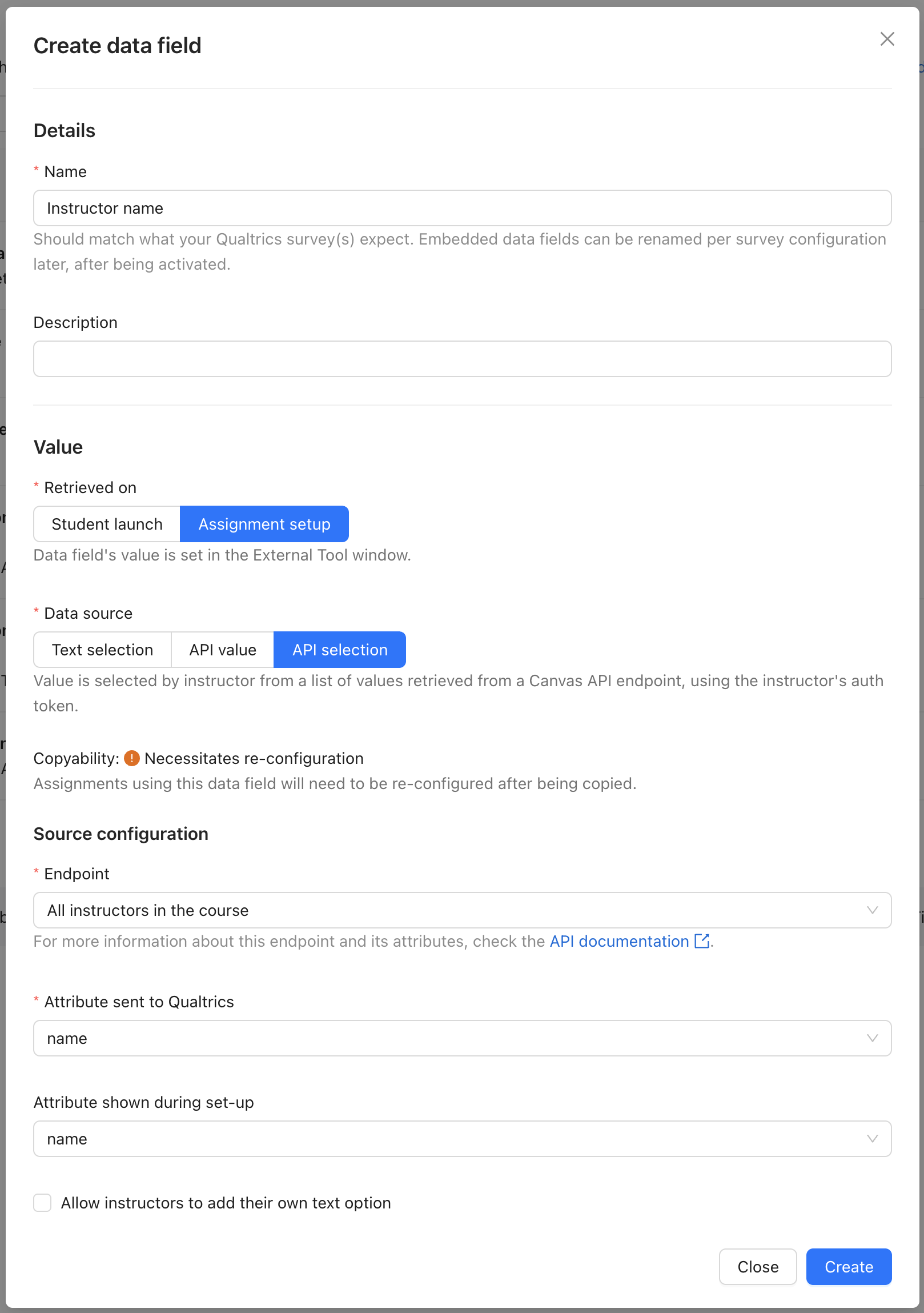
This is most often the case when the survey contains a data field with Retrieved on: Assignment setup. By copying the assignment, you will have circumvented the External Tool window during assignment setup, which is where these data fields retrieve their values:
You can re-configure the copied assignment by following these steps:
Canvas: Edit the new assignment.
Canvas: Submission Type → External Tool → Find → Qualtrics LTI.
Qualtrics LTI: Select the original Survey configuration.
Qualtrics LTI: Choose values for ‘Text/API selection’ data fields.
'API value' data field values will be retrieved automatically.
Qualtrics LTI: Click Next, and finally Select on the External Tool Window.
Canvas: Save and re-publish the assignment.
Not compatible
If you copy an assignment containing this survey (or data field), the new, copied assignment will show an error to students when they open it.
At time of writing, this only applies in one case: when a bulk Survey configuration uses ‘Custom text’ data fields. This is because ‘Custom text’ data fields do not have their values copied across courses.
Further Reading
There are a few ways to copy courses in Canvas, for which Canvas has its own guides:
Use the "Copy this Course" button.
Read the article How do I copy a Canvas course into a new course shell? for more information.
Use the "Import Course Content" button.
Read the article How do I copy content from another Canvas course using the Course Import tool? for more information.
Use a blueprint course.
Read the article How do I associate a course with a blueprint course as an admin? for more information.