[Update] New Surveys & Configurations Interface
Last updated: August 31, 2026
This article details changes to the user interface of Qualtrics LTI, released in August 2026.
Introduction
Prior to the release of this change, the UI of Qualtrics LTI allowed you to add a survey on the Institute, Department, and Personal surveys levels using a survey type (”Standard Canvas assignment”, “In-class survey (QR code)”, “Bulk Canvas assignment”. You would then configure the survey.
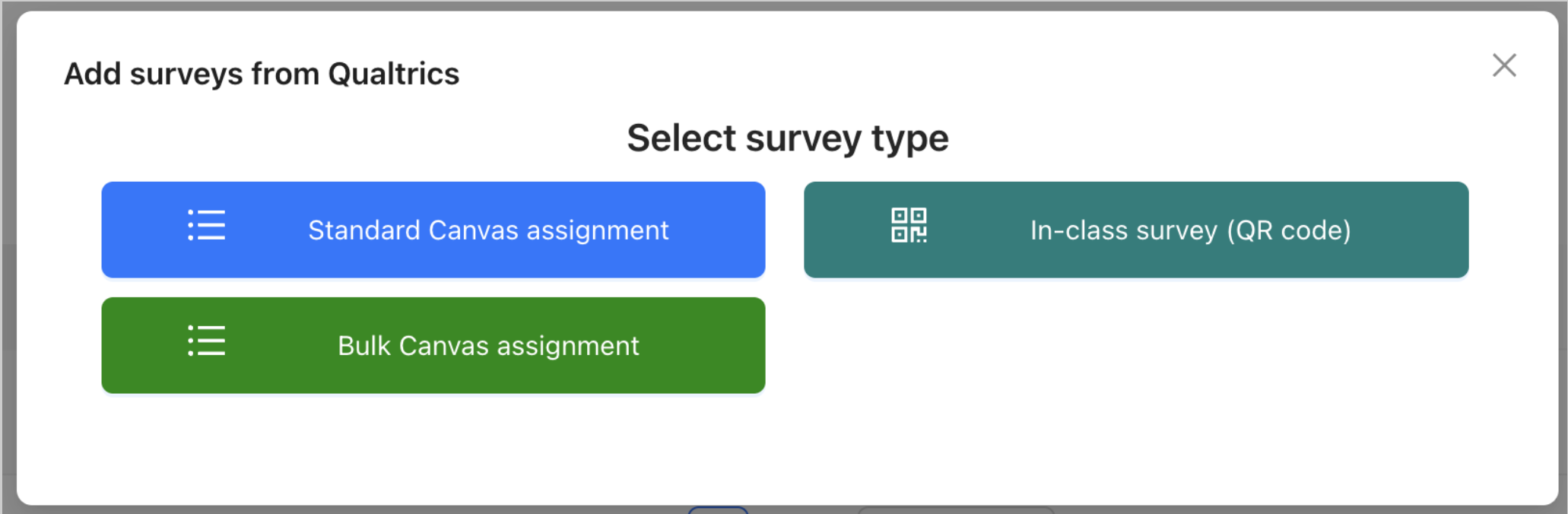
While this system works just fine, there are some issues that we wanted to address:
The Surveys list can grow quite large.
The Surveys list repeats the same Qualtrics survey if you’ve added it for multiple survey types, which can get confusing quickly.
You cannot create in-class surveys in bulk.
You can only create 1 “configuration” (bundle of settings) for each survey type per Qualtrics survey.
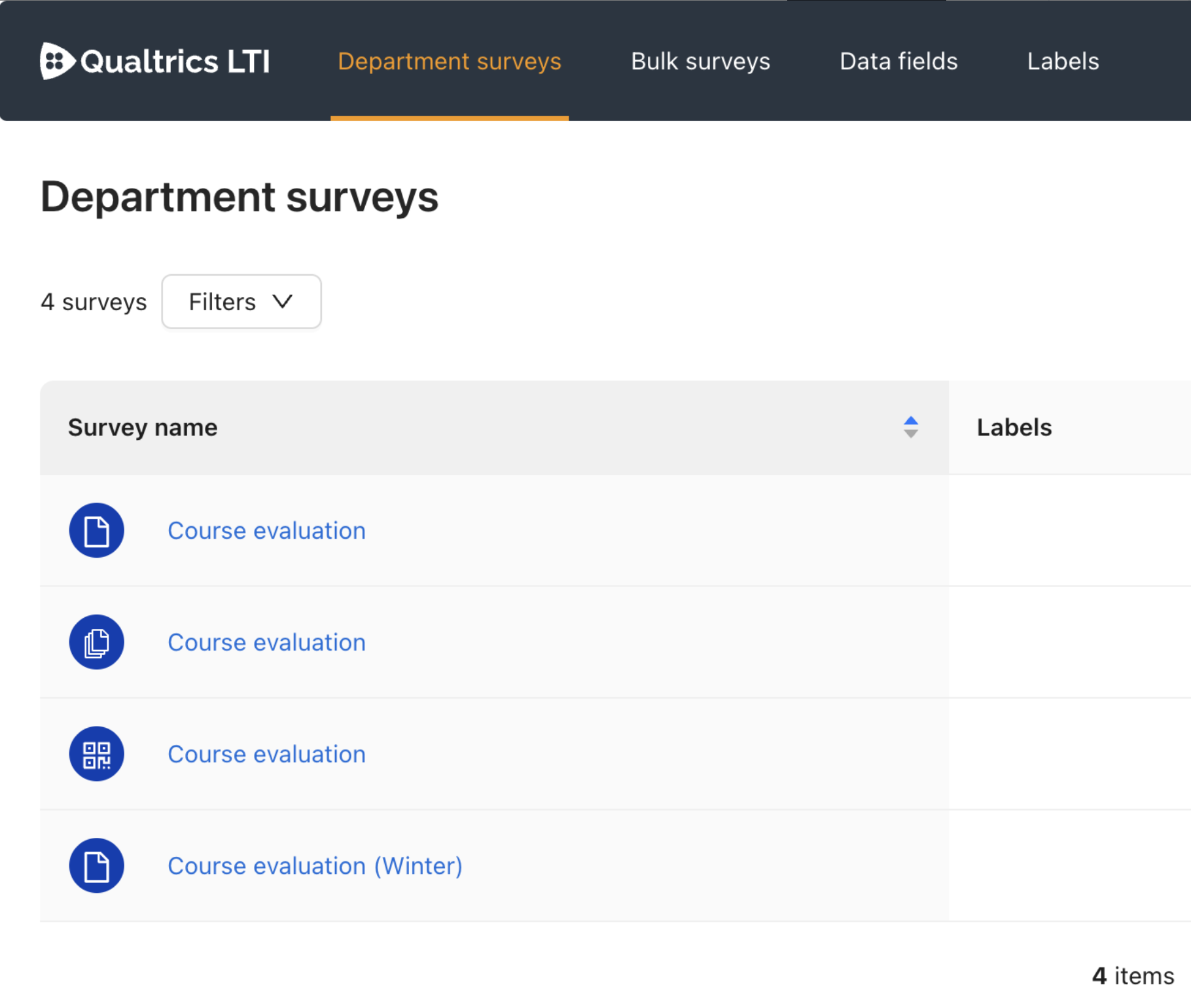
These problems arise due to the concept of a ‘Qualtrics survey’ and a ‘configuration for distributing the survey’ being mixed together; each of the above records could be thought of as a ‘survey configuration’ rather than just a ‘survey’. Therefore, we have updated Qualtrics LTI to work a little differently by separating these concepts.
To address these issues, we have separated the concept of a “Qualtrics survey in Qualtrics LTI” (a Survey) and the bundle of settings and embedded data fields that you attached to it (a Configuration).
Want to skip the details and see a run-through of how this works in practice? Go to the the § Walkthrough section of this article.
New Workflow
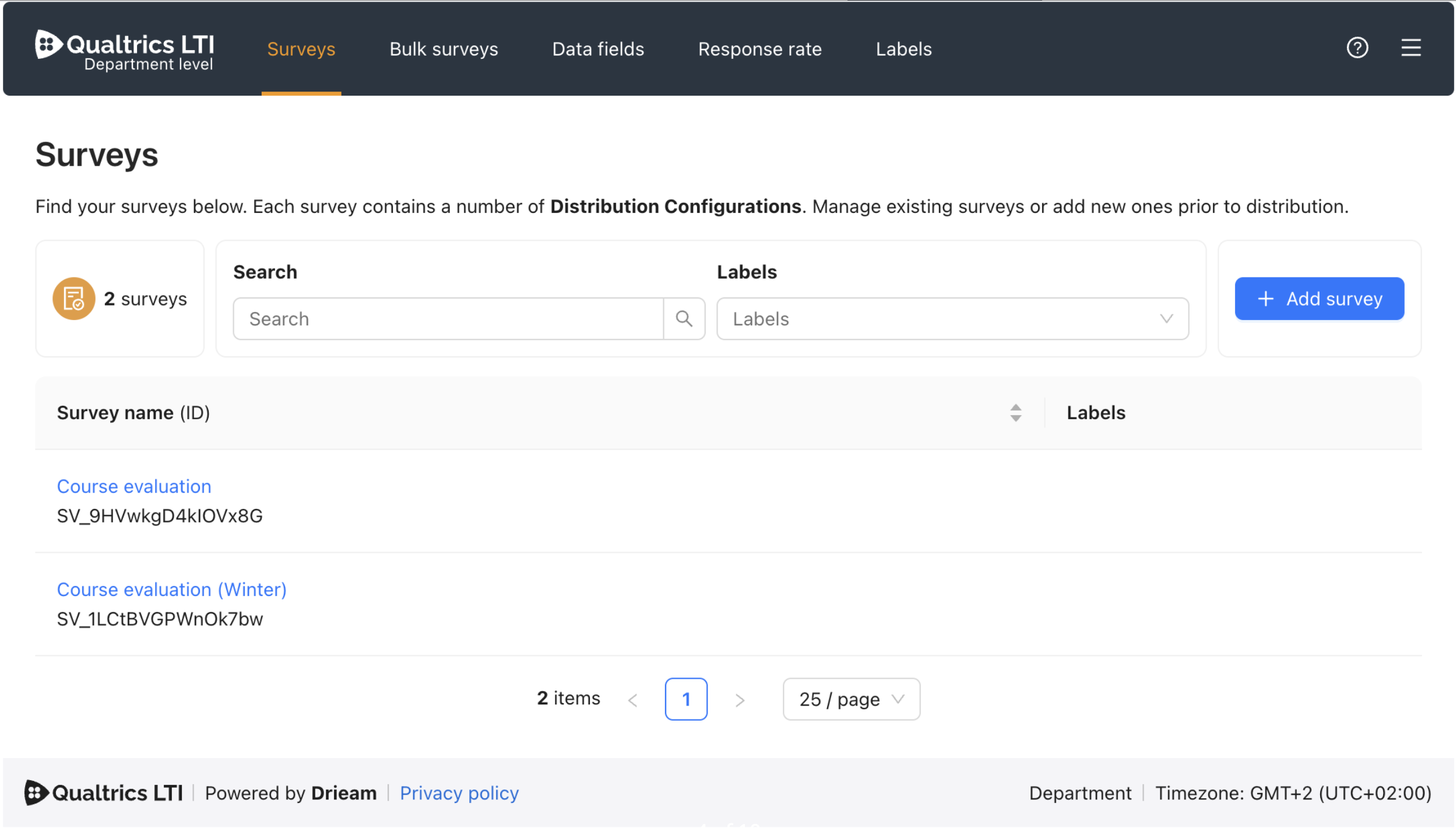
Surveys
A Survey works very similarly to how surveys work previously. However, they are much ‘thinner’: you can add Labels to a survey and add Configurations to a survey.
Previously, all of the distribution settings were coupled to the survey itself, including but not limited to Canvas SpeedGrader settings, grade passback settings, and embedded data fields.
Configurations
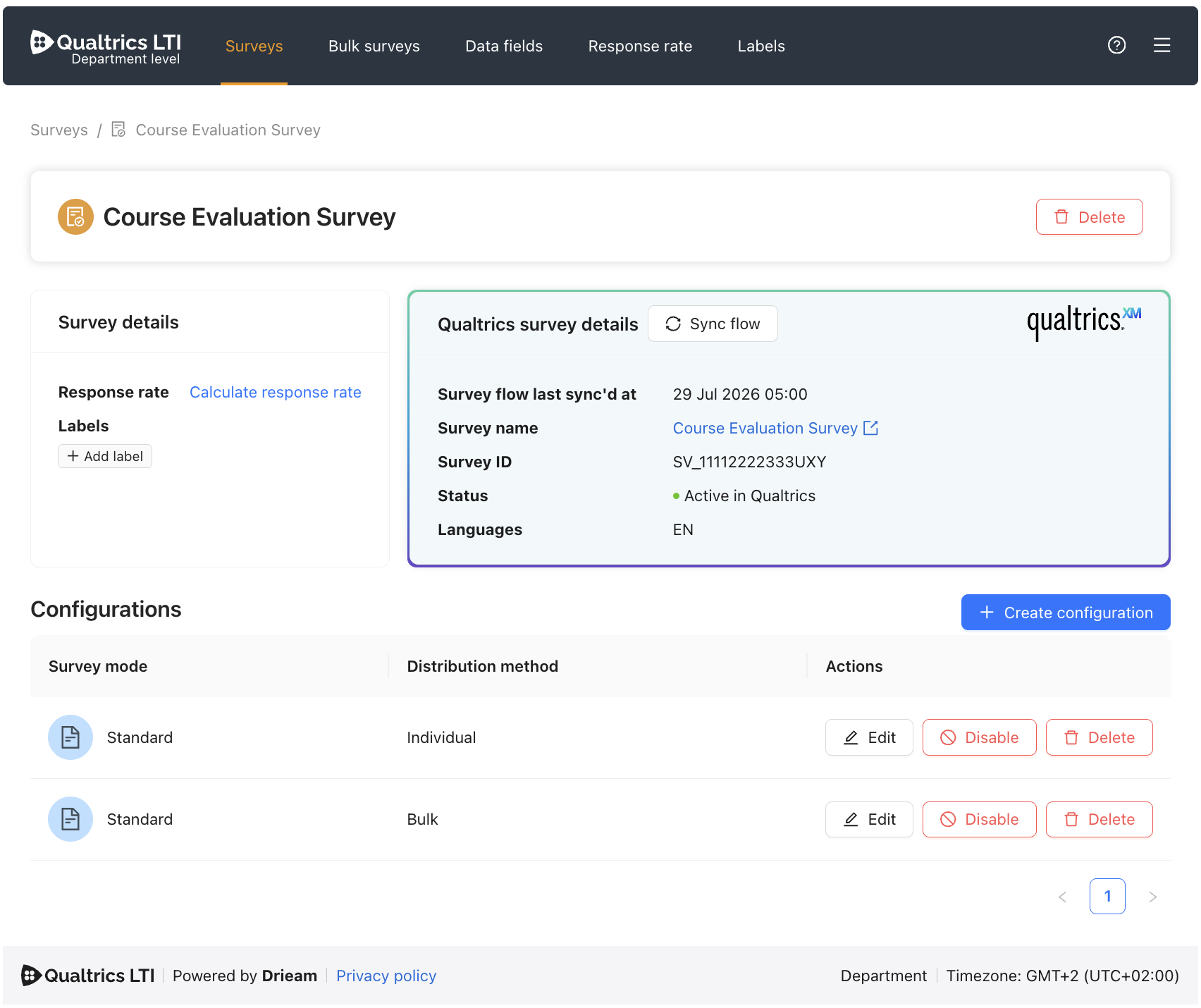
A Configuration represents a configuration of the survey that you will eventually attach to a Canvas assignment — or use in the bulk wizard. This is the new home for all of the settings that previously lived on the Survey itself.
Creating a Configuration is as easy as selecting the Survey mode and Distribution method:
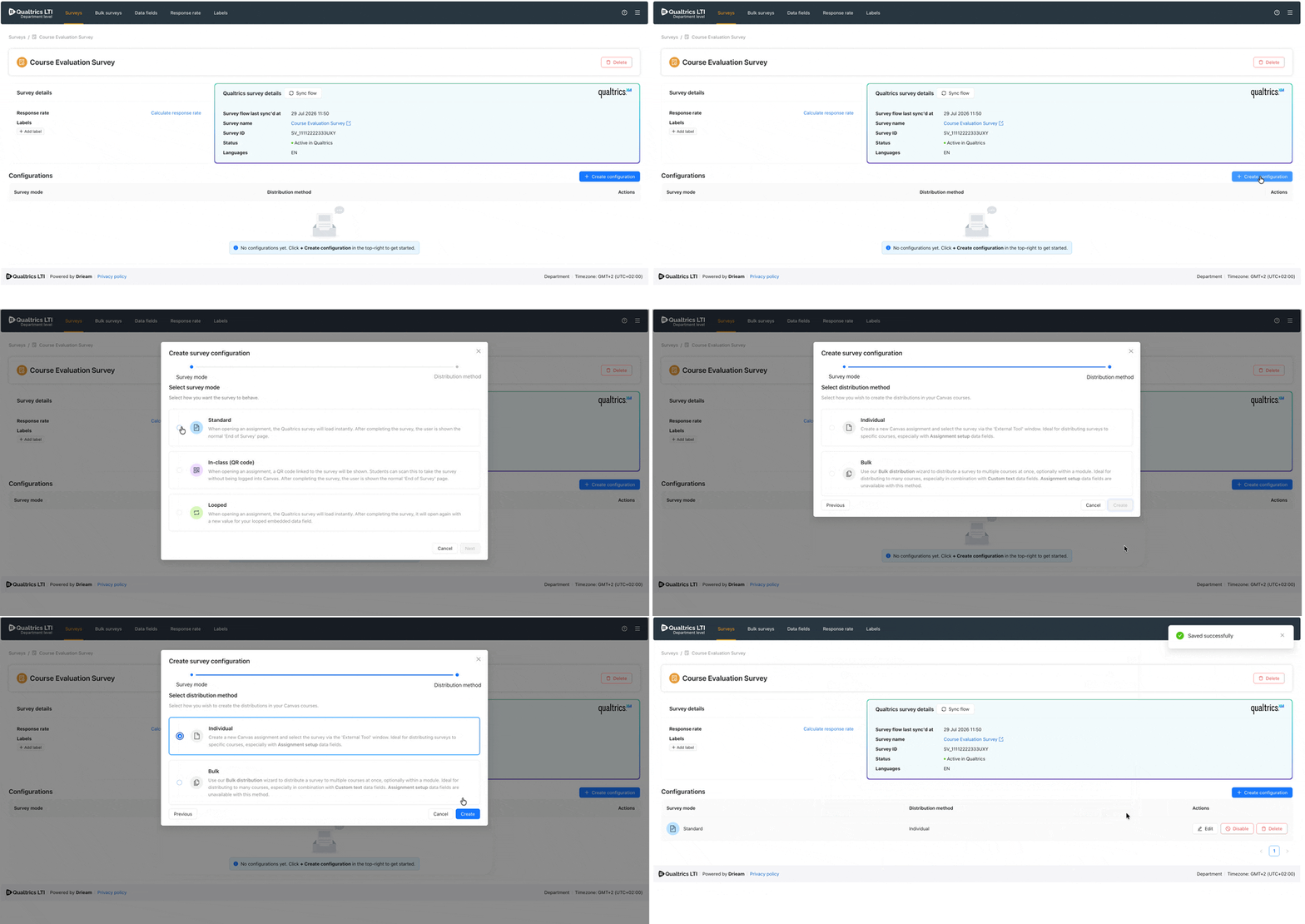
In short: Survey mode determines how the survey will behave, and Distribution method is ‘Individual’ for creating assignments in Canvas yourself, or ‘Bulk’ for when using the bulk wizard to create multiple assignments at once.
For more information on what each Survey mode and Distribution method does, please consult the relevant § Survey Mode & § Distribution Method sections of the 📄 Surveys Guidearticle.
You can then customize each Configuration as you wish by clicking the Edit button:
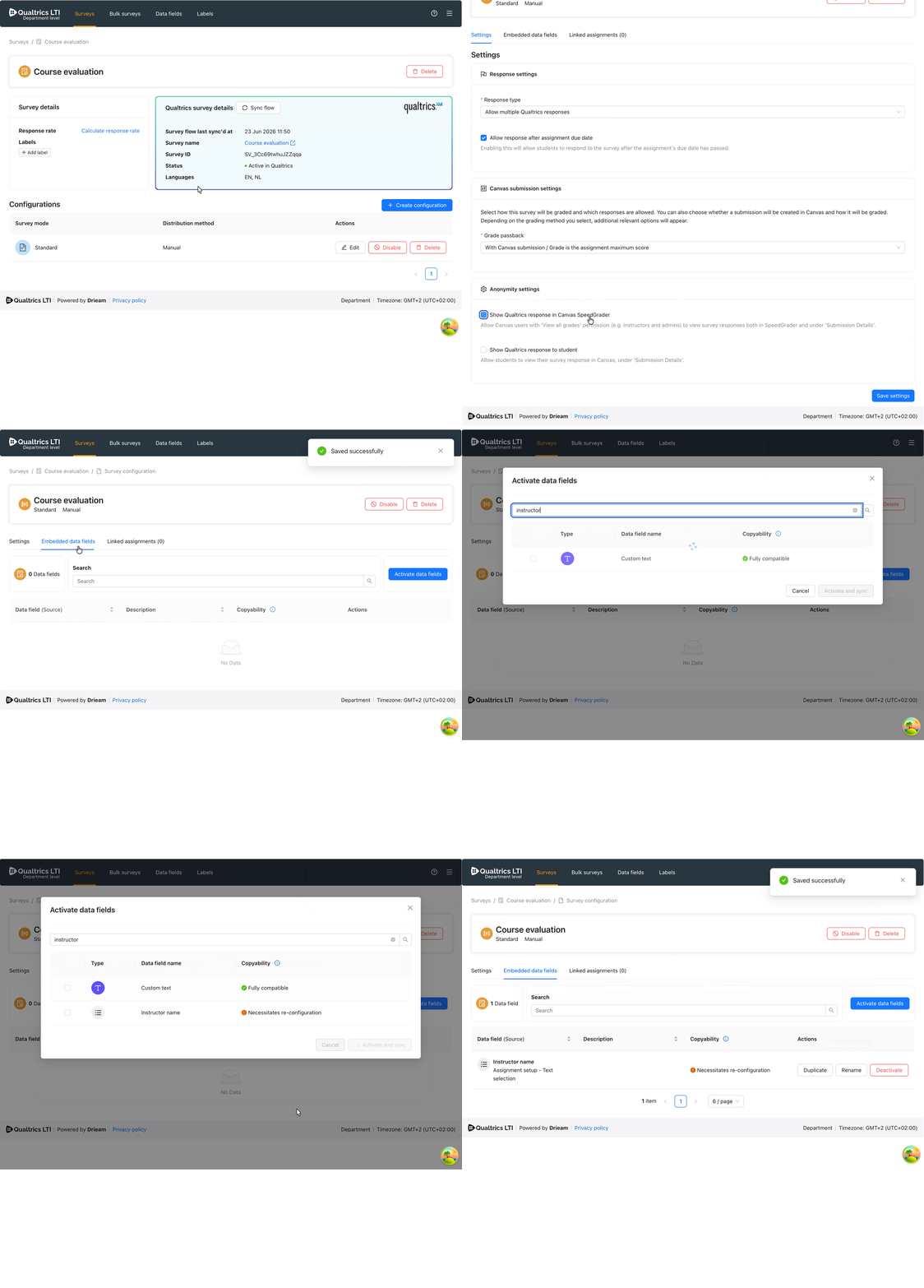
The process for distributing a survey is almost identical to the old process except now the different Survey configurations are more clearly listed:
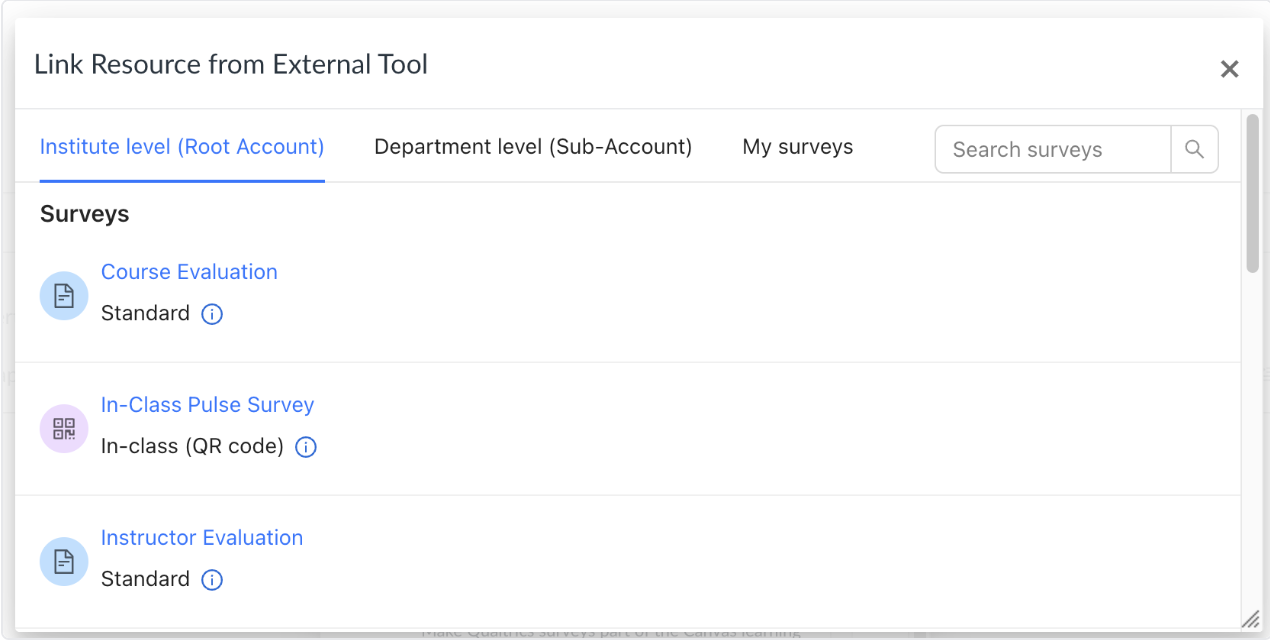
Migration: The New Mapping
With the release of this feature we will automatically convert legacy surveys into Surveys + Configurations. This means that your UI will be updated to show the new list with the new records, per the conversion.
We use the following mapping:
Survey type (Legacy) | Survey mode (New) | Distribution method (New) |
|---|---|---|
Standard | Standard | Manual |
Bulk | Standard | Bulk |
In-class | In-class | Manual |
Compare Figs 2, 3, and 4 to see how the user interface is converted into Surveys with Configuration(s).
Walkthrough
Part 1: Adding and configuring a Qualtrics survey
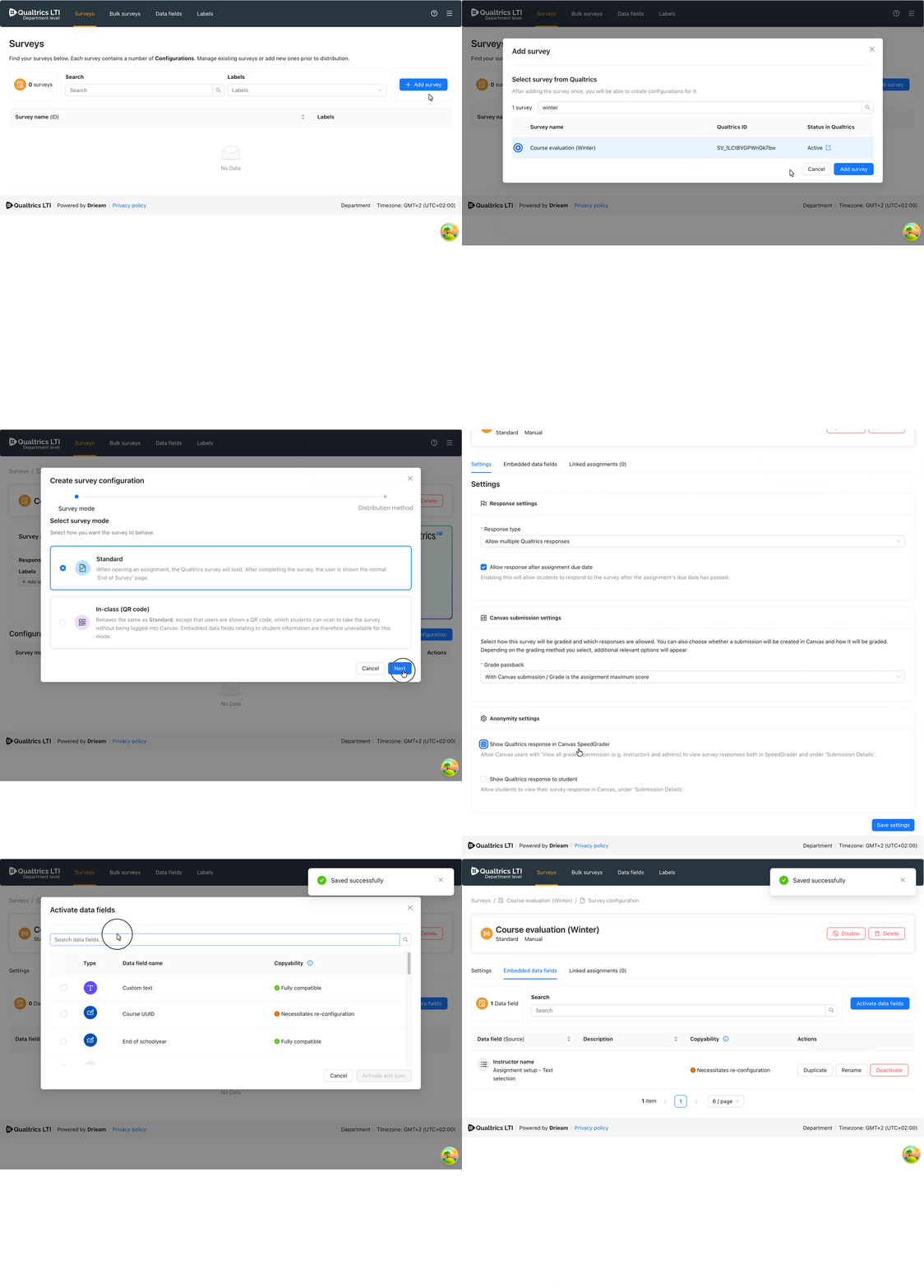
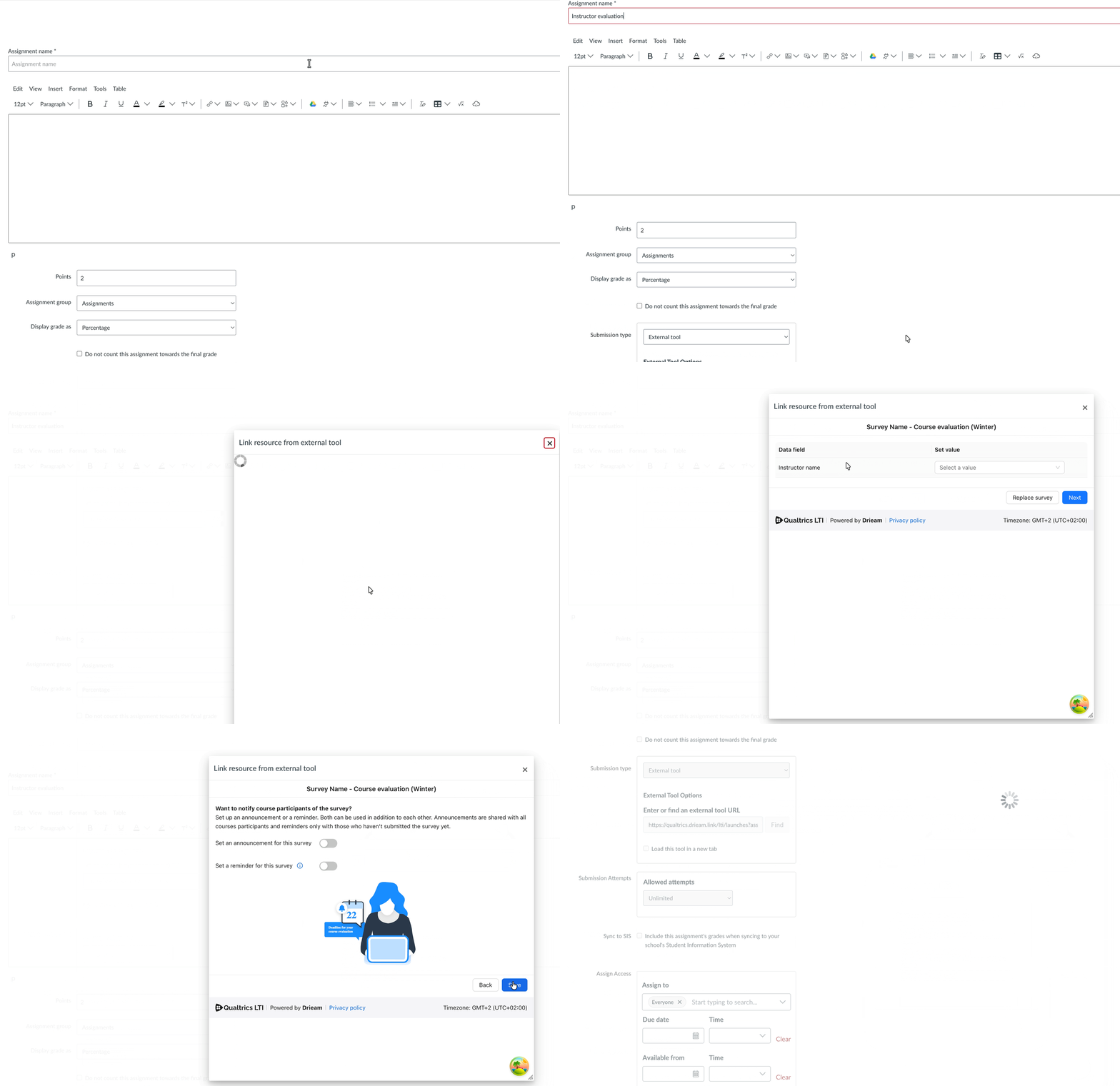
Part 2: Distributing a Qualtrics survey
Future Developments
Thanks to this change, we will be to expand on the concept of configuration. Some things already on our mind:
Allowing you to make more than 1 configuration per survey mode + distribution method, so that you can create different configurations for your different needs throughout the academic year.
Allowing you to create in-class surveys in bulk.
Have ideas for future developments or want to provide feedback? Please get in touch by reaching out to support@drieam.com!