Settings Guide
Last updated: July 31, 2026
Introduction
Each Survey configuration has its own set of settings that you can adjust to suit your needs. These predominantly affect both the Qualtrics response and the Canvas (assignment) submission.
Settings
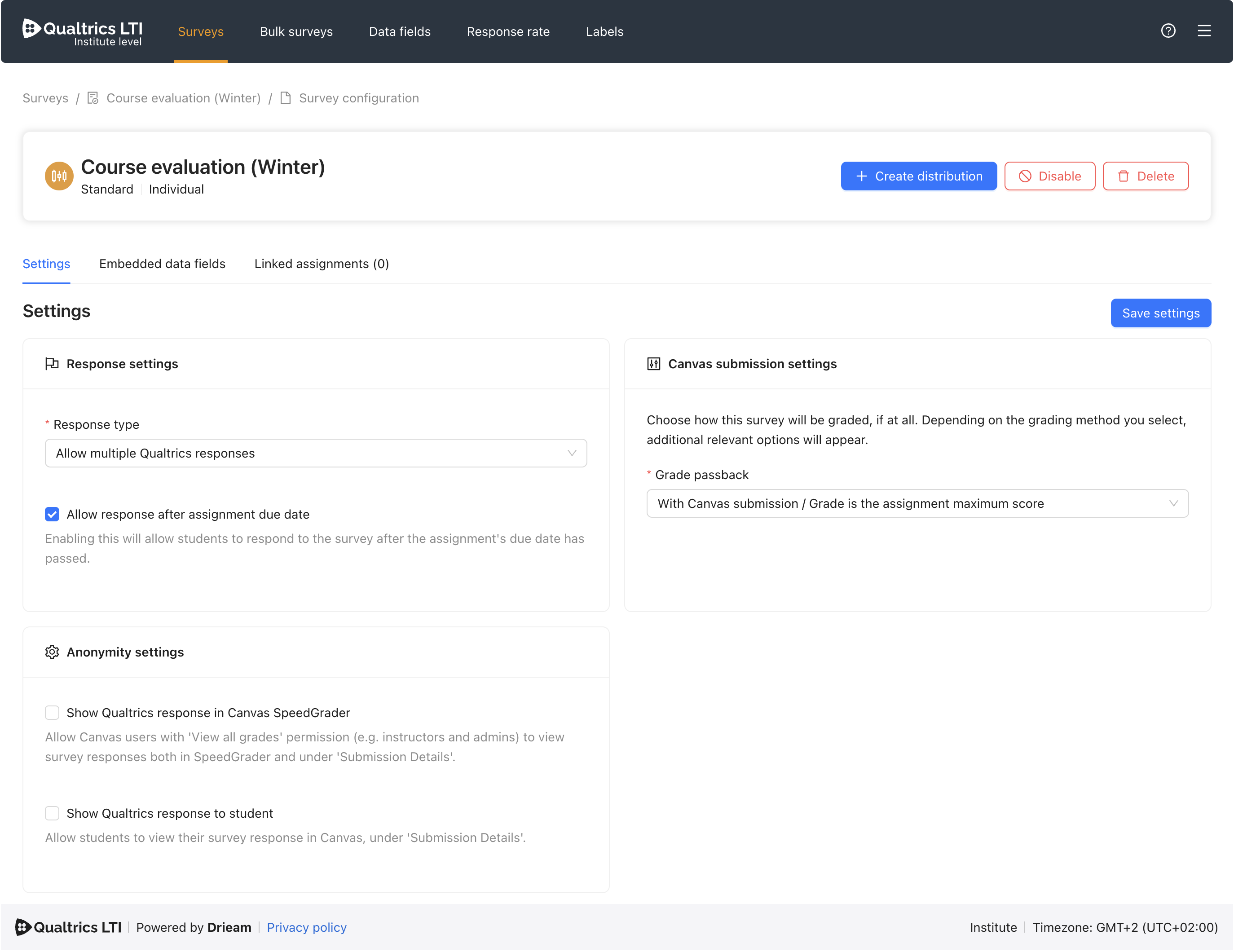
Response settings
Note: These settings pertain to Qualtrics responses. For more information, see Qualtrics' Recorded Responses article.
Response type
This setting affects how many responses a student is allowed to take for a given survey.
Allow multiple Qualtrics responses
A student can open and respond to a Qualtrics survey multiple times.
Each time that they respond, a new response (see Qualtrics: Recorded Responses) is made in Qualtrics, and any previous responses are preserved (according to your Qualtrics survey settings). As a result, there may be many responses per student.
Limit to 1 Qualtrics response
A student can open and respond to a Qualtrics survey just once.
When they open the assignment a second time, we will show a message stating that they have already responded.
Allow update to Qualtrics response
A student can open and respond to a Qualtrics survey multiple times.
Each time they respond, any original response (see Qualtrics: Recorded Responses) will be loaded with its answers pre-filled. Any subsequent response replaces the original. As a result, there will be one response per student.
Note: This setting only applies to a survey that has been opened within the Canvas assignment. If a Canvas-side setting (e.g. due date) prevents the student from opening the assignment, then this setting will not apply.
Allow response after assignment due date
There are situations in which you may want students to be able to access the assignment after its original due date.
Similarly, there are rare situations in which a student has opened an assignment prior to its due date but filled in the survey response after the due date (e.g. by opening the assignment in advance and then waiting).
This setting lets you choose whether to accept responses that are made after the due date has passed.
On
If a student opens the assignment after its due date, we will render the survey, allow them to respond, and pass the grade back to Canvas (per your Survey configuration's settings).
We will send Reminders (see 📄 Notifications Guide) to students who have not yet completed the assignment even if the due date has been passed — but not if the Available until date has passed.
Off
If a student opens the assignment after its due date, we will not render the survey. If the survey had already been opened and they filled it in late, then we will not pass the grade back to Canvas, however a response in Qualtrics will still be made.
We will not send Reminders (see 📄 Notifications Guide) to students who have not yet completed the assignment if the due date has passed.
Canvas submission settings
Note: These settings pertain to Canvas submissions. A submission is a record that each student has per assignment, and is updated whenever they "submit" an assignment.
Grade passback
This setting allows you to choose whether a student's submission record is updated when they respond to the Qualtrics survey, including whether or not they also receive a grade (and, if so, how that grade is calculated).
With Canvas submission: Grade not registered
When a student responds to the survey within an assignment:
Their submission record will be updated.
They will not receive any grade.
With Canvas submission: Grade is the assignment maximum score
When a student responds to the survey within an assignment:
Their submission record will be updated.
They will receive a grade of 100%.
Example:
If the Canvas assignment is worth 20 points, then a student who completes a response to the survey will receive a score of 100% and a grade of 20. The figure that is displayed in the Canvas gradebook is dependent on the setting you select in your Canvas assignment. For example, selecting 'Complete/Incomplete' will display a checkmark in the gradebook if the student completes the survey.
With Canvas submission: Grade is the percentage of the Qualtrics score
When a student responds to the survey within an assignment:
Their submission record will be updated.
They will receive a grade of
X%.Xis determined by the scoring of the Qualtrics survey (see Qualtrics: Scoring).
Example:
If the Canvas assignment is worth 20 points and the Qualtrics survey has 10 questions with 1 point each, then a student who answers 5/10 will receive a score of 50% and a grade of 10.
No Canvas submission: Grade not registered
When a student responds to the survey within an assignment:
Their submission record will not be updated.
Note: As a consequence, students may receive Reminders (see 📄 Notifications Guide) even if they have completed the survey, as Qualtrics LTI checks the submission record to determine if a student has responded.
They will not receive any grade.
Tip: Giving students a grade in return for responding to a survey is a fantastic way to increase response rates!
Note: If anonymity is crucial, then we recommend choosing the No Canvas submission: Grade not registered setting so that the grade does not appear in Canvas SpeedGrader or the gradebook. All of the options With Canvas submission will show some indication to instructors/admins on which students have and have not completed the survey.
Anonymity settings
Note: These settings only apply if you have chosen to pass the grade back to Canvas (see § Canvas submission settings).
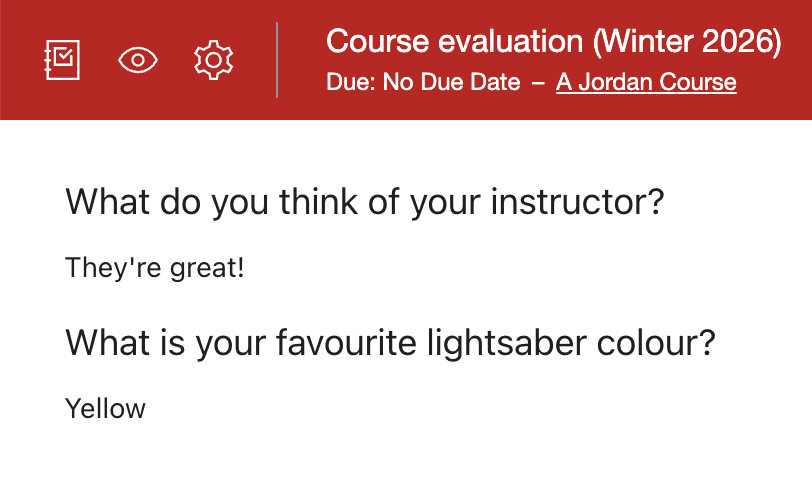
Show Qualtrics response in Canvas SpeedGrader
This setting affects what an instructor/admin sees when viewing a student's submission in SpeedGrader.
On
The instructor will see a copy of the student's response, including answers to each question.
Off
The instructor will not see a copy of the student's response, and will instead see a message informing them that this setting has been disabled in Qualtrics LTI.
Note: If anonymity is crucial, then we recommend to turn this Off.
Show Qualtrics response to student
This setting affects what a student sees when viewing their own submission after clicking View Submission in Canvas.
On
The student will see a copy of their response, including answers to each question.
Off
The student will not see a copy of their response, and will instead see a message informing them that this setting has been disabled.