Domain Configuration Guide
Last updated: August 3, 2026
Introduction
Before you can add surveys to any of Qualtrics LTI's three levels (Institute, Department, or Personal Surveys), you must first configure your Qualtrics domain with Qualtrics LTI.
Note: Qualtrics domains are also known as "brands" or "organizations". In this article, we will use the term "domain".
Institute / Department Levels
For both of these levels, a Qualtrics domain must be linked to the corresponding institute or department level before surveys can be added. When you link a Qualtrics domain, you will also provide a Qualtrics API token.
An institute or department level can only be linked to one of the connected domains.
All surveys that the owner of this Qualtrics API token has access to in Qualtrics can then be added to Qualtrics LTI on that level.
See 📄 Qualtrics LTI Levels: Institute, Department, Personal Surveysfor more information.
Personal Surveys
Unlike the Institute / Department levels, users of the Personal Surveys level are not asked to provide a Qualtrics API token. Instead, they are asked to log in via an OAuth2 login flow.
A user may only log into one of the connected domains. If they attempt to log into another domain, we will reject the login and return them to the login screen.
After a user has logged in, all surveys that the account that they logged into has access to in Qualtrics can then be added to Qualtrics LTI on their Personal Surveys level.
See 📄 Qualtrics LTI Levels: Institute, Department, Personal Surveys for more information.
Connecting a Qualtrics domain
Note: These settings are only available on the Institute level. This allows root account administrators to determine which Qualtrics domains are available to users of Departments and Personal Surveys.
You will need both a Qualtrics brand administrator and a Canvas root account admin to proceed.
1. Qualtrics
Note: This section pertains to the brand administrator of your Qualtrics domain.
In order to connect the domain to Qualtrics LTI, you first need the following information from Qualtrics:
Brand/Organization ID (e.g.
myuniversityname)You can find this in Qualtrics → Account Settings → User → Brand/Organization ID.
Datacenter ID (e.g.
yul1).You can find this in Qualtrics → Account Settings → User → Datacenter ID.
Brand administrator API token
You can find this in Qualtrics → Account Settings → API → Token.
This is only required once to authorize the webhook that Qualtrics uses to inform Qualtrics LTI of when a student has responded to a survey. After the webhook is authorized, we immediately discard the token.
Personal Surveys
If you intend to use Personal Surveys, you will also need to set up an OAuth2 client:
Navigate to Qualtrics → Account Settings → OAuth Client Manager.
Click on the Create Client button.
Fill in the following information:
Name: Your choice: We recommend "Qualtrics LTI - Personal Surveys".
Contact: Your choice.
Scopes:
manage:surveys read:survey_responses read:usersGrant Type: Authorization Code
Redirect URLs:
🇪🇺 EU Server: https://qualtrics.drieam.com/qualtrics/oauth2/callback
🇺🇸 US Server: https://us.qualtrics.drieam.app/qualtrics/oauth2/callback
Unsure which server you are located on? Feel free to reach out to support@drieam.nl.
Click Create Client and copy the Client ID and Client Secret that are shown in the subsequent modal.
⚠ Please note: The Client Secret will only be shown once, and will disappear when you click Close. Keep this somewhere safe and temporary.
2. Qualtrics LTI
Note: This section pertains to the root account admin of your Canvas instance.
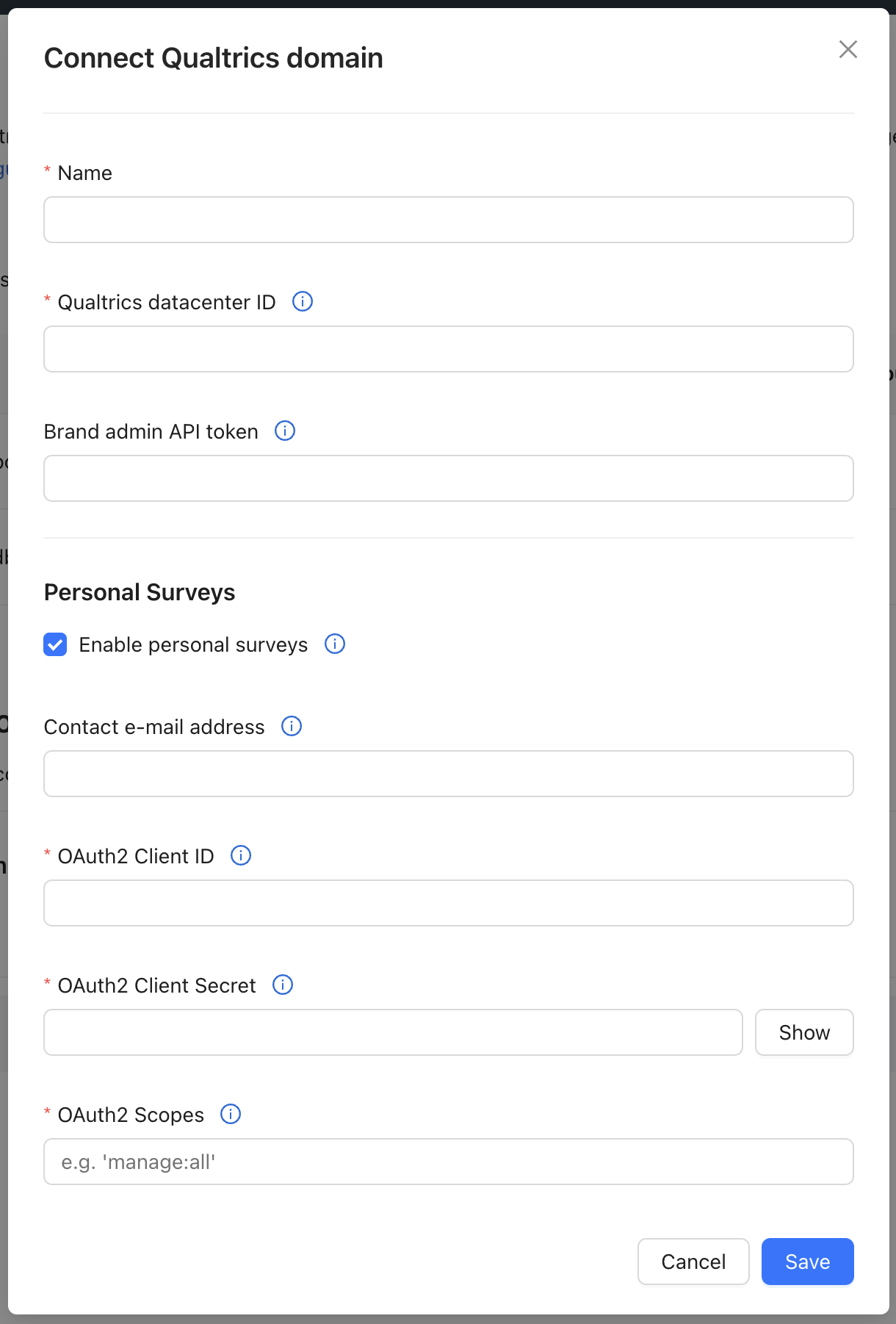
At the Institute level in Qualtrics LTI, navigate to the <Menu> → Domain Configuration and follow these steps:
Click + Connect Qualtrics domain.
Fill out the following information:
Name: Your choice. This is shown in a drop-down in the 'Linked Qualtrics domain' section and to Personal Surveys users when logging in.
Qualtrics datacenter ID: Add the Brand/Organization ID and Datacenter ID from the previous section together, joined by a period.
Example:
myuniversityname.yul1.You still need to do this even if you use a Qualtrics Vanity URL.
Brand admin API token: The Brand administrator API token from the previous section.
Personal Surveys
If you would like Personal Surveys to be available for use at your institution, you will also need to follow these steps:
Check the Enable personal surveys field.
Fill in the following information:
Contact e-mail address: Your choice. This is shown to Personal Surveys users when they click on the 'Help' icon on the login screen.
OAuth2 Client ID: The Client ID from the previous section.
OAuth2 Client Secret: The Client Secret from the previous section.
OAuth2 Scopes:
manage:surveys read:survey_responses read:users.
Once you have finished filling the form out, hit Save. You are now ready to link the domain to Institute/Department levels, and Personal Surveys users can now log into the domain.
Linking a Qualtrics domain
1. Qualtrics
Before linking a domain to an Institute/Department level, you must decide which Qualtrics user account's surveys you would like to be able to add and configure to Qualtrics LTI on that level.
Tip: This could be a single user's Qualtrics account, or even a shared resource account. Survey access control is handled entirely on the Qualtrics side.
Once you have decided, you must retrieve that user's API token from Qualtrics. You can find this in Qualtrics → Account Settings → API → Token.
2. Qualtrics LTI
You are now ready to link your Qualtrics domain to an Institute/Department level. You only need to do this if you want to add Qualtrics surveys to that level.
At the Institute or a Department level in Qualtrics LTI, navigate to the <Menu> → Domain Configuration and follow these steps:
Click + Link Qualtrics domain.
Fill out the following information:
Linked Qualtrics domain: One of the domains that you connected by following the steps of § Connecting a Qualtrics domain.
Linked Qualtrics API token: The API token from the previous section.
Warning: If you replace the API token of another user, then any surveys that the owner of the old API token has access to that the new owner does not may cease to function correctly.